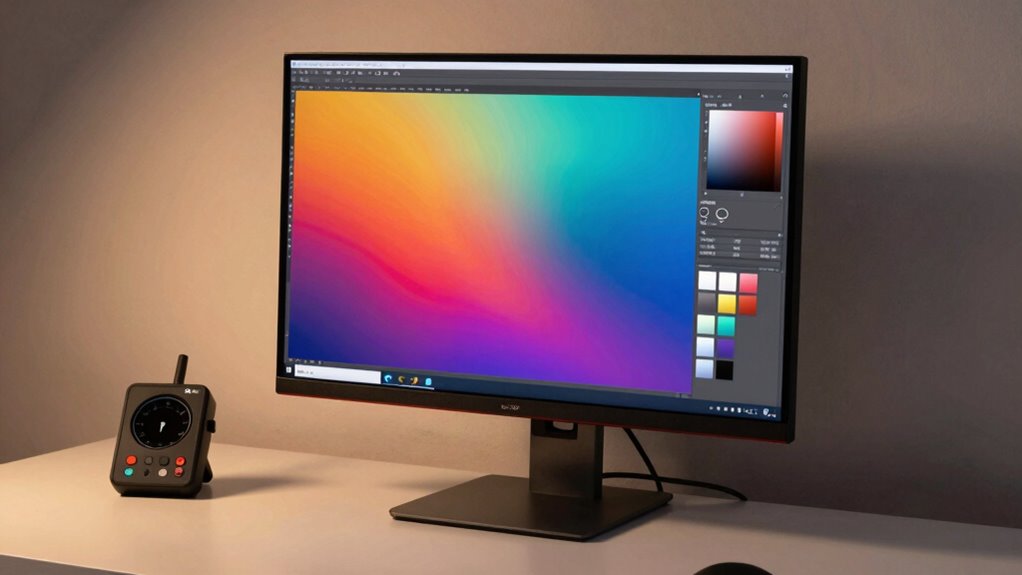

In just 15 minutes, you can dramatically improve your monitor’s color accuracy and overall visual quality with a quick calibration routine. Start by preparing your monitor in a stable environment—dim the lights, position it at eye level, and let it warm up. Use built-in or free calibration tools to fine-tune brightness, contrast, and color settings. Regular checks guarantee consistent performance. Keep going to access the full potential of your display and enjoy a more vivid, accurate image experience.

Get art and craft supplies delivered free with Prime
- Fast, free delivery on millions of items
- Prime Video, Amazon Music and more included
- Member-only deals all year
Key Takeaways
- Perform quick calibration using built-in tools or free software to ensure color accuracy in just 15 minutes.
- Prepare your environment with neutral, diffused lighting and minimal glare for optimal calibration results.
- Warm up your monitor for a few minutes to stabilize color and brightness before calibration.
- Adjust brightness, contrast, gamma, and color temperature to precise settings using calibration guides or test images.
- Regularly verify and recalibrate to maintain consistent, accurate display quality over time.
As an affiliate, we earn on qualifying purchases.
Why Accurate Color Calibration Improves Your Viewing Experience
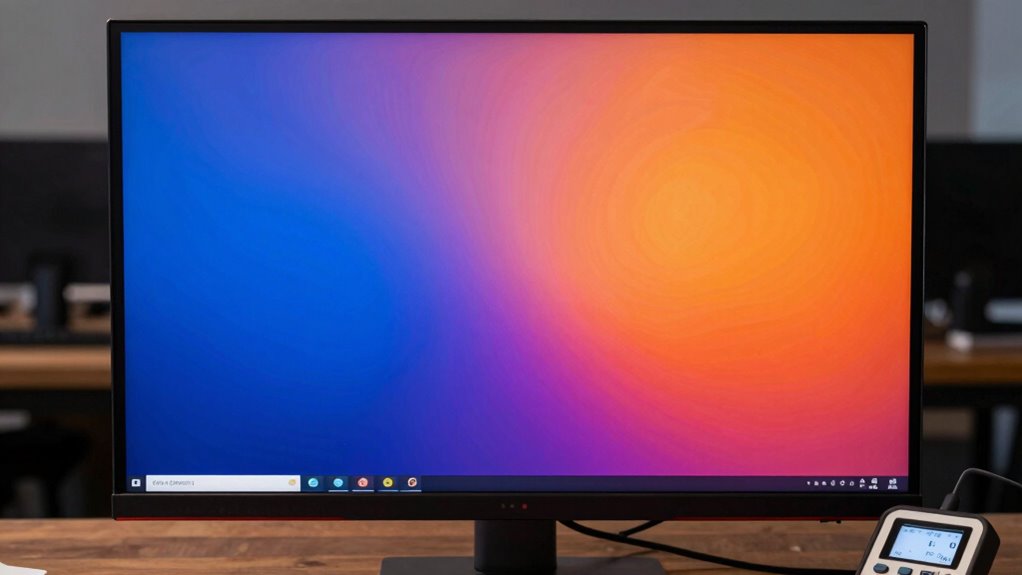
Accurate color calibration guarantees that the images and videos you see on your monitor appear as intended, providing a more realistic and vivid viewing experience. When your display is properly calibrated, it maintains color consistency across different applications and media, so you see true-to-life colors every time. This consistency enhances your overall viewing comfort, reducing eye strain caused by overly bright or mismatched hues. By ensuring colors are accurate and stable, calibration helps you focus better, whether you’re editing photos, watching movies, or gaming. It minimizes the need to adjust brightness or contrast constantly, resulting in a smoother, more enjoyable experience. Additionally, using proper measurement tools ensures that calibration settings are precise and reliable. Regular calibration routines help maintain color accuracy over time, especially as displays age or environmental conditions change. Incorporating these practices can significantly improve your visual experience and extend the lifespan of your monitor. In short, proper calibration transforms your monitor into a reliable tool for immersive and comfortable viewing.
As an affiliate, we earn on qualifying purchases.
Prepare Your Monitor Quickly for Calibration

Before you begin calibrating your monitor, it’s important to prepare it properly to guarantee accurate results. Start by organizing your desk setup so your monitor is free of clutter and positioned at eye level. This ensures consistent viewing angles and reduces strain. Next, check your ambient lighting; avoid direct sunlight or harsh overhead lights that can affect your perception of colors. Use soft, diffused lighting to create a neutral environment. Turn off any nearby screens or reflective surfaces that could introduce glare. Allow your monitor to warm up for a few minutes if it’s been off, as this stabilizes its color and brightness. Additionally, understanding the importance of ambient light conditions can significantly improve calibration accuracy. Being aware of lighting consistency further ensures your calibration results stay accurate over time. Incorporating monitor response time considerations can help you achieve more precise calibration, especially for fast-moving visuals. Recognizing the impact of monitor calibration environment can also help you create optimal conditions for accurate results. Taking these quick steps helps create ideal conditions, making your calibration process more precise and reliable. Moreover, maintaining a consistent calibration environment over time prevents drift and ensures ongoing accuracy.
As an affiliate, we earn on qualifying purchases.
Use Built-In and Free Tools for Fast Calibration
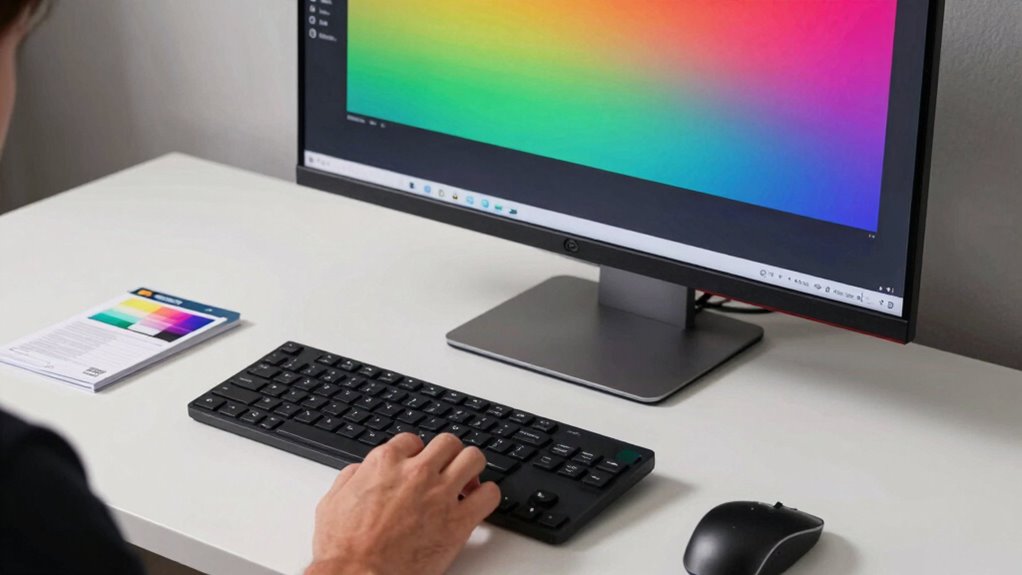
Many monitors come with built-in calibration tools that make fine-tuning easy and quick. These features often include simple calibration software and preset color profiles, helping you achieve accurate colors without extra equipment. Using these tools, you can instantly adjust your display to match industry standards or personal preferences. Here’s a quick overview:
| Tool Type | Benefits | Example Use Case |
|---|---|---|
| Built-in calibration | Fast, no extra software needed | Perfect for quick setup |
| Free calibration software | Precise control over color profiles | Fine-tuning for photography |
| Color profiles | Consistent color across apps | Ensuring accurate editing |
| Automatic adjustments | Saves time and effort | Everyday casual use |
| User presets | Personal preferences saved | Repeated tasks or projects |
Leverage these free tools to make calibration simple, saving you time and enhancing your display accuracy. Additionally, understanding software quality assurance principles can help ensure your calibration process remains consistent and reliable. To further improve your calibration process, familiarize yourself with monitor calibration best practices to achieve optimal results every time. Incorporating proper ambient lighting can also minimize glare and reflections, contributing to more accurate calibration outcomes.
As an affiliate, we earn on qualifying purchases.
Adjust Brightness, Contrast, and Colors for Best Results

Adjusting your monitor’s brightness, contrast, and color settings is essential for achieving the best possible image quality. Set the brightness so blacks appear deep without losing detail, and adjust contrast to make whites crisp without washing out colors. Focus on the color temperature, aiming for a neutral 6500K for accurate hues. Use gamma adjustment to fine-tune midtones, ensuring images aren’t overly dark or washed out. Proper gamma and color temperature help your display produce natural, consistent colors across different applications. Avoid overly vibrant or dull settings that distort the image. Take your time to tweak these controls, and use test images or calibration tools if needed. When done correctly, your monitor will deliver more accurate colors and better overall image clarity. Regular calibration is also crucial for consistent accuracy, and helps prevent color drift over time. Maintaining calibration tools can streamline this process and improve your results. Incorporating color accuracy considerations can further enhance your viewing experience, ensuring true-to-life visuals. Additionally, understanding how display calibration impacts your workflow can help you maintain optimal image quality over the long term.
Verify Your Monitor’s Color Accuracy

To guarantee your monitor displays colors accurately, it’s essential to verify its color calibration regularly. Conducting a color test helps identify any shifts in color accuracy. Use calibration software to run these tests effectively. This software guides you through the process, ensuring your monitor reproduces colors faithfully. Proper piercing care and hygiene can also prevent color distortion in display settings caused by environmental factors. Additionally, maintaining a consistent lighting environment can improve calibration results and prevent false discrepancies. Environmental factors like humidity control can also influence display performance, making it important to keep your workspace stable. Regular calibration checks can also help detect early warning signs of display issues before they become more serious. Consistent calibration practices are essential for maintaining color fidelity, especially for professionals working on color-sensitive projects. Calibration software simplifies this process, making it quick and straightforward.
Maintain and Troubleshoot Your Monitor’s Calibration
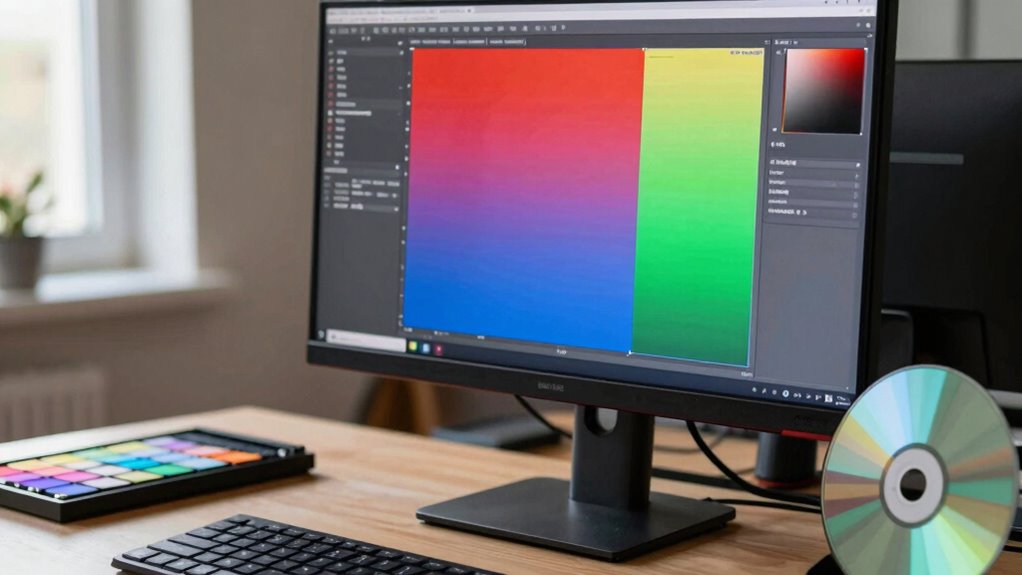
Once you’ve verified your monitor’s color accuracy, maintaining its calibration becomes an ongoing task. Regular hardware maintenance, like cleaning the screen and checking connections, helps prevent issues that can skew colors. Keep your monitor’s firmware and calibration software up to date with the latest software updates, ensuring compatibility and bug fixes that support accurate display performance. If you notice color shifts or inconsistencies, troubleshoot by recalibrating using your calibration tool or software. Sometimes, recalibration is necessary after hardware adjustments or if your monitor’s settings get reset. Consistently monitoring and performing these routine checks preserve your calibration, making sure your colors stay true over time. This proactive approach minimizes the need for major adjustments later, keeping your workflow precise and your visuals consistent. Incorporating regular maintenance practices can further support your efforts in monitor calibration and maintaining optimal display accuracy.
Frequently Asked Questions
How Often Should I Recalibrate My Monitor for Optimal Color Accuracy?
You should recalibrate your monitor weekly for maximum color accuracy. Regular calibration guarantees your monitor maintains the right color temperature, preventing drift over time. Use calibration software to streamline the process, making it quick and consistent. This routine helps you catch any color shifts early, keeping your display precise for editing, design, or just enjoying vivid visuals. Consistent calibration is key to staying on top of accurate colors.
Can Calibration Settings Affect My Monitor’s Hardware Longevity?
Calibration settings won’t directly cause hardware deterioration, but neglecting proper calibration frequency can lead to overexerting your monitor’s components. If you ignore calibration, you might push your display beyond ideal performance, risking long-term damage. Regular, quick calibration routines protect your monitor’s longevity, ensuring it stays healthy and accurate. Think of calibration as a crucial tune-up—skipping it could accelerate wear and tear, shortening your monitor’s lifespan unnecessarily.
What Are Common Calibration Mistakes to Avoid?
You should avoid common calibration mistakes like neglecting to select the correct color space, which can distort colors. Always use reliable calibration tools and follow their instructions carefully. Don’t skip adjusting gamma and brightness settings, as these impact image quality. Also, recalibrate regularly to maintain accuracy. By paying attention to these details, you’ll ensure your monitor’s colors stay true and your calibration is effective.
Do Different Types of Monitors Require Different Calibration Procedures?
Think of monitors as different musical instruments; each needs a unique tuning. Yes, different monitors require tailored calibration procedures. You’ll need to adjust color profiles and use specific calibration tools suited for each type—like a violin and a trumpet needing different techniques. Whether it’s an OLED, LCD, or LED, customizing your approach guarantees accurate colors and ideal display performance. Always choose the right tools for the job to get perfect harmony.
How Does Ambient Lighting Impact Monitor Calibration Results?
Ambient light critically impacts your monitor calibration results by affecting how colors and brightness appear. Excessive or uneven ambient light can cause your screen to look different from calibration standards, reducing color consistency. To guarantee accurate calibration, you should control ambient lighting—use neutral, consistent lighting conditions—and perform calibration in a dim environment. This helps maintain the integrity of your color accuracy and ensures your monitor displays colors precisely.
Conclusion
Just 15 minutes of your day can revolutionize your entire viewing experience—turning dull, washed-out colors into stunning, vibrant visuals that blow your mind. With quick calibration routines, you’ll be amazed at how perfectly your monitor can display every hue, shadow, and highlight. Don’t settle for mediocre visuals—commit to this simple routine, and watch your screen transform into a masterpiece. It’s so easy, you’ll wonder how you ever survived without it!
Halloween Picks
halloween
As an affiliate, we earn on qualifying purchases.