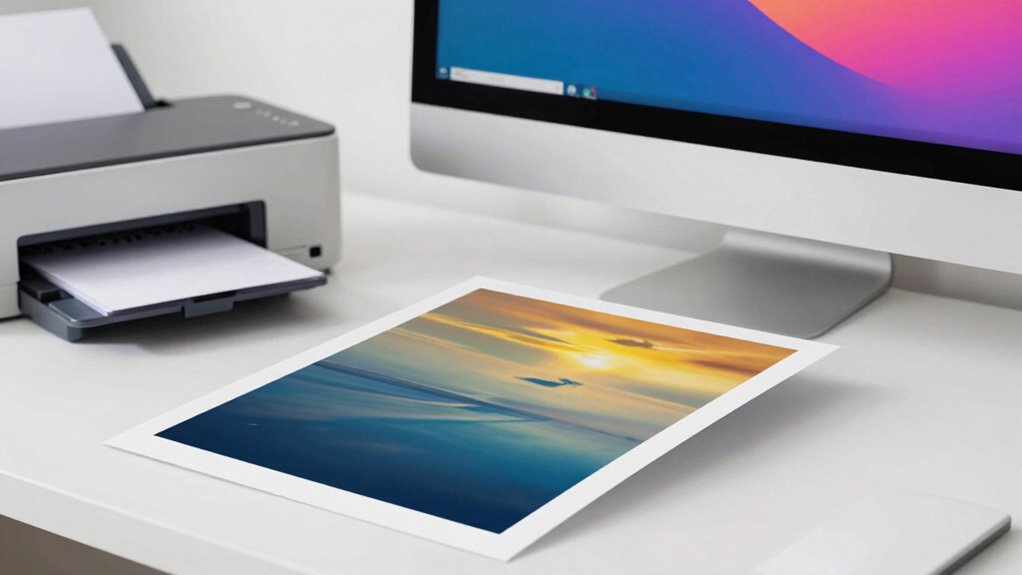

Your prints often don’t match your screen because of mismatched color profiles, poor calibration, and inconsistent device settings. Monitors and printers need to be calibrated regularly and assigned proper color profiles to guarantee they interpret colors correctly. Using high-quality paper and matching ink also makes a difference. If you don’t manage these factors carefully, color discrepancies happen. To fix this, you need to check, adjust, and calibrate your devices properly—more tips lie ahead.
Key Takeaways
- Uncalibrated monitors and printers can display and produce colors differently, causing mismatches. Regular calibration ensures consistent color accuracy.
- Using incompatible or outdated color profiles between your screen and printer leads to color discrepancies; update and match profiles properly.
- Digital files in color spaces larger than your printer’s gamut (e.g., Adobe RGB vs. CMYK) can cause dull or inaccurate print colors.
- Neglecting proper printer calibration and incorrect paper or ink choices can result in color shifts and mismatched prints.
- Soft-proofing your digital files before printing helps preview and adjust colors for accurate print output.
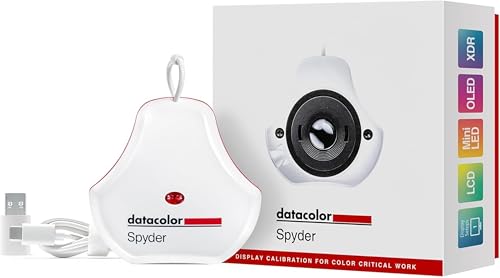
datacolor Spyder – Monitor Calibrator for Graphic Designers, Photographers, and Content Creators, Shows You True Colors, Works on OLED Monitors & LED Screens, Easy-to-Use Color Calibration Tool
Color “Surprises” Are a Thing of the Past: Datacolor’s exclusive DevicePreview TM Beta feature simulates what your photos…
As an affiliate, we earn on qualifying purchases.
As an affiliate, we earn on qualifying purchases.
Why Your Prints Don’t Match Your Screen (And the Fix Nobody Explains)
If your printed colors look different from what you see on your screen, you’re not alone. Digital color can be tricky because your monitor setup directly impacts how colors appear. Many screens display colors differently due to variations in monitor calibration, brightness, and contrast settings. When your display isn’t properly calibrated, it creates a mismatch between what you see on your screen and the actual print colors. Ensuring your monitor setup accurately represents digital color is essential. Use tools like calibration devices or software to adjust your monitor’s color profile. Proper calibration helps you see a more accurate representation of colors, making it easier to match your prints to what you see on the screen. This simple step can considerably reduce color discrepancies. Additionally, understanding how color accuracy impacts image quality can help you make better adjustments for consistent results.
datacolor Spyder – Monitor Calibrator for Graphic Designers, Photographers, and Content Creators, Shows You True Colors, Works on OLED Monitors & LED Screens, Easy-to-Use Color Calibration Tool
Color “Surprises” Are a Thing of the Past: Datacolor’s exclusive DevicePreview TM Beta feature simulates what your photos…
As an affiliate, we earn on qualifying purchases.
As an affiliate, we earn on qualifying purchases.
How Color Profiles and Calibration Impact Your Print and Screen Colors
Color profiles and calibration play a key role in ensuring your screen and printed colors match more closely. Proper color profiles tell devices how to interpret colors consistently, while calibration adjusts your display and printer to produce accurate colors. When both are aligned, color discrepancies decrease markedly. Additionally, understanding the battery capacity of your devices can help you maintain optimal performance during color-critical tasks. Using mismatched profiles or neglecting calibration causes color shifts. Ensuring your devices use the correct profiles and are calibrated helps you achieve closer color consistency between your screen and prints. Regularly checking your color management workflow can further improve results and prevent unexpected color variations.

DGK Color Tools Digital Kolor Pro 16:9 Large Color Calibration and Video Chip Chart, 2-Pack
SUPERIOR ACCURACY – Ensures precise color calibration with professional-grade chips, delivering consistent and reliable results for video production.
As an affiliate, we earn on qualifying purchases.
As an affiliate, we earn on qualifying purchases.
Checking and Adjusting Your Screen and Printer Settings
To guarantee your screen and printer produce matching colors, start by checking their current settings and making necessary adjustments. Begin with monitor calibration to ensure your display accurately reflects colors, using calibration tools or software. This step helps set a consistent baseline for color accuracy. Next, review your printer profiles; these profiles tell your printer how to interpret color data from your computer. Make sure you select the correct profile for your printer and paper type. Adjust printer settings to match these profiles, avoiding automatic color corrections that can distort results. Consistently updating your monitor calibration and selecting appropriate printer profiles ensures your colors stay aligned across devices. Properly checking and adjusting these settings lays a solid foundation for achieving accurate color matching between your screen and prints. Additionally, paying attention to design consistency in your color management process can further improve matching accuracy. Regularly verifying your color profiles and maintaining consistent lighting conditions can also help ensure your print colors remain true to your digital design. Moreover, understanding how ambient lighting affects color perception can significantly impact your ability to match colors accurately. Incorporating visual comparison techniques can further refine your color matching process and help identify discrepancies more effectively. Being aware of the device calibration process is crucial for establishing reliable color accuracy over time.
N NOROCME 192 PCS Cable Management Kit 4 Wire Organizer Sleeve,11 Cable Holder,35Cord Clips 10+2 Roll Cable Organizer Straps and 100 Fastening Cable Ties for Computer TV Under Desk, black,clear
Cable Management Kit: 4pcs Cable Sleeves( 20 in L x 0.4 in w), 20pcs reusable wire ties,35Cable Clips…
As an affiliate, we earn on qualifying purchases.
As an affiliate, we earn on qualifying purchases.
Calibrating Your Devices for Accurate Color Matching
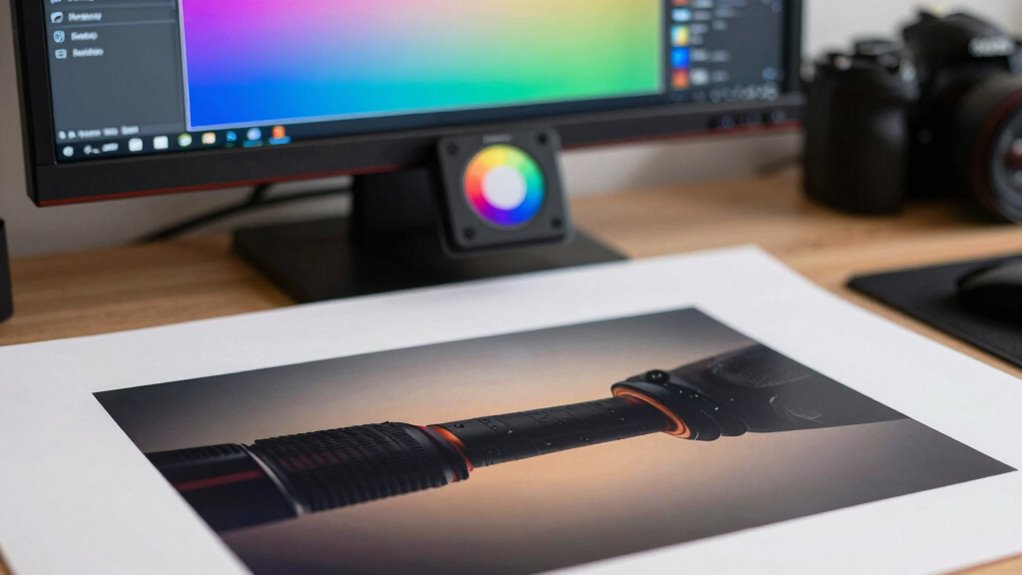
Calibrating your devices is essential for achieving accurate color matches between your screen and printer. Proper calibration guarantees consistent color output, improving color consistency across your devices. Start by using a reliable calibration tool or software designed for your monitor and printer. These tools help adjust color profiles for precise device synchronization, reducing discrepancies. Regular calibration keeps your devices aligned, especially after updates or changes in hardware. When your monitor and printer are calibrated correctly, the colors you see on-screen will closely match your printed results. This process minimizes guesswork and ensures your workflow remains predictable. Remember, calibration isn’t a one-time fix; maintaining it helps you consistently produce prints that match your digital images. Accurate device calibration is key to bridging the gap between screen and print. Additionally, awareness of indoor air quality can influence your workspace environment, ensuring your devices operate in optimal conditions for the best calibration results.
Practical Steps to Match Print and Screen Colors
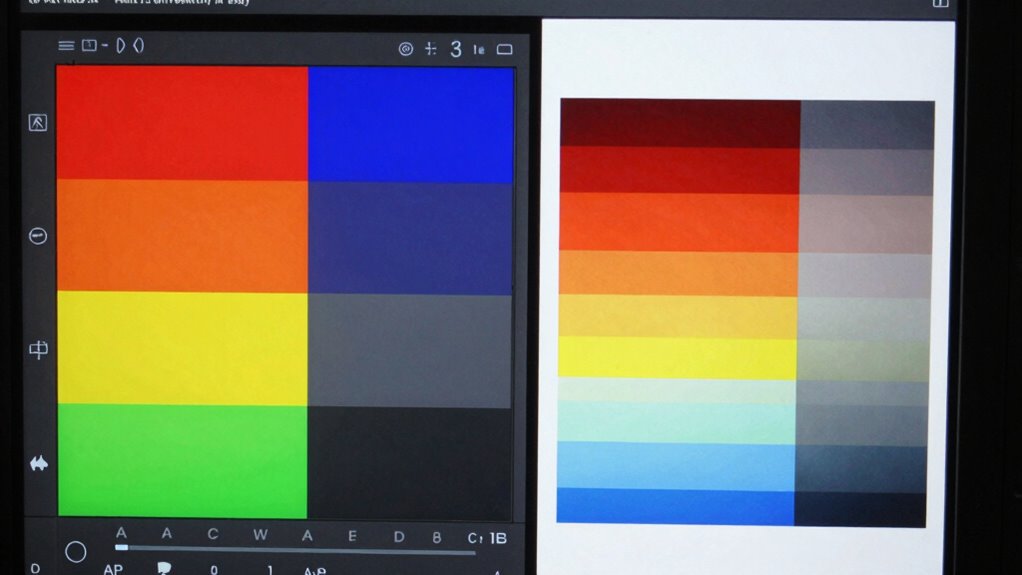
To improve color consistency between your screen and print, start by calibrating your devices regularly to guarantee accurate color display. Use color management tools to fine-tune settings and achieve better matches. Additionally, selecting the right paper and ink can make a noticeable difference in how your prints look compared to what you see on screen.
Calibrate Your Devices
Ensuring your devices display and print colors accurately starts with proper calibration. Start by calibrating your monitor using a hardware calibration tool; it adjusts your display’s color accuracy and guarantees consistency. Follow the manufacturer’s instructions, and then set your display’s profile to match the calibration. For printers, use calibration tools or test prints to fine-tune color output. Regular calibration is essential because screens and printers drift over time, affecting device synchronization. Keep your software and drivers updated to support accurate color management. When your devices are calibrated correctly, they’re aligned, making it easier to predict how colors will appear across screens and prints. This foundational step eliminates guesswork and improves overall color consistency. Device calibration is crucial for maintaining color accuracy over time, especially as technology updates or environmental conditions change. Additionally, understanding color management principles can further enhance your ability to achieve consistent results.
Use Color Management Tools
Using color management tools is essential for accurately matching colors between your screen and print. These tools help you understand and control the color gamut, ensuring that the colors you see digitally can be reproduced in print. By applying color profiles and calibration software, you improve color consistency across devices. Color management helps you visualize how colors will appear in the final print, reducing surprises and mismatches. It also standardizes color settings, so your monitor displays colors within a consistent range. This process minimizes discrepancies caused by differing device gamuts and ensures your printed work closely matches what you see on screen. Understanding passive voice detection can further refine your writing clarity and professionalism. Ultimately, using these tools streamlines your workflow and delivers more predictable, accurate color results.
Select Proper Paper and Ink
Choosing the right paper and ink is essential because they directly influence how colors appear in your final print. High-quality paper affects color vibrancy and detail, while selecting suitable ink types guarantees accurate color reproduction. To optimize your results:
- Choose paper with a smooth surface and good paper quality for consistent ink absorption
- Use ink types compatible with your printer and intended output (e.g., dye-based or pigment-based)
- Consider matte or gloss finishes based on your desired look and color depth
- Test small samples before committing to large prints to evaluate how different paper and ink combinations affect color accuracy
Troubleshooting Common Color Matching Problems
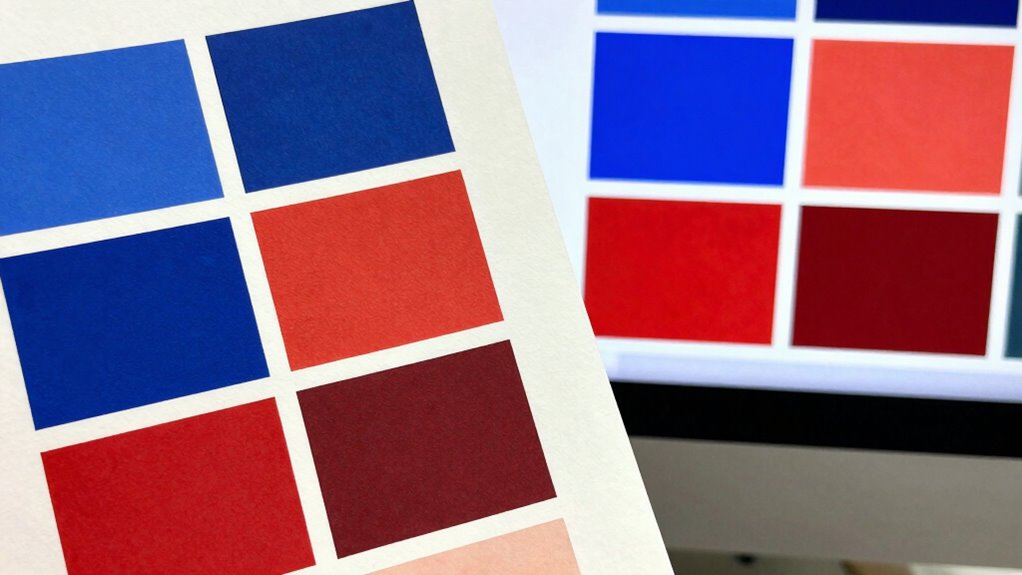
When colors don’t match, the issue often comes down to color space discrepancies or printer calibration errors. You need to verify if your screen and printer are using compatible color profiles and guarantee your printer is properly calibrated. Addressing these core issues can quickly improve your color accuracy. Incorporating simple recovery routines like foam rolling can also help reduce physical tension that may affect your perception of color accuracy and overall workflow. Ensuring your monitor is calibrated with professional tools can further enhance your ability to match colors accurately.
Color Space Discrepancies
Color space discrepancies often cause mismatches between digital designs and printed materials. Your monitor’s color can appear vibrant and wide-ranging, but the print gamut might be much narrower, leading to color loss. If your digital file uses a color space like Adobe RGB, it may contain colors that your printer simply can’t reproduce. This mismatch results in prints looking dull or different from what you see on screen. To troubleshoot, consider these points:
- Check your monitor’s color profile for accuracy.
- Convert your design to a print-specific color space, like CMYK.
- Be aware of the limitations of your printer’s print gamut.
- Use soft-proofing to preview how colors will translate to print.
- Remember that color space discrepancies are a common cause of color mismatch and understanding them can significantly improve your print results.
- Understanding color management helps you better anticipate how colors will appear across different devices and media.
- Additionally, familiarizing yourself with color profiles can help you achieve more consistent color reproduction from screen to print.
- Knowing the differences in color gamuts between devices allows you to select the best approach for accurate color matching.
Understanding these differences helps ensure your prints match your digital design as closely as possible.
Printer Calibration Errors
Printer calibration errors are a common culprit behind color mismatches in printed materials. When your printer isn’t properly calibrated, it struggles to produce consistent colors that match your screen. This affects color consistency, making it difficult to achieve accurate prints. To fix this, start by running your printer’s calibration process, often found in the settings or maintenance menu. Use calibration tools or color targets to ensure your printer’s output aligns with standard color profiles. Regular calibration helps maintain consistent color reproduction over time. Keep in mind that printers can drift out of calibration due to environmental factors or frequent use. By maintaining proper calibration routines, you’ll improve color accuracy and ensure your printed results match what you see on your screen.
Frequently Asked Questions
How Do Different Paper Types Affect Print Colors Compared to Screen Display?
Different paper types affect print colors because ink absorption varies with paper texture. Smooth, coated papers prevent ink from spreading, resulting in vibrant, accurate colors that match your screen more closely. Matte or textured papers absorb ink differently, often dulling colors and causing discrepancies. You notice color shifts because the paper’s texture influences how the ink settles, making it essential to choose the right paper for color fidelity that aligns with your digital display.
Can Ambient Lighting Influence How Colors Appear on My Print and Screen?
Ambient lighting definitely influences how colors appear on your print and screen. When your environment has warm, dim, or harsh lighting, it alters your color perception, making images look different than they do under neutral or natural light. To get the most accurate colors, try viewing your prints and screen under consistent, neutral lighting conditions, preferably daylight or balanced artificial light, ensuring true color representation and reducing discrepancies.
What Software Tools Are Best for Advanced Color Management Calibration?
For advanced color management calibration, you should use software tools like X-Rite i1Profiler or CalMAN, which excel at precise color profiling and software calibration. These programs allow you to create accurate color profiles tailored to your monitor and printer, ensuring consistent color output. They guide you through calibration steps, helping you align your screen’s color with printed results, ultimately reducing discrepancies and improving your workflow’s reliability.
Do Age and Wear of Printer Components Impact Color Accuracy?
Think of your printer as a fine-tuned orchestra—age and wear can throw it offbeat. As components like belts and rollers age, they impact color accuracy, making maintenance essential. Worn parts can cause uneven ink distribution and muddier hues, affecting ink longevity and print quality. Regular printer maintenance helps keep colors vibrant and consistent, ensuring your prints match your screen and that your ink lasts longer, saving you time and money.
How Often Should I Recalibrate My Monitor and Printer for Consistent Results?
You should recalibrate your monitor and printer at least once a month for consistent results. Regular monitor calibration ensures your screen displays accurate colors, while printer calibration maintains color accuracy in prints. Environmental factors like lighting and ink or paper changes can affect color matching, so staying on top of calibration keeps your outputs aligned. Frequent calibration is especially important if you notice color shifts or differences between your screen and prints.
Conclusion
Now that you know how to calibrate your devices and adjust your settings, matching your prints to your screen becomes much easier. Remember, consistent use of color profiles and proper calibration are key. So, why settle for mismatched colors when you can achieve perfect harmony? With a little effort, you’ll enjoy flawless prints that truly reflect what you see on your screen. Ready to take control of your color accuracy?