Digital drawing tablets for artists range from simple screenless pads to standalone devices and pen displays that connect to a computer. My best overall pick is the HUION Kamvas 13 (Gen 3), which pairs a screen with practical controls for artists who already work at a desk. The XP-Pen Artist 15.6 Pro V2 suits buyers who want a larger drawing surface, while the Wacom Intuos Small is a straightforward choice for a compact, screenless setup. The central tradeoff is whether you value portability and a built-in display or prefer a simpler tablet that relies on your computer screen. Read on for the full breakdown of all 15 options and how to match one to your drawing habits.

Get art and craft supplies delivered free with Prime
- Fast, free delivery on millions of items
- Prime Video, Amazon Music and more included
- Member-only deals all year
Key Takeaways
- Pen displays and standalone tablets solve different problems: the Kamvas and Artist models connect to a computer, while the PicassoTab and RubensTab options are designed to work without one.
- Screen size changes the desk experience: the 15.6-inch Artist 15.6 Pro V2 offers more room for gestures and panels than the 11- to 13.3-inch displays, but takes up more space.
- Screenless tablets remain a strong value category: the UGEE M708, XP-Pen Deco 01 V3, and HUION Inspiroy H1060P provide broad drawing areas without adding a built-in display.
- Similar model names do not mean identical configurations: the Artist 12 and Artist 13.3 Pro V2 listings include variants with different stated pen and screen specifications, so check the exact version before buying.
- The best fit depends on where you draw: a standalone tablet favors portability, a pen display fits a computer-based studio, and a screenless tablet keeps a desk setup simpler.
| UGEE M708 Drawing Tablet, 10×6 inch Large Space for Digital Drawing |  | Best for a Large Pen-Tablet Workspace | Active area: 10 × 6 inches | Pressure sensitivity: 16,384 levels | Tilt support: 60° | VIEW LATEST PRICE | See Our Full Breakdown |
| PicassoTab X11 11-Inch Standalone Drawing Tablet |  | Best for Standalone Beginner Sketching | Display: 11-inch laminated LCD, 2560 × 1440 | Pressure sensitivity: 4096 levels | Processor: Octa-core | VIEW LATEST PRICE | See Our Full Breakdown |
| XP-Pen Artist 12 3rd 11.9-Inch Drawing Tablet with Screen, Pink |  | Best Compact Pen Display | Display: 11.9-inch full-laminated AG nano-etched glass | Color gamut: 99% sRGB | Stylus: Battery-free X4 magnetic pen | VIEW LATEST PRICE | See Our Full Breakdown |
| XPPen Artist 12 3rd 11.9″ Drawing Tablet with Screen, 16K, X4 Pen, AG Glass |  | Best for Color-Conscious Portable Work | Display: 11.9-inch, 1920 × 1080 | Color gamut: 99% sRGB | Color accuracy: Factory calibrated, ΔE < 1.5 | VIEW LATEST PRICE | See Our Full Breakdown |
| XP-Pen Artist 15.6 Pro V2 Drawing Tablet with Screen |  | Best for a Larger Color-Rich Canvas | Display size: 15.4 inches | Stylus pressure sensitivity: 16,384 levels | Color gamut: 99% sRGB, 96% Adobe RGB, 96% Display P3 | VIEW LATEST PRICE | See Our Full Breakdown |
| HUION Kamvas 13 (Gen 3) Drawing Tablet with Screen, Dual Dial, 13.3-inch, Black |  | Best Overall Pen Display | Screen size: 13.3 inches | Pen pressure: 16,384 levels | Initial activation force: 2 g | VIEW LATEST PRICE | See Our Full Breakdown |
| RubensTab T11 Pro standalone Drawing Tablet |  | Best Standalone Pick | Display: 10.1-inch LCD | Resolution: 1920 × 1200 | Operating system: Android 12 | VIEW LATEST PRICE | See Our Full Breakdown |
| Wacom Intuos Small Wired Drawing Tablet with Battery-Free Pen |  | Best for Beginners | Model: CTL4100 | Tablet size: Small | Connectivity: Wired USB-A | VIEW LATEST PRICE | See Our Full Breakdown |
| XP-Pen Deco 01 V3 Drawing Tablet, 10 × 6.25 Inches, 16K Battery-Free Stylus, 8 Shortcut Keys |  | Best Value Screenless Tablet | Active area: 10 × 6.25 inches | Stylus: Battery-free | Pen pressure: 16,384 levels | VIEW LATEST PRICE | See Our Full Breakdown |
| GAOMON PD1161 11.6-Inch Full HD Drawing Tablet with Screen and Tilt |  | Best Compact Pen Display | Display: 11.6-inch Full HD IPS | Color gamut: 72% NTSC, 100% sRGB | Display colors: 16.7 million | VIEW LATEST PRICE | See Our Full Breakdown |
| XP-PEN Artist12 11.6-Inch FHD Drawing Pen Display |  | Best Compact Pen Display | Display size: 11.6 inches | Resolution: 1920 × 1080 | Display type: IPS | VIEW LATEST PRICE | See Our Full Breakdown |
| PicassoTab 10″ Standalone Drawing Tablet, No Computer Needed, Portable, A10 |  | Best for Beginner Standalone Drawing | Display size: 10 inches | Resolution: 2000 × 1200 | Operating system: Android 14 | VIEW LATEST PRICE | See Our Full Breakdown |
| XP-Pen Artist 13.3 Pro V2 Drawing Tablet with Screen |  | Best for Color-Focused Illustration | Display size: 13.3 inches | Resolution: Full HD | Panel: IPS, full-laminated with anti-glare film | VIEW LATEST PRICE | See Our Full Breakdown |
| HUION Inspiroy H1060P Graphics Drawing Tablet, 10 × 6.25 in |  | Best Shortcut-Rich Screenless Tablet | Working area: 10 × 6.25 inches | Pressure sensitivity: 8192 levels | Tilt support: ±60° | VIEW LATEST PRICE | See Our Full Breakdown |
| XPPen Artist 13.3 Pro V2 Drawing Tablet with Screen, 16K, Full-Laminated |  | Best for Tilt-Based Shading | Display size: 13.3 inches | Resolution: 1920 × 1080 | Display: Fully laminated FHD screen with 178° viewing angle | VIEW LATEST PRICE | See Our Full Breakdown |
| digital drawing tablets for artist | Connectivity | Controls | Compatibility |
|---|---|---|---|
| UGEE M708 Drawing Tablet | USB | 8 programmable keys | — |
| PicassoTab X11 11-Inch Standal | Wi-Fi | — | — |
| XP-Pen Artist 12 3rd 11.9-Inch | USB-C one-cable support | Dual roller wheels and 8 shortcut buttons | — |
| XPPen Artist 12 3rd 11.9" Draw | USB-C one-cable support and 3-in-1 cable | Dual roller wheels and 8 customizable keys | — |
| XP-Pen Artist 15.6 Pro V2 Draw | — | 8 customizable keys and red dial | — |
| HUION Kamvas 13 | USB-C single-cable connection or 3-in-1 cable | Five programmable shortcut keys and dual dials | Windows 10 or later, macOS 10.12 or later, compatible Android devices, Ubuntu 20.04 LTS |
| RubensTab T11 Pro standalone D | Wi-Fi and USB-C charging | — | — |
| Wacom Intuos Small Wired Drawi | Wired USB-A | — | Mac, Windows, Chromebook, select Android devices |
| XP-Pen Deco 01 V3 Drawing Tabl | USB-C to USB-C; USB-C to USB-A adapter included | — | Windows 7 or later, Android 10 or later, macOS 10.13 or later, ChromeOS 88 or later, Linux |
| GAOMON PD1161 11.6-Inch Full H | 3-in-2 USB cable; HDMI and USB ports required | — | Windows 7 or later; macOS 10.12 or later |
| XP-PEN Artist12 11.6-Inch FHD | — | 6 customizable keys and programmable touch bar | Windows, Mac, and Linux |
| PicassoTab 10" Standalone Draw | — | — | — |
| XP-Pen Artist 13.3 Pro V2 Draw | — | Red dial and 8 customizable keys | Windows, macOS, Chrome OS, compatible Android devices, and Linux with driver support |
| HUION Inspiroy H1060P Graphics | — | — | Windows, macOS, Android, and Ubuntu with Xorg |
| XPPen Artist 13.3 Pro V2 Drawi | — | Red dial and 8 customizable shortcut keys | Windows, macOS, Chrome OS, and Linux |
More Details on Our Top Picks
UGEE M708 Drawing Tablet, 10×6 inch Large Space for Digital Drawing
The UGEE M708 offers a broad 10 × 6-inch drawing surface without putting a screen between the artist and the computer. That makes it a practical fit for artists who already draw comfortably while looking at a monitor and want room for longer strokes than a compact tablet provides. Its 16,384-level pressure sensitivity, tilt support, and eight programmable keys give it more expressive input and shortcut control than a bare-bones starter pad. Compared with the XP-Pen Artist 12 3rd, though, the M708 has no display: it costs the artist the direct pen-to-image feel, but avoids choosing a small screen as the work area. It also connects by USB to a computer, so it is not a portable standalone sketching device. I would favor it for desk-based drawing, not artists who need color preview or a tablet they can use away from a computer.
Pros:- 10 × 6-inch active area leaves room for broad gestures and detailed work.
- 16,384 pressure levels and 60° tilt support nuanced pen strokes.
- Eight programmable keys can put frequently used commands within reach.
- Works with Windows, macOS, Linux, ChromeOS, and Android 10 or later.
Cons:- No built-in display, so the drawing surface and artwork appear in different places.
- USB computer connection limits use away from a compatible host device.
- The provided data does not identify current software support or update status.
Best for: Computer-based illustrators who prefer a roomy drawing surface and are comfortable watching a separate monitor.
Not ideal for: Artists who need to see their artwork directly beneath the stylus, work without a computer, or draw on the go.
- Active area:10 × 6 inches
- Pressure sensitivity:16,384 levels
- Tilt support:60°
- Controls:8 programmable keys
- Connectivity:USB
- Compatible systems:Windows 7 or later, macOS 10.13 or later, Linux, ChromeOS 88 or later, Android 10 or later
Our verdict“Choose the M708 if you want a generous, screenless drawing area for computer-based art and do not need a standalone or pen-display tablet.”
PicassoTab X11 11-Inch Standalone Drawing Tablet
The PicassoTab X11 is the pick here for artists who want to draw without tethering the tablet to a computer. Its 11-inch laminated 2K display gives sketches a direct-on-screen feel, while the included creative apps, tutorials, pen, glove, and case make it a ready-to-start package for newer digital artists. The 128GB storage can be expanded up to 1TB, leaving room for projects and apps. Compared with the computer-connected XP-Pen Artist 12 3rd, the X11 offers independence from a laptop, but its custom graphics-tablet operating system may restrict which art applications are available. Its 11-inch workspace is also tighter than the 15.4-inch Artist 15.6 Pro V2. I would choose it for portable practice and casual creation, not for artists who depend on a specific desktop workflow or need a larger canvas.
Pros:- Standalone design supports drawing without a connected computer.
- Laminated 2560 × 1440 display is designed to reduce the gap between pen tip and image.
- Creative apps, beginner tutorials, and practical accessories are included.
- 128GB storage can be expanded up to 1TB.
Cons:- Custom operating system may limit app choice compared with a computer-connected display.
- 11-inch screen gives less room than larger pen displays such as the Artist 15.6 Pro V2.
- 4096 pressure levels are fewer than the 16,384 offered by several connected options in this roundup.
Best for: New digital artists and students who want a self-contained tablet with learning materials for sketching away from a computer.
Not ideal for: Artists whose workflow depends on particular desktop applications, or who need a larger screen for detailed, extended sessions.
- Display:11-inch laminated LCD, 2560 × 1440
- Pressure sensitivity:4096 levels
- Processor:Octa-core
- Memory:6GB RAM
- Storage:128GB, expandable up to 1TB
- Connectivity:Wi-Fi
- Operating system:Custom Graphics Tablet OS
- Included accessories:Digital pen, glove, USB cable, AC adapter, tablet case, screen protector
Our verdict“Pick the X11 for self-contained, portable drawing and built-in beginner support, provided its app selection suits your workflow.”
XP-Pen Artist 12 3rd 11.9-Inch Drawing Tablet with Screen, Pink
For artists who want a screen-based drawing setup that can still fit into a compact workspace, the XP-Pen Artist 12 3rd is a well-balanced choice. Its 11.9-inch, full-laminated anti-glare display keeps the cursor close to the pen tip, while the etched surface adds texture for more controlled strokes. The battery-free X4 stylus offers 16,384 pressure levels and ±60° tilt, and its dual rollers plus eight shortcut buttons provide more hands-on control than the PicassoTab X11. Unlike that standalone tablet, this XP-Pen relies on a connected computer or compatible device, which opens up a different software workflow but reduces independence. Its screen is also much smaller than the Artist 15.6 Pro V2. I would choose this model for portable, computer-connected illustration, while artists who need a broad canvas should step up in screen size.
Pros:- Full lamination helps keep the cursor aligned with the stylus tip.
- 16,384 pressure levels and ±60° tilt support varied, expressive strokes.
- Dual rollers and eight shortcut buttons offer direct workflow control.
- Supports Windows, macOS, Android, ChromeOS, Linux, and Windows ARM.
Cons:- 11.9-inch display offers less workspace than the Artist 15.6 Pro V2.
- Requires a connected compatible device rather than operating as a standalone tablet.
- Single-cable setup depends on USB-C support from the connected device.
Best for: Illustrators who want a compact pen display, tactile shortcut controls, and compatibility with several computer and mobile platforms.
Not ideal for: Artists who want a standalone tablet or a large display for detailed work across a broad canvas.
- Display:11.9-inch full-laminated AG nano-etched glass
- Color gamut:99% sRGB
- Stylus:Battery-free X4 magnetic pen
- Pressure sensitivity:16,384 levels
- Tilt recognition:±60°
- Controls:Dual roller wheels and 8 shortcut buttons
- Connectivity:USB-C one-cable support
- Warranty:1 year
Our verdict“Choose the Artist 12 3rd for a compact, feature-rich pen display if you have a compatible device and can work on an 11.9-inch screen.”
XPPen Artist 12 3rd 11.9″ Drawing Tablet with Screen, 16K, X4 Pen, AG Glass
This version of the XPPen Artist 12 3rd stands out for artists who need display color information alongside a compact pen-display format. Its listed 99% sRGB coverage, factory calibration, and Full HD resolution make it a more color-focused choice than the PicassoTab X11, whose supplied specifications do not list a color gamut. The full-laminated etched glass, 16,384-level X4 pen, ±60° tilt, dual rollers, and eight customizable keys also support a responsive drawing workflow. Compared with the Artist 15.6 Pro V2, this 11.9-inch model is easier to fit into a compact desk setup, but offers less room for artwork. It needs a connected computer or compatible device, so it cannot replace the standalone X11 for untethered sketching. I would shortlist it for color-aware illustration on a smaller display, while checking that the cable setup suits the host device.
Pros:- 99% sRGB coverage and factory calibration are useful for color-aware creative work.
- Full lamination and etched anti-glare glass reduce visual and surface distractions.
- X4 pen has 16,384 pressure levels and ±60° tilt recognition.
- Dual rollers and eight customizable keys support quick adjustments.
Cons:- The 11.9-inch screen has less working space than the Artist 15.6 Pro V2.
- Requires a compatible connected computer or device; it is not standalone.
- The one-cable connection depends on the host device’s USB-C support.
Best for: Illustrators and design students who want a portable pen display with stated sRGB coverage and direct controls for brush and canvas adjustments.
Not ideal for: Artists seeking a standalone tablet, a larger drawing surface, or a workflow that cannot accommodate its required wired connection.
- Display:11.9-inch, 1920 × 1080
- Color gamut:99% sRGB
- Color accuracy:Factory calibrated, ΔE < 1.5
- Stylus:Battery-free X4 smart-chip pen
- Pressure sensitivity:16,384 levels
- Tilt recognition:±60°
- Controls:Dual roller wheels and 8 customizable keys
- Connectivity:USB-C one-cable support and 3-in-1 cable
Our verdict“Pick this Artist 12 3rd when color-aware work and compact pen-display controls matter more than screen size or standalone use.”
XP-Pen Artist 15.6 Pro V2 Drawing Tablet with Screen
The XP-Pen Artist 15.6 Pro V2 is the largest-screen option among these five, making it the stronger fit for artists who want their canvas and tool panels visible without crowding the drawing area. Its 15.4-inch, full-laminated anti-glare display is paired with a stylus offering 16,384 pressure levels, while the red dial and eight customizable keys make brush and canvas adjustments easier to reach. The listed 99% sRGB, 96% Adobe RGB, and 96% Display P3 coverage also give color-focused artists more information than the compact Artist 12 3rd provides. That extra workspace comes with a larger desk footprint, and the tablet must connect to a computer; unlike the PicassoTab X11, it cannot run on its own. I would choose it for desk-based illustration and design, not mobile sketching or a self-contained setup.
Pros:- 15.4-inch display offers more room for artwork and interface panels than the 11.9-inch Artist 12 3rd.
- 99% sRGB, 96% Adobe RGB, and 96% Display P3 coverage suit color-aware workflows.
- Red dial and eight customizable keys provide convenient control over common actions.
- Foldable stand adjusts up to 90 degrees.
Cons:- Requires a connected computer, unlike the standalone PicassoTab X11.
- Larger screen and stand take more desk space than the compact Artist 12 3rd.
- Listed brightness is 250 cd/m², which may limit visibility in bright surroundings.
Best for: Desk-based illustrators, photo editors, and designers who want a larger on-screen canvas and broad stated color coverage.
Not ideal for: Artists who need a standalone device, frequent portability, or a compact display for a crowded workspace.
- Display size:15.4 inches
- Stylus pressure sensitivity:16,384 levels
- Color gamut:99% sRGB, 96% Adobe RGB, 96% Display P3
- Colors:16.7 million
- Brightness:250 cd/m²
- Contrast ratio:1000:1
- Controls:8 customizable keys and red dial
- Connection and compatibility:3-in-1 cable; Windows 7 or later, macOS X 10.10 or later, ChromeOS 88 or later
Our verdict“Choose the Artist 15.6 Pro V2 if you want a larger, color-focused pen display for a computer-based desk setup.”
HUION Kamvas 13 (Gen 3) Drawing Tablet with Screen, Dual Dial, 13.3-inch, Black
The HUION Kamvas 13 (Gen 3) is my strongest pick for artists who want to draw on-screen without stepping up to a larger display. Its 13.3-inch laminated anti-sparkle screen reduces the visible gap between pen tip and cursor, while the 99% sRGB coverage and stated average ΔE below 1.5 suit color-conscious illustration work. PenTech 4.0 combines a light 2 g activation force with 16,384 pressure levels for responsive line starts and nuanced strokes. The dual dials and five shortcut keys also give it more hands-on control than the GAOMON PD1161. That extra control comes with a tether: it needs a computer or compatible Android device, so the RubensTab T11 Pro is a better fit for drawing away from a host. Check Android video-output requirements before buying.
Pros:- Laminated anti-sparkle display helps reduce glare and pen-to-cursor separation.
- 16,384 pressure levels and 2 g initial activation force support responsive, varied strokes.
- Dual dials and five programmable keys provide direct control over common tools.
- Includes an adjustable stand and supports Windows, macOS, compatible Android devices, and Ubuntu.
Cons:- Requires a computer or compatible Android device; it cannot run drawing apps by itself.
- Android use depends on USB 3.1 Gen 1 and DisplayPort 1.2 support.
- At 13.3 inches, the drawing area is smaller than larger pen displays.
Best for: Illustrators who want accurate on-screen drawing, physical controls, and a compact display for a computer-based setup.
Not ideal for: Artists who need a self-contained tablet for travel or whose computer lacks a compatible USB-C or video connection.
- Screen size:13.3 inches
- Pen pressure:16,384 levels
- Initial activation force:2 g
- Color gamut:99% sRGB
- Color accuracy:Average ΔE < 1.5
- Controls:Five programmable shortcut keys and dual dials
- Connectivity:USB-C single-cable connection or 3-in-1 cable
- Compatibility:Windows 10 or later, macOS 10.12 or later, compatible Android devices, Ubuntu 20.04 LTS
- Included stand:ST300 adjustable stand
Our verdict“Choose the Kamvas 13 (Gen 3) for a color-conscious computer-based workflow with useful physical controls, but skip it if you need a standalone tablet.”
RubensTab T11 Pro standalone Drawing Tablet
The RubensTab T11 Pro is the choice here for artists who want to sketch without carrying a laptop or connecting a pen display to a computer. Its 10.1-inch, 1920 × 1200 screen, Android 12 system, Wi-Fi, and pre-installed drawing apps make it a more self-contained option than the HUION Kamvas 13 (Gen 3) or GAOMON PD1161, both of which rely on a host computer. The tradeoff is less clarity about its drawing hardware: the supplied information lists 1,024 pressure levels, far fewer than the 16,384 levels on the Kamvas 13 or XP-Pen Deco 01 V3. Battery life is stated at up to five hours, so long sessions may need a charger or power bank. I’d pick it for portable sketching and notes, not for a color-managed desktop workflow.
Pros:- Runs drawing apps independently without a connected computer.
- Full HD 1920 × 1200 IPS display in a portable 10.1-inch format.
- Includes Wi-Fi and a stand case for sketching, tutorials, and note-taking on the move.
- Battery can be supplemented with a compatible power bank.
Cons:- Listed pen sensitivity is 1,024 levels, below the 16,384 levels offered by the Kamvas 13 and Deco 01 V3.
- Stated battery life is up to five hours, which may not cover a full day of drawing.
- The provided product details do not specify color gamut or accuracy, limiting confidence for color-critical work.
Best for: Students and traveling hobby artists who want an all-in-one Android tablet for sketching, notes, and basic creative work.
Not ideal for: Artists who depend on a computer-based professional workflow, extensive pressure nuance, or long sessions away from charging.
- Display:10.1-inch LCD
- Resolution:1920 × 1200
- Operating system:Android 12
- Pen pressure:1,024 levels
- Battery capacity:5,800 mAh
- Stated battery life:Up to five hours
- Connectivity:Wi-Fi and USB-C charging
- Active surface area:52.57 square inches
- Included accessory:Adjustable stand case
Our verdict“Choose the RubensTab T11 Pro when independence from a computer matters more than advanced pen specifications or color-work guarantees.”
Wacom Intuos Small Wired Drawing Tablet with Battery-Free Pen
The Wacom Intuos Small is a straightforward entry point for artists who are comfortable drawing on a pad while watching a separate monitor. Its battery-free Wacom Pen 4K avoids charging interruptions, and four ExpressKeys give beginners a small set of shortcuts without the more elaborate controls on the XP-Pen Deco 01 V3. Wacom also includes access to creative software and online training, which can help new digital artists get started. The compact size is the main compromise: its drawing surface is much smaller than the Deco 01 V3’s 10 × 6.25-inch area, so broad arm movements and detailed work can feel constrained. Unlike the Kamvas 13, it has no screen to draw on, but that keeps the setup simple for someone learning the basics.
Pros:- Battery-free pen needs no charging.
- Four ExpressKeys offer quick access to frequently used commands.
- Compatible with Mac, Windows, Chromebook, and select Android devices.
- Includes access to creative software and online training.
Cons:- Small drawing surface can restrict detailed work and broad strokes.
- USB-A wired connection keeps the tablet tethered to the host device.
- Unlike the Kamvas 13, it has no display, so hand-eye coordination takes adjustment for new users.
Best for: New digital artists with a Mac, Windows, Chromebook, or supported Android device who want a compact, uncomplicated pen tablet.
Not ideal for: Artists who want to draw directly on a screen, need a large active area, or prefer a cable-free setup.
- Model:CTL4100
- Tablet size:Small
- Connectivity:Wired USB-A
- Pen:Wacom Pen 4K, battery-free
- Shortcut keys:Four ExpressKeys
- Compatibility:Mac, Windows, Chromebook, select Android devices
- Included accessories:USB-A cable, three extra standard nibs, nib removal tool
- Warranty:One year
Our verdict“Choose the Intuos Small to learn drawing on a compact, screenless tablet, but look to the Deco 01 V3 for more workspace.”
XP-Pen Deco 01 V3 Drawing Tablet, 10 × 6.25 Inches, 16K Battery-Free Stylus, 8 Shortcut Keys
The XP-Pen Deco 01 V3 suits artists who want a generous screenless workspace and modern pen features without adding a display to their desk. Its 10 × 6.25-inch active area gives the drawing hand more room than the Wacom Intuos Small, while 16,384 pressure levels and up to 60° tilt allow varied line weight and brush response. Eight customizable keys are another practical step up from the Intuos’s four ExpressKeys, particularly for artists who want to assign more of their everyday commands. The Deco remains a host-dependent tablet, unlike the standalone RubensTab T11 Pro, and it does not let you draw directly on its surface display. Android support also requires Android 10 or later, so device compatibility is worth checking before purchase.
Pros:- Large 10 × 6.25-inch active area offers more room than the Wacom Intuos Small.
- Battery-free stylus supports 16,384 pressure levels and up to 60° tilt.
- Eight customizable shortcut keys support personalized workflows.
- Thin 8 mm design and broad OS support make it easy to carry between compatible setups.
Cons:- Requires a compatible computer or Android device and drawing software.
- Screenless design means drawing while looking at a separate display.
- Android support requires Android 10 or later.
Best for: Illustrators who prefer a screenless workflow and want a larger active area, tilt support, and several customizable shortcuts.
Not ideal for: Artists who need a standalone device, an integrated drawing screen, or Android compatibility with older devices.
- Active area:10 × 6.25 inches
- Stylus:Battery-free
- Pen pressure:16,384 levels
- Tilt:Up to 60°
- Shortcut keys:Eight customizable keys
- Thickness:8 mm
- Connectivity:USB-C to USB-C; USB-C to USB-A adapter included
- Compatibility:Windows 7 or later, Android 10 or later, macOS 10.13 or later, ChromeOS 88 or later, Linux
- Included accessories:Stylus, 10 nibs, stylus stand, glove, protective film, cables and adapter
Our verdict“Choose the Deco 01 V3 for a roomy, feature-rich screenless setup; pick the RubensTab T11 Pro instead if you need a device that works on its own.”
GAOMON PD1161 11.6-Inch Full HD Drawing Tablet with Screen and Tilt
The GAOMON PD1161 brings direct-on-screen drawing to a smaller footprint than the 13.3-inch HUION Kamvas 13 (Gen 3). Its 11.6-inch Full HD IPS display offers enough resolution for illustration and digital notes, while the matte film cuts glare and adds a paper-like surface feel. The battery-free AP50 pen supports tilt and 8,192 pressure levels, and eight tablet keys plus two pen buttons provide plenty of shortcut control. Compared with the Kamvas 13, it has fewer pressure levels and no listed dual dials, but it still gives artists a compact pen-display experience. The catch is the connection: this is not standalone and needs a computer with HDMI and USB ports, with an adapter or extra power potentially required for some setups.
Pros:- Draw directly on an 11.6-inch Full HD IPS screen.
- Matte film reduces glare and gives the surface a paper-like feel.
- Battery-free stylus supports tilt and 8,192 pressure levels.
- Eight tablet keys and two pen buttons provide shortcut options.
Cons:- Requires a connected Windows or Mac computer; it does not run drawing apps independently.
- Connection requires HDMI and USB ports, and some computers may need a suitable adapter.
- May need the included power adapter if the computer cannot supply enough power.
Best for: Artists who want an affordable-footprint pen display for a Windows or Mac desk setup and value a matte drawing surface.
Not ideal for: Artists who need a standalone tablet, USB-C-only connectivity, or the higher pressure sensitivity and color accuracy specified for the Kamvas 13.
- Display:11.6-inch Full HD IPS
- Color gamut:72% NTSC, 100% sRGB
- Display colors:16.7 million
- Stylus:Battery-free AP50
- Pen pressure:8,192 levels
- Tilt:Supported
- Shortcut controls:Eight tablet keys and two pen buttons
- Connectivity:3-in-2 USB cable; HDMI and USB ports required
- Compatibility:Windows 7 or later; macOS 10.12 or later
Our verdict“Choose the PD1161 for a compact, matte pen display with useful shortcut controls, but favor the Kamvas 13 for higher stated pen sensitivity and color accuracy.”
XP-PEN Artist12 11.6-Inch FHD Drawing Pen Display
The Artist12 suits artists who want to draw directly on a screen but need a smaller setup than the 13.3-inch displays here. Its Full HD IPS panel gives illustrations and interface details a clear working surface, while six shortcut keys and a programmable touch bar keep common actions close at hand. Compared with the XP-Pen Artist 13.3 Pro V2, it offers less screen space and a narrower stated color gamut, but its compact footprint may fit crowded desks or occasional travel better. The battery-free pen, built-in eraser, and included replacement nibs help keep drawing sessions straightforward. The tradeoff is that this is a computer-connected display, not a standalone tablet, and setup requires HDMI and USB-A ports or a suitable adapter.
Pros:- 11.6-inch Full HD IPS display provides a detailed drawing surface.
- Six customizable keys and a programmable touch bar put shortcuts within reach.
- Battery-free stylus has a digital eraser and includes eight replacement nibs.
- Supports Windows, Mac, and Linux.
Cons:- Must connect to a computer to function.
- Requires HDMI and USB-A ports or a suitable adapter.
- Smaller screen and narrower stated gamut than the Artist 13.3 Pro V2.
Best for: Artists with limited desk space who want a compact screen-based tablet for computer-connected sketching and illustration.
Not ideal for: Artists who want to work away from a computer, need a larger canvas, or require a wide-gamut display for color-critical work.
- Display size:11.6 inches
- Resolution:1920 × 1080
- Display type:IPS
- Color gamut:72% NTSC (100% sRGB)
- Pressure sensitivity:8192 levels
- Controls:6 customizable keys and programmable touch bar
- Stylus:Battery-free with digital eraser
- Connection:Computer connection; HDMI and USB-A ports or suitable adapter required
- Compatibility:Windows, Mac, and Linux
Our verdict“Choose the Artist12 if you want a compact, computer-connected pen display with useful controls and can work within its smaller screen.”
PicassoTab 10″ Standalone Drawing Tablet, No Computer Needed, Portable, A10
The PicassoTab A10 is the clearest choice in this group for beginners who want to draw without connecting a separate computer. Its Android-based setup, preloaded creative apps, and guided Artixo lessons make it more approachable for learning than the computer-dependent XP-PEN Artist12. A laminated 10-inch display is designed to reduce glare and the gap between pen tip and image, while the 4096-level pen supports pressure variation for sketching and painting. The octa-core processor, 6GB RAM, and expandable storage also give it uses beyond drawing. The tradeoff is a smaller screen and lower stated pressure sensitivity than the Artist 13.3 Pro V2, and the product data does not establish the same level of detailed color-gamut performance. Its 1.5 kg listed weight also makes it less effortless to carry than the word “portable” may suggest.
Pros:- Standalone Android design lets artists draw without a separate computer.
- Preloaded creative apps and guided tutorials support beginners.
- Laminated 10-inch screen is designed to reduce glare and pen-to-image parallax.
- 64GB storage is expandable up to 1TB.
Cons:- 4096 pressure levels are fewer than the 16,384 levels listed for the Artist 13.3 Pro V2.
- 10-inch screen offers less room for detailed artwork than the larger pen displays.
- Listed weight of 1.5 kg may limit how convenient it feels for frequent travel.
Best for: New digital artists and learners who want guided drawing apps and a tablet that works without a laptop or desktop.
Not ideal for: Experienced artists who need a larger display, detailed color-gamut specifications, or a computer-based creative workflow with advanced pen controls.
- Display size:10 inches
- Resolution:2000 × 1200
- Operating system:Android 14
- Pressure sensitivity:4096 levels
- Memory:6GB RAM
- Storage:64GB, expandable up to 1TB
- Processor:Octa-core
- Included software:Five creative apps, including drawing, painting, animation, and tutorial apps
- Weight:1.5 kg
Our verdict“Pick the PicassoTab A10 if you are learning digital art and want a self-contained tablet with tutorials rather than a computer-connected display.”
XP-Pen Artist 13.3 Pro V2 Drawing Tablet with Screen
For artists who want a larger drawing display with strong stated color coverage, the Artist 13.3 Pro V2 makes a more capable desk-based pick than the compact Artist12. Its 13.3-inch, full-laminated anti-glare IPS screen is designed to reduce reflections and the perceived gap between pen and cursor, while its listed coverage reaches 125% sRGB, 107% Adobe RGB, and 95% Display P3. That makes the color specification especially appealing for illustrators who move between different creative workflows. The battery-free X3 Pro pen offers 16,384 pressure levels, and a red dial plus eight keys provide more physical control than the Artist12’s six keys and touch bar. It still depends on a computer or compatible device, though, so artists seeking a self-contained setup should choose the PicassoTab A10 instead. Color-temperature adjustment is limited to Windows.
Pros:- 13.3-inch Full HD IPS display provides more working room than the Artist12.
- Full lamination and anti-glare film are designed to reduce parallax and reflections.
- Wide stated coverage across sRGB, Adobe RGB, and Display P3.
- Battery-free 16,384-level stylus pairs with a red dial and eight customizable keys.
Cons:- Requires a computer or compatible device; it is not standalone.
- Color-temperature adjustment is available only on Windows.
- Larger than compact options such as the Artist12.
Best for: Illustrators and digital painters who want a 13.3-inch pen display, broad stated color coverage, and hands-on shortcut controls.
Not ideal for: Artists who need a standalone tablet, a very portable setup, or color-temperature adjustment on macOS.
- Display size:13.3 inches
- Resolution:Full HD
- Panel:IPS, full-laminated with anti-glare film
- Color gamut:125% sRGB, 107% Adobe RGB, 95% Display P3
- Stylus pressure:16,384 levels
- Controls:Red dial and 8 customizable keys
- Stand:Adjustable up to 90°
- Brightness:250 cd/m²
- Compatibility:Windows, macOS, Chrome OS, compatible Android devices, and Linux with driver support
Our verdict“Choose the Artist 13.3 Pro V2 if color coverage, a laminated drawing surface, and direct controls matter more than standalone use or compactness.”
HUION Inspiroy H1060P Graphics Drawing Tablet, 10 × 6.25 in
The HUION Inspiroy H1060P is for artists who prefer drawing on a tablet surface while viewing their work on a separate monitor. Its 10 × 6.25-inch working area and 28 programmable controls—12 press keys and 16 soft keys—give it a different strength from screen displays such as the Artist12: it emphasizes shortcut access rather than a built-in canvas. The battery-free pen supports 8192 pressure levels and ±60° tilt, so brush angle can contribute to shading and stroke variation. Its symmetrical design also accommodates left- and right-handed use. Compared with the more self-contained PicassoTab A10, the H1060P needs a computer or compatible Android device and offers no built-in screen. Compatibility has limits, too: iPhone and iPad are unsupported, and Ubuntu use requires Xorg. This is a practical control-focused choice, not the right fit for artists who need to see the pen directly on the artwork.
Pros:- Large set of 12 programmable press keys and 16 programmable soft keys.
- Battery-free stylus supports 8192 pressure levels and ±60° tilt.
- Symmetrical design supports left- and right-handed use.
- Works with Windows, macOS, Android, and Ubuntu using Xorg.
Cons:- No built-in screen, unlike the Artist12 and Artist 13.3 Pro V2.
- Does not support iPhone or iPad.
- Ubuntu use requires Xorg; Wayland is unsupported.
Best for: Artists with a monitor-based workflow who want extensive programmable shortcuts, tilt support, and a tablet that works for either hand.
Not ideal for: Artists who need a built-in display, want to use an iPhone or iPad, or rely on Ubuntu with Wayland.
- Working area:10 × 6.25 inches
- Pressure sensitivity:8192 levels
- Tilt support:±60°
- Stylus:PW100 battery-free stylus
- Programmable controls:12 press keys and 16 soft keys
- Thickness:10 mm
- Compatibility:Windows, macOS, Android, and Ubuntu with Xorg
- Included accessories:Micro USB cable, USB-C adapter, pen holder, and 8 pen nibs
Our verdict“Choose the H1060P if you draw from a separate monitor and value abundant shortcut controls over an on-tablet screen.”
XPPen Artist 13.3 Pro V2 Drawing Tablet with Screen, 16K, Full-Laminated
This Artist 13.3 Pro is aimed at artists who want a screen display with tilt-responsive shading and familiar physical controls. Its 13.3-inch Full HD, fully laminated screen is designed to reduce parallax, and the battery-free pen supports 60° tilt and 16,384 pressure levels for varied strokes without repeated brush adjustments in software. The red dial and eight shortcut keys make canvas navigation and tool changes more direct than on the Artist12. Compared with the newer-listed Artist 13.3 Pro V2, this model’s supplied description gives color coverage as 88% NTSC, with at least 91% Adobe RGB and 123% sRGB; the V2 listing states broader coverage across several color spaces. Both require a connected computer or compatible device, so neither replaces the standalone PicassoTab A10. Confirm the exact model and included connection setup before buying, since listing details mention both a three-in-one cable and USB-C connection support.
Pros:- Battery-free pen supports 16,384 pressure levels and 60° tilt.
- Fully laminated Full HD display is designed to reduce parallax.
- Red dial and eight customizable keys support direct workflow controls.
- Compatible with Windows, macOS, Chrome OS, and Linux.
Cons:- Requires connection to a computer or compatible device.
- 13.3-inch workspace is smaller than larger display options in the roundup.
- Its stated color coverage is narrower than the Artist 13.3 Pro V2 listing.
Best for: Artists who use tilt for brush shading and want a 13.3-inch computer-connected display with a dial and shortcut keys.
Not ideal for: Artists seeking a standalone tablet, a larger workspace, or the broadest stated color coverage in this lineup.
- Display size:13.3 inches
- Resolution:1920 × 1080
- Display:Fully laminated FHD screen with 178° viewing angle
- Color coverage:88% NTSC; at least 91% Adobe RGB and 123% sRGB, as stated
- Stylus pressure:16,384 levels
- Tilt support:Up to 60°
- Controls:Red dial and 8 customizable shortcut keys
- Connection:Computer connection required; three-in-one cable included
- Compatibility:Windows, macOS, Chrome OS, and Linux
Our verdict“Pick this Artist 13.3 Pro if tilt-based shading and dial controls are priorities, but choose the V2 for broader stated color coverage.”
How We Picked
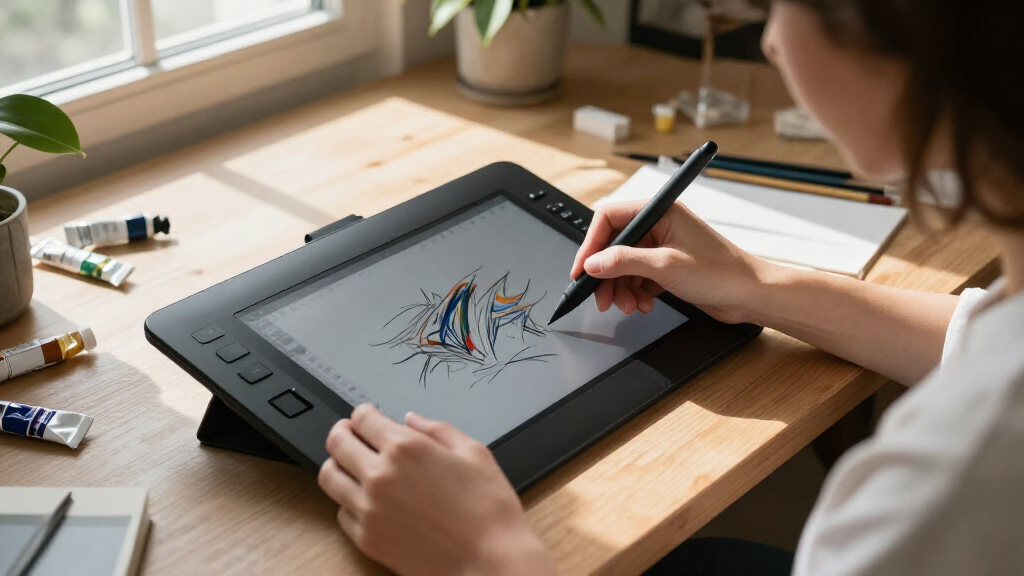
I compared these 15 tablets by the practical differences that shape an artist’s day: whether a computer is required, whether the pen works directly on a display, the available drawing area, stated pen features, shortcut controls, and how easily each device can fit a home or travel setup. I also weighed likely setup complexity, the usefulness of included controls, and the tradeoff between a larger workspace and a compact footprint. A feature matters here only when it changes how an artist can work, not just because it appears in a specification list.
The ranking favors versatility for common digital-art workflows, then separates models by the kind of buyer they serve. Connected pen displays score well for artists who want direct-on-screen drawing, while standalone models gain ground for portability and screenless tablets for simpler, computer-based setups. Close variants are distinguished by their stated specifications rather than treated as interchangeable. Because the products span different device types, the best choice for one workflow may not be the best choice for another.
Factors to Consider When Choosing Digital Drawing Tablets For Artists
Before choosing, decide how the tablet will fit into your existing workflow. Screen size and pen features matter, but so do computer compatibility, desk space, portability, and how much setup you are willing to manage.
Choose Between a Pen Display, Standalone Tablet, and Screenless Pad
A pen display lets you draw on the tablet’s screen while using a connected computer to run your art software. A standalone tablet runs apps on the device itself, which can make it easier to sketch away from a desk, though its software environment may differ from a desktop setup. A screenless tablet sends pen input to a computer monitor instead; this can be a capable and uncluttered choice, but hand-eye coordination takes practice for some artists. Do not assume that a screen automatically makes drawing better: it mainly changes where your hand and eyes meet. Start with the software and devices you already rely on, then choose the tablet type that fits them. Paying for a display or standalone operation is wasted if you mainly want a compact input surface for a computer.
Match the Active Area to Your Drawing Habits
The advertised tablet size is not always the same as the usable drawing area, so check the active area and display dimensions before choosing. A larger surface gives room for broader arm movements and can reduce the need to zoom and pan, especially on detailed illustrations. It also occupies more desk space and may be less convenient to pack. Small tablets can work well for line art, retouching, or a compact workstation, but a cramped active area may feel restrictive if you draw with your whole arm. Think about the size of your monitor too: moving between a very small tablet and a large display can feel less natural than expected. Choose a size that suits both your posture and your available workspace.
Check Compatibility Before Comparing Pen Specifications
Confirm that the tablet supports your computer, operating system, and preferred drawing applications before focusing on pressure levels or tilt support. Those pen features can help with brush control, but software settings and the artist’s technique affect how much difference they make. A high stated pressure level is not a guarantee of better line quality by itself. Look for clear information about driver support, connection requirements, and whether the tablet needs a separate power source. If you work across more than one computer, check whether setup and configuration are manageable on each one. This step can prevent a technically appealing tablet from becoming awkward in your actual workflow.
Balance Screen Size Against Desk Space and Connection Needs
A larger pen display provides more room to draw and arrange interface panels, but it also needs a suitable stand position and enough desk depth. Smaller displays are easier to fit beside a keyboard or carry between work areas, though their interface can feel crowded when an application has many panels. Check the included connection method and the ports on your computer instead of assuming a single cable will cover every setup. Cable routing, power needs, and stand placement affect everyday comfort more than a brief glance at the product dimensions suggests. If the tablet will stay in one place, a larger display may be worth the footprint. For a shared or compact desk, a smaller screen or screenless model may be easier to live with.
Decide Which Controls You Will Actually Use
Shortcut keys and dials can speed up frequent actions such as undoing, changing brush size, or zooming, but only when they are comfortable to reach and easy to configure. A large number of buttons is not automatically an advantage if you prefer keyboard shortcuts or use a workflow with few repeated commands. Pen buttons can also help, although placement and customization matter more than the count alone. Before paying extra for controls, list the actions you repeat most during a drawing session. Consider whether the tablet works well with your usual hand position and whether the shortcuts can be assigned in your software. A simpler surface may be the better fit if you want a clean desk and already use keyboard commands.
Treat Portability as a Workflow Requirement
Portable drawing can mean different things: a standalone device can run without a computer, while a compact screenless tablet may still depend on a laptop. Those setups are not interchangeable, so think about where your files, apps, and accessories need to be available. A standalone model reduces dependence on a computer but may not match the apps or file-handling habits of a desktop workflow. A connected tablet can be convenient to move between rooms, yet it still needs the right host device and cables. If you travel often, account for the case, pen storage, charger, and any required adapters, not just the tablet’s dimensions. Choose the lightest workflow that supports the way you actually create and transfer work.
Frequently Asked Questions
Should I buy a standalone tablet or a pen display connected to my computer?
Choose a standalone tablet if drawing away from a computer is a real part of your routine and its apps support the way you create. A pen display makes more sense when you already use desktop software and want to draw directly on the same screen that runs it. Standalone convenience comes with a different software and file workflow, while a pen display depends on the host computer and its connections. Think about where your finished work needs to go and which device holds your brushes, files, and plugins. If most of your drawing happens at a desk, a connected display is often the more natural fit.
Is a screenless tablet a poor choice if I am learning digital art?
No. A screenless tablet can be a practical way to learn digital drawing without adding a display to your desk. The main adjustment is looking at the computer monitor while your hand moves on a separate surface, which can take time to feel natural. A pen display offers a more direct hand-to-image relationship, but it is not required for learning drawing fundamentals. Consider whether you would rather invest in a simpler setup or pay for drawing directly on screen. If you choose a screenless model, allow practice time before deciding that the coordination feels wrong.
Do higher pressure-level specifications guarantee better drawing results?
No. A larger stated pressure range does not by itself produce more expressive lines or smoother brushwork. The tablet’s driver, the drawing application’s settings, the pen tip, and your own control all affect the result. Pen tilt support can be useful for brushes that respond to angle, but it matters less if your tools do not use it. Compare the full pen and software setup rather than selecting by one number. If possible, prioritize a comfortable pen and reliable compatibility over specifications you may not use.
How should I choose between the similarly named Artist 12 and Artist 13.3 Pro V2 listings?
Read the exact listing carefully rather than relying on the shared product-family name. The products in this roundup include versions with different stated details, including pen specifications and screen construction. Confirm the model size, included pen, stated pressure support, and connection requirements for the particular version being sold. These details can affect whether a listing matches your preferred drawing area and software setup. If the listing does not clearly identify the configuration, check the manufacturer’s product information before choosing.
When is a larger pen display worth the extra desk space?
A larger display can be worthwhile if you draw with broad arm movement, work on detailed canvases, or want room for application panels without crowding the drawing area. It may also reduce frequent zooming and panning for some workflows. The tradeoff is a bigger footprint, more demanding placement, and less convenience if you need to pack the tablet away. Smaller displays can still handle serious artwork, especially when paired with a monitor and a well-organized interface. Measure your desk and think about your usual canvas and posture before deciding that a larger screen is the better fit.
Conclusion
For most artists building a computer-based workspace, I would start with the HUION Kamvas 13 (Gen 3) as the best overall balance of a drawing display and practical controls. For the best value in a screenless setup, compare the XP-Pen Deco 01 V3 and HUION Inspiroy H1060P based on the controls and pen features you expect to use. Beginners who want a compact, straightforward computer-connected option can look at the Wacom Intuos Small, while artists who prefer a larger screen should consider the XP-Pen Artist 15.6 Pro V2 as the premium, roomy choice. For drawing away from a computer, the PicassoTab X11 or RubensTab T11 Pro better match that specific need. The right pick comes down to whether you want direct-on-screen drawing, standalone portability, or a simpler pad for your existing computer.