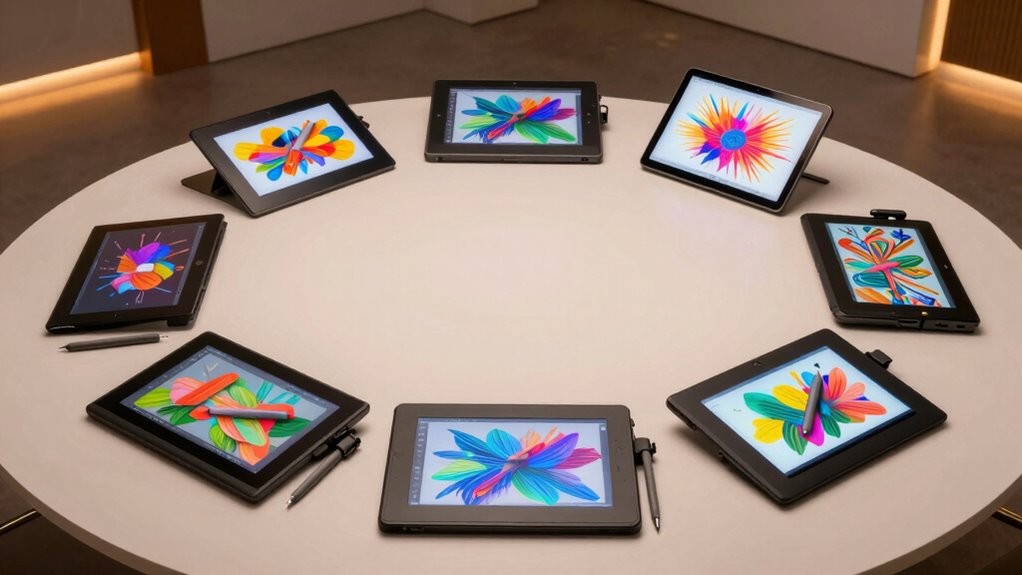

Among these professional graphics tablets for illustrators, I’d make the XP-Pen Artist 22R Pro my best overall pick for its spacious 21.5-inch display, while the HUION Kamvas 13 Gen 3 is a strong compact screen option and the HUION Inspiroy 2 Large suits artists who prefer drawing on a separate monitor. The main choice is between a screen tablet that puts the image beneath your hand and a pen tablet that can cost less, travel more easily, and keep your workspace uncluttered. Active area, shortcut controls, portability, and how you like to coordinate hand and screen matter more than a high pressure-level count alone. Read on for the full breakdown, including who should skip each pick.

Get art and craft supplies delivered free with Prime
- Fast, free delivery on millions of items
- Prime Video, Amazon Music and more included
- Member-only deals all year
Key Takeaways
- The Artist 22R Pro is the workspace pick: its 21.5-inch screen gives detailed illustration work more room than the 13.3-inch displays, but it takes more desk space.
- Screen size and portability pull in opposite directions: the Kamvas 13 Gen 3 and Artist 13.3 Pro V2 offer direct-on-screen drawing in a smaller format than the Artist 22R Pro.
- Pen tablets remain credible work tools: the Deco 01 V3 and Inspiroy 2 Large provide generous drawing surfaces without placing a display on the desk.
- Compact tablets trade room for easy packing: the Wacom Intuos Small, Huion H640P, and GAOMON S620 are easier to carry, but their smaller active areas can feel restrictive for long illustration sessions.
- Pressure-level figures do not settle the choice: workflow fit, drawing area, screen preference, shortcut access, and setup needs create clearer distinctions across this lineup.
| XPPen Deco 01 V3 Drawing Tablet, 10 x 6.25 in, 16K Pressure Stylus, 8 Shortcut Keys |  | Best Value for a Large Screenless Work Area | Active area: 10 x 6.25 in | Stylus pressure levels: 16,384 | Stylus tilt: Up to 60° | VIEW ON AMAZON | See Our Full Breakdown |
| XP-Pen Artist 13.3 Pro V2 Drawing Tablet with Screen |  | Best Compact Pen Display | Screen size: 13.3 inches | Resolution: Full HD | Stylus: Battery-free X3 Pro | VIEW ON AMAZON | See Our Full Breakdown |
| HUION Inspiroy 2 Large Drawing Tablet (H1061P) |  | Best for Travel and Extended Screenless Drawing | Active area: 10.5 x 6.56 inches | Pen technology: PenTech 3.0 | Stylus model: PW110 | VIEW ON AMAZON | See Our Full Breakdown |
| Huion Inspiroy H640P 6×4″ Drawing Tablet with 8192 Levels Pen Pressure |  | Best Compact Beginner Tablet | Active area: 6 x 4 inches | Pressure levels: 8,192 | Resolution: 5080 LPI | VIEW ON AMAZON | See Our Full Breakdown |
| Wacom Intuos Small Bluetooth Drawing Tablet with Pen and Software |  | Best for Beginners Who Want Wireless Setup | Model: Intuos S, CTL4100WLK0 | Form factor: Small | Pen type: Battery-free EMR pen | VIEW ON AMAZON | See Our Full Breakdown |
| HUION Kamvas 13 (Gen 3) 13.3-Inch Drawing Tablet with Screen, Dual Dial, Black |  | Best Compact Pen Display | Screen size: 13.3 inches | Pressure sensitivity: 16,384 levels | Initial activation force: 2 g | VIEW ON AMAZON | See Our Full Breakdown |
| GAOMON S620 Graphics Drawing Tablet, 6.5 × 4 Inches, 8192-Level Pressure, 4 Customizable Keys |  | Best Compact Screenless Starter | Active area: 6.5 × 4 inches | Pen pressure levels: 8,192 | Express keys: 4 customizable keys | VIEW ON AMAZON | See Our Full Breakdown |
| XP-Pen Artist 22R Pro 21.5-inch Drawing Tablet with Screen, Battery-Free Stylus, Full-Laminated Technology, 120% sRGB |  | Best Large-Canvas Workstation | Display size: 21.5 inches | Resolution: 1920 × 1080 (FHD) | Color gamut: sRGB ≥120%; Adobe RGB ≥90%; NTSC 88% | VIEW ON AMAZON | See Our Full Breakdown |
| professional graphics tablets for illustrator | Compatibility | Active area | Connectivity | Resolution |
|---|---|---|---|---|
| XPPen Deco 01 V3 Drawing Table | — | 10 x 6.25 in | USB-C to USB-C; USB-C to USB-A adapter included | — |
| XP-Pen Artist 13.3 Pro V2 Draw | Windows 7 or later, macOS 10.13 or later, Chrome OS 88 or later, compatible Android devices, Linux | — | — | Full HD |
| HUION Inspiroy 2 Large Drawing | Windows 7+, macOS 10.12+, Ubuntu, Android 6.0+ | 10.5 x 6.56 inches | USB-C | — |
| Huion Inspiroy H640P 6×4" Draw | Windows, macOS, Linux, Android 6.0+ | 6 x 4 inches | — | 5080 LPI |
| Wacom Intuos Small Bluetooth D | Mac, Windows, Chrome OS (Chromebook, Android) | — | Bluetooth and USB-A cable | — |
| HUION Kamvas 13 | — | — | — | — |
| GAOMON S620 Graphics Drawing T | Windows 7 or later; macOS 10.12 or later | 6.5 × 4 inches | — | 5080 LPI |
| XP-Pen Artist 22R Pro 21.5-inc | — | — | USB-C, HDMI, VGA, and Type-C to USB adapter | 1920 × 1080 (FHD) |
More Details on Our Top Picks
XPPen Deco 01 V3 Drawing Tablet, 10 x 6.25 in, 16K Pressure Stylus, 8 Shortcut Keys
I’d put the Deco 01 V3 near the top for illustrators who want a generous drawing surface without adding a display to their setup. Its 10 x 6.25-inch active area gives broad strokes more room than the compact Huion H640P or Wacom Intuos Small, while eight shortcut keys reduce trips to the keyboard. The battery-free pen supports 16,384 pressure levels and up to 60° tilt, giving it a more current pen feature set than the H640P’s 8,192 levels. USB-C connectivity and support for several desktop systems and Android make it useful across different workspaces. The tradeoff is that you draw on the tablet while watching a separate screen; illustrators who want direct on-screen feedback should look at the XP-Pen Artist 13.3 Pro V2 instead. Android screen mapping may also need setup through XPPen Tools.
Pros:- Large 10 x 6.25-inch active area supports broad, comfortable hand movements.
- Battery-free stylus offers 16,384 pressure levels and up to 60° tilt.
- Eight customizable shortcut keys support a more efficient drawing workflow.
- USB-C connectivity and compatibility across multiple desktop systems and Android.
Cons:- No built-in display, so drawing requires looking at a separate screen.
- Android screen mapping may require configuration with XPPen Tools.
- Compatibility depends on supported OS versions and compatible art software.
Best for: Illustrators who want a roomy, portable screenless tablet with programmable controls for a computer or compatible Android device.
Not ideal for: Artists who need to see the pen directly under their hand, or Android users who want setup without screen-mapping adjustments.
- Active area:10 x 6.25 in
- Stylus pressure levels:16,384
- Stylus tilt:Up to 60°
- Shortcut keys:8 customizable
- Stylus power:Battery-free
- Thickness:8 mm
- Connectivity:USB-C to USB-C; USB-C to USB-A adapter included
- Supported operating systems:Windows 7 or later, Android 10.0 or later, macOS 10.13 or later, Chrome OS 88 or later, Linux
Our verdict“Choose the Deco 01 V3 for a large, feature-rich screenless workspace; choose the Artist 13.3 Pro V2 if drawing directly on a display matters more.”
XP-Pen Artist 13.3 Pro V2 Drawing Tablet with Screen
For illustrators who prefer drawing on the image itself, I rank the Artist 13.3 Pro V2 ahead of screenless options such as the Deco 01 V3. Its 13.3-inch Full HD laminated anti-glare display keeps the pen tip visually close to the cursor, while the red dial and eight customizable keys put frequent controls within reach. The battery-free X3 Pro stylus has 16,384 pressure levels, and the listed color gamut supports work where color range matters. Unlike a standalone device, though, this display must connect to a computer or compatible device, so it does not replace a laptop. Its 250 cd/m² brightness may also be limiting in bright workspaces, and color temperature adjustment is limited to Windows. Compared with the larger XP-Pen Artist 22R Pro in this roundup, its smaller screen is easier to fit on a desk but gives less drawing room.
Pros:- Laminated anti-glare Full HD display keeps the pen tip visually close to the cursor.
- Battery-free stylus provides 16,384 pressure levels.
- Red dial and eight customizable keys offer convenient workflow controls.
- Wide listed color gamut and 178° viewing angle support color-focused illustration work.
Cons:- Requires a computer or compatible device and is not standalone.
- The 13.3-inch display offers less drawing space than the XP-Pen Artist 22R Pro.
- Color temperature adjustment is limited to Windows, and 250 cd/m² brightness may constrain bright-room use.
Best for: Illustrators who want a compact pen display for a computer-based workflow, with a dial and programmable keys for frequent tool changes.
Not ideal for: Artists seeking a standalone tablet, a large on-screen canvas, or Windows-independent color temperature controls.
- Screen size:13.3 inches
- Resolution:Full HD
- Stylus:Battery-free X3 Pro
- Pressure levels:16,384
- Color gamut:125% sRGB, 107% Adobe RGB, 95% Display P3
- Brightness:250 cd/m²
- Controls:Red dial and 8 customizable keys
- Compatibility:Windows 7 or later, macOS 10.13 or later, Chrome OS 88 or later, compatible Android devices, Linux
Our verdict“Pick the Artist 13.3 Pro V2 if direct-on-screen drawing and compact size matter more than standalone operation or a larger display.”
HUION Inspiroy 2 Large Drawing Tablet (H1061P)
The HUION Inspiroy 2 Large is a strong fit for illustrators who want a broad, screenless surface in a portable format. Its 10.5 x 6.56-inch active area is slightly larger than the XPPen Deco 01 V3’s, giving sweeping gestures room to breathe, while USB-C makes a compact travel setup straightforward. Huion’s PenTech 3.0 stylus, scroll wheel, and customizable keys are aimed at keeping drawing and navigation in one hand. The listed specs do not state a pressure-level count or tilt range, so buyers comparing pen specifications directly may prefer the Deco 01 V3, which explicitly lists both. Like that XPPen model, the Inspiroy 2 has no screen and must connect to another device; it is not a self-contained workstation. Its broad compatibility includes Linux and Android, but artists should check their device and software support before choosing it.
Pros:- 10.5 x 6.56-inch active area provides the largest listed screenless workspace in this batch.
- PenTech 3.0 stylus and scroll wheel support drawing and navigation workflows.
- Slim portable design suits travel and small desks.
- Compatibility includes Windows, macOS, Ubuntu, and Android.
Cons:- Requires a connected computer or smartphone; it is not standalone.
- No built-in display, unlike the XP-Pen Artist 13.3 Pro V2.
- The supplied product data does not specify pressure levels or tilt range.
Best for: Mobile illustrators who prefer a larger screenless drawing area and want to work across Windows, Mac, Linux, or Android setups.
Not ideal for: Artists who need an integrated display, a standalone device, or published pressure and tilt figures for direct pen-spec comparisons.
- Active area:10.5 x 6.56 inches
- Pen technology:PenTech 3.0
- Stylus model:PW110
- Connectivity:USB-C
- Compatibility:Windows 7+, macOS 10.12+, Ubuntu, Android 6.0+
- Included accessories:Digital pen, pen holder, 10 pen nibs, USB-C cable, Type-C OTG adapter, quick start guide
- Warranty:1 year
- Color:Black
Our verdict“Choose the Inspiroy 2 Large for a portable, roomy screenless surface, but favor the Deco 01 V3 if explicit pressure and tilt specifications are a priority.”
Huion Inspiroy H640P 6×4″ Drawing Tablet with 8192 Levels Pen Pressure
I see the Huion Inspiroy H640P as the compact entry point for illustrators who need a portable pen tablet rather than a broad studio surface. At 6 x 4 inches, it takes little desk or bag space, and its six customizable keys offer more on-tablet control than the Wacom Intuos Small’s four ExpressKeys. The battery-free pen lists 8,192 pressure levels, tilt support, 5080 LPI resolution, and a 233 PPS report rate. That is a functional drawing setup, but the larger Deco 01 V3 provides a substantially roomier area and 16,384 listed pressure levels for artists doing extended, detailed work. The H640P’s small active area can make long strokes feel constrained, so I would not choose it as a primary large-canvas workstation. It supports Android, but not iPhone or iPad devices.
Pros:- Compact 6 x 4-inch active area and low weight make it easy to carry.
- Battery-free stylus includes tilt support and 8,192 pressure levels.
- Six customizable keys provide more shortcuts than the Wacom Intuos Small.
- Works with Windows, macOS, Linux, and Android.
Cons:- Small active area can feel cramped for detailed or large-scale illustration.
- Lists fewer pressure levels than the Deco 01 V3.
- Does not support iPhone or iPad devices.
Best for: Students, traveling illustrators, and beginners who need a small screenless tablet for sketches, notes, or light editing.
Not ideal for: Illustrators who routinely work on large canvases, need expansive arm movements, or want support for iPhone or iPad.
- Active area:6 x 4 inches
- Pressure levels:8,192
- Resolution:5080 LPI
- Report rate:233 PPS
- Stylus:Battery-free PW100 with tilt and side buttons
- Shortcut keys:6 customizable press keys
- Weight:0.61 lbs
- Compatibility:Windows, macOS, Linux, Android 6.0+
Our verdict“Choose the H640P for a compact, portable starter tablet, but move up to the Deco 01 V3 if you need more canvas room for regular illustration work.”
Wacom Intuos Small Bluetooth Drawing Tablet with Pen and Software
The Wacom Intuos Small suits new digital illustrators who value a straightforward wireless setup and included learning resources over a large work surface. Bluetooth lets a compatible computer setup stay tidy, while USB-A provides a wired alternative; its battery-free EMR pen needs no charging. Bundled creative software and online training give beginners a path into digital art without making the tablet itself more complex. The main compromise is scale: the product is listed as small, and the supplied data gives no active-area measurement. Its four ExpressKeys also offer fewer shortcut controls than the Huion H640P’s six and the Deco 01 V3’s eight. Compared with those larger screenless options, this Wacom is better suited to compact desks and introductory workflows than long, detailed illustration sessions. Check OS and software compatibility before relying on the included creative tools.
Pros:- Bluetooth and USB-A cable provide wireless and wired connection options.
- Battery-free EMR pen does not need charging.
- Creative software and online training support a beginner learning workflow.
- Compact form suits small workspaces and portable setups.
Cons:- Small form factor may constrain detailed or extended illustration work.
- Four ExpressKeys provide fewer shortcuts than the Huion H640P or Deco 01 V3.
- The supplied product data does not specify active-area dimensions or a pressure-level count.
Best for: Students and new illustrators who want a compact pen tablet with Bluetooth, starter software, and online training.
Not ideal for: Professional illustrators who need a roomy drawing area or extensive on-tablet shortcuts for a high-volume workflow.
- Model:Intuos S, CTL4100WLK0
- Form factor:Small
- Pen type:Battery-free EMR pen
- Pressure sensitivity:Yes; level count not specified
- ExpressKeys:4
- Connectivity:Bluetooth and USB-A cable
- Compatibility:Mac, Windows, Chrome OS (Chromebook, Android)
- Included software:Creative software suite with online training
Our verdict“Choose the Intuos Small for a beginner-friendly wireless setup and bundled learning resources, not for a large professional drawing surface.”
HUION Kamvas 13 (Gen 3) 13.3-Inch Drawing Tablet with Screen, Dual Dial, Black
The Kamvas 13 (Gen 3) is a strong fit for illustrators who want a color-accurate screen without giving up much desk space. Its fully laminated, anti-sparkle display keeps the pen tip visually close to the cursor, while the low 2 g activation force can make delicate linework easier to begin. Factory-reported color accuracy and 99% sRGB coverage also suit artwork that needs dependable on-screen color. Compared with the larger XP-Pen Artist 22R Pro, this Huion is easier to position in a compact workspace, but gives you far less drawing area. Its five shortcut keys and dual dials offer useful workflow controls, though it still needs a computer or compatible device to operate. Android support is limited to devices with the required USB and DisplayPort capabilities.
Pros:- Fully laminated screen with anti-sparkle glass helps keep cursor placement visually direct.
- 99% sRGB and average ΔE below 1.5 support color-conscious illustration work.
- Low 2 g activation force and 16,384 pressure levels support light, controlled strokes.
- Five programmable keys, dual dials, and an adjustable stand provide practical workflow flexibility.
Cons:- Requires a computer or compatible device; it cannot run drawing software on its own.
- Android use depends on USB 3.1 Gen 1 and DisplayPort 1.2 support.
- Its 13.3-inch canvas is substantially smaller than the XP-Pen Artist 22R Pro.
Best for: Illustrators with limited desk space who want a color-accurate pen display for computer-connected work and frequently use adjustable shortcuts.
Not ideal for: Artists seeking a standalone tablet, a large canvas for full-size gestures, or easy Android compatibility without checking device port support.
- Screen size:13.3 inches
- Pressure sensitivity:16,384 levels
- Initial activation force:2 g
- Color gamut:99% sRGB; Rec.709
- Color accuracy:Average ΔE < 1.5
- Shortcut controls:5 programmable keys and dual dials
- Pen side buttons:3
- Connection and operation:USB-C single cable; requires a computer or compatible device
- Included stand:Adjustable ST300
Our verdict“Choose the Kamvas 13 (Gen 3) for a compact, color-conscious pen display with useful controls, provided you are comfortable drawing through a connected device.”
GAOMON S620 Graphics Drawing Tablet, 6.5 × 4 Inches, 8192-Level Pressure, 4 Customizable Keys
The GAOMON S620 is the simplest pick here for illustrators who want a small, portable drawing surface rather than a display to draw on. Its 6.5 × 4-inch active area keeps the tablet easy to pack, and the battery-free pen removes charging from the routine. Four customizable keys add a little shortcut access without the larger control layout of the XP-Pen Artist 22R Pro, which has a screen, dials, and a much broader work surface. The tradeoff is that you must watch your computer screen while drawing, and the compact area can feel cramped for broad arm movements or detailed pieces. It supports Windows and macOS, but not iPad or iPhone, so mobile-first illustrators should look elsewhere.
Pros:- Compact 6.5 × 4-inch active area is easy to carry and store.
- Battery-free pen needs no charging.
- Four customizable express keys provide quick access to frequent commands.
- Supports Windows and macOS and can be used with drawing and annotation programs.
Cons:- Small drawing area can restrict hand movement on detailed or expansive illustrations.
- Screenless design requires eye-hand coordination between the tablet and computer display.
- Not compatible with iPad or iPhone.
Best for: Illustration beginners, students, and traveling artists who want an inexpensive-to-carry screenless tablet for a Windows or Mac computer.
Not ideal for: Illustrators who need a built-in display, a large active area, or direct compatibility with an iPad or iPhone.
- Active area:6.5 × 4 inches
- Pen pressure levels:8,192
- Express keys:4 customizable keys
- Pen:Battery-free
- Report rate:266 PPS
- Resolution:5080 LPI
- Pen reading height:10 mm
- Compatibility:Windows 7 or later; macOS 10.12 or later
- Warranty:1 year
Our verdict“Pick the S620 if portability and a charge-free pen matter more than a display, expansive canvas, or tablet-based mobile drawing.”
XP-Pen Artist 22R Pro 21.5-inch Drawing Tablet with Screen, Battery-Free Stylus, Full-Laminated Technology, 120% sRGB
For illustrators who prefer a broad drawing surface, the Artist 22R Pro stands apart with its 21.5-inch FHD display, generous shortcut layout, and adjustable stand. The larger canvas gives room for full-size gestures and interface panels, while 20 customizable keys and two red dials put frequent actions within reach. Its color gamut is wider than the HUION Kamvas 13 (Gen 3) specification, but the XP-Pen offers 8,192 pressure levels rather than 16,384 and a larger display will demand more desk space. Two battery-free styluses provide a spare, and tilt support adds control over stroke character. This remains a computer-connected pen display, not a standalone workstation; its 1920 × 1080 resolution across 21.5 inches may also feel less crisp than a smaller high-density screen.
Pros:- 21.5-inch screen provides ample room for drawing and keeping interface panels visible.
- 120% sRGB and 90% Adobe RGB coverage support work where broad color representation matters.
- Twenty customizable keys and two red dials allow extensive shortcut customization.
- Includes two battery-free styluses, 60° tilt support, and an adjustable 16°–90° stand.
Cons:- Requires connection to a computer and cannot run drawing software independently.
- Large screen takes substantially more desk space than the HUION Kamvas 13 (Gen 3).
- FHD resolution across a 21.5-inch display may appear less dense than a smaller screen.
Best for: Professional illustrators with a dedicated desk who want a large on-screen canvas, extensive shortcut controls, and a wide color gamut for connected workflows.
Not ideal for: Artists with limited desk space, those who need standalone operation, or anyone prioritizing a compact, high-density display over a large working area.
- Display size:21.5 inches
- Resolution:1920 × 1080 (FHD)
- Color gamut:sRGB ≥120%; Adobe RGB ≥90%; NTSC 88%
- Pressure sensitivity:8,192 levels
- Tilt support:60°
- Shortcut controls:20 customizable keys and 2 red dials
- Styluses included:2 battery-free PA2 styluses
- Connectivity:USB-C, HDMI, VGA, and Type-C to USB adapter
- Stand adjustment:16°–90°
Our verdict“Choose the Artist 22R Pro if a roomy, highly customizable pen-display setup suits your desk and computer-based illustration workflow.”
How We Picked
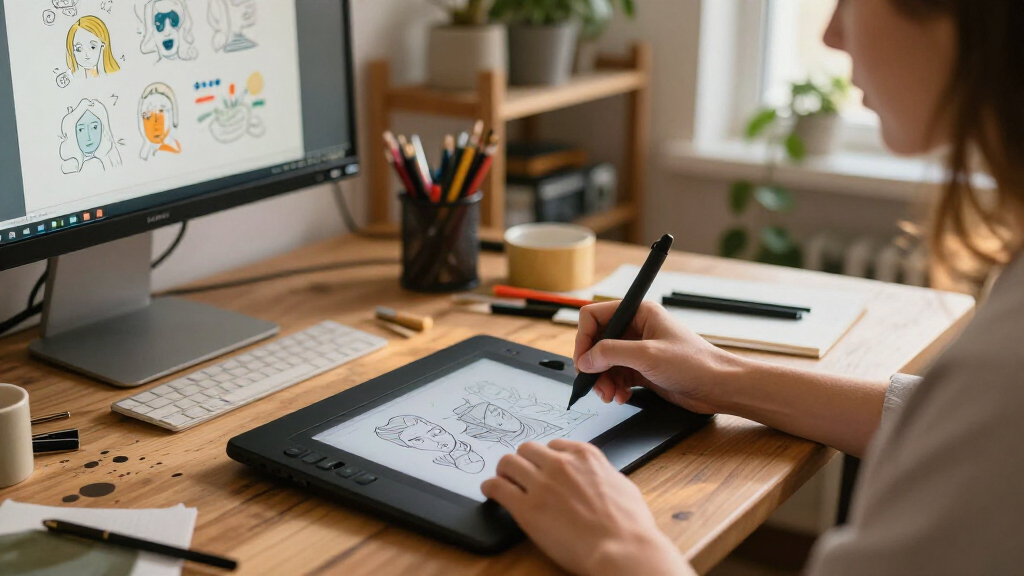
I ranked these tablets around the needs of illustrators: drawing comfort, usable active area, input style, shortcut access, portability, and how well each form factor fits sustained creative work. For screen models, I weighed the advantage of drawing directly on the image against desk footprint and the added screen-based setup. For pen tablets, I focused on whether their surface and controls offer enough room and workflow support for regular illustration, rather than treating a high pressure-level count as proof of better results.
The order reflects the balance of capability and fit across a range of professional workflows, not a claim that one device suits every artist. The Artist 22R Pro ranks first for its roomy drawing display; the pen-tablet options earn their places through simpler, more compact setups. Smaller budget-oriented models rank lower for sustained illustration because limited active area can constrain gestures and hand movement. I also distinguish between the two 13.3-inch screen picks by their stated workflow features, while advising buyers to check operating-system compatibility, connections, and included accessories for their own setup.
| professional graphics tablets for illustrator | Connectivity | Compatibility |
|---|---|---|
| XPPen Deco 01 V3 Drawing Table | USB-C to USB-C; USB-C to USB-A adapter included | — |
| XP-Pen Artist 13.3 Pro V2 Draw | — | Windows 7 or later, macOS 10.13 or later, Chrome OS 88 or later, compatible Android devices, Linux |
| HUION Inspiroy 2 Large Drawing | USB-C | Windows 7+, macOS 10.12+, Ubuntu, Android 6.0+ |
| Huion Inspiroy H640P 6×4" Draw | — | Windows, macOS, Linux, Android 6.0+ |
| Wacom Intuos Small Bluetooth D | Bluetooth and USB-A cable | Mac, Windows, Chrome OS (Chromebook, Android) |
| HUION Kamvas 13 | — | — |
| GAOMON S620 Graphics Drawing T | — | Windows 7 or later; macOS 10.12 or later |
| XP-Pen Artist 22R Pro 21.5-inc | USB-C, HDMI, VGA, and Type-C to USB adapter | — |
Factors to Consider When Choosing Professional Graphics Tablets For Illustrators
Choosing a tablet is less about chasing the biggest specification and more about matching the device to how you draw, where you work, and what your computer setup can support. I’d decide on the drawing surface and workspace first, then compare controls, portability, and compatibility.
Choose Between a Screen and a Pen Tablet
A pen display lets you draw where you see the artwork, which can feel natural for sketching and direct mark-making. A screenless pen tablet maps your hand movement to a separate monitor, freeing desk space and often making the device easier to pack away. Artists who already use a monitor comfortably may gain little from adding a display to the drawing surface. If you are new to pen tablets, expect a learning period as hand and screen occupy different locations. Try to decide based on your preferred drawing motion, not an assumption that a screen is automatically more professional.
Match Active Area to Your Gestures
The tablet’s active area determines how much room your hand has to make a stroke, but a larger surface also needs more desk space and bag capacity. Small models can work well for compact gestures, retouching, or travel, yet broad arm movements may feel cramped during long illustration sessions. A large tablet is not always better if it forces an awkward reach or leaves little room for a keyboard. Compare the active area with the size of your monitor and the way you naturally draw. Buyers often mistake the tablet’s external dimensions for its usable drawing area, so check both before choosing.
Treat Pressure Specs as One Part of Pen Feel
Pressure-level counts describe input resolution, not the full quality of a drawing experience. Pen response also depends on how the device handles light strokes, how its driver works with your software, and whether the stylus feels comfortable over extended sessions. A high number on a specification sheet cannot tell you whether the pen’s shape or balance suits your hand. Look for clear compatibility details and check whether the tablet supports the pressure behavior your illustration program uses. If possible, compare pen feel in person or review credible demonstrations before prioritizing headline figures.
Budget for the Whole Screen-Tablet Setup
A pen display may need a suitable computer connection, enough desk depth, and a stand position that keeps your neck and wrist comfortable. Before choosing one, check which ports your computer has and whether the required cables or adapters are included. Screen tablets can also add heat, glare, and visual clutter to a workspace, depending on placement and room lighting. A large display can be a good long-session tool, but only if your desk and posture support it. A pen tablet avoids many screen-placement issues, though it asks you to coordinate drawing on one surface with viewing another.
Value Controls You Will Actually Use
Shortcut keys and dials can reduce trips to the keyboard, but their usefulness depends on whether they fit your software and habits. Map only frequent actions, such as undo, brush-size changes, or canvas navigation, rather than expecting a large button count to improve every workflow. Left-handed users and artists who switch applications should check how controls can be configured. A compact device with a few well-placed controls may be more practical than a larger model whose shortcuts go unused. Think about where your keyboard sits, too: controls add less value if reaching them interrupts your drawing rhythm.
Check Compatibility Before You Commit
Tablet compatibility includes more than whether the device connects to a computer. Confirm support for your operating system, illustration software, display resolution, and any connection method you plan to use. Driver updates can affect pen behavior and shortcut configuration, so check the manufacturer’s support information for your setup. If you rely on a particular art program, verify its pressure and shortcut support rather than assuming every feature works identically across applications. Artists who travel between computers should also check whether their preferred settings are easy to carry over or must be configured again.
Frequently Asked Questions
Should I choose a pen display or a screenless tablet for professional illustration?
Choose a pen display if drawing directly on the artwork is central to your comfort and you have room for the screen and its connections. A screenless model makes more sense if you already draw comfortably while looking at a separate monitor, want a simpler desk setup, or need a tablet that packs away easily. Neither format is inherently more professional; both can support detailed illustration. If you have never used a screenless tablet, allow time to adapt to the hand-to-screen coordination. Let your preferred drawing motion and workspace decide the format.
Is a 13.3-inch drawing display large enough for professional illustration?
A 13.3-inch display can work well for sketching, line work, and a portable workstation, especially when paired with a larger computer monitor for reference or palettes. The smaller canvas may mean more zooming and panning when a project has dense detail or many interface panels. A larger display such as the Artist 22R Pro gives more room to see artwork and controls at once, but it occupies more desk space. Think about whether the tablet will be your primary screen or a second drawing surface. Your software layout and viewing distance matter as much as the diagonal measurement.
Can a compact tablet handle full-time illustration work?
It can, particularly if you use short, controlled strokes, work at a desk with limited space, or travel often. The tradeoff is less room for broad gestures, which can make extended sessions feel constrained for some artists. A compact tablet may also require more frequent zooming and repositioning on a large monitor. Compare the active drawing area—not just the device’s outer dimensions—with your usual hand movement. If possible, try a similar-sized surface before making it your only tablet.
Do I need a tablet with a very high pressure-level count?
Not necessarily. Pressure-level counts alone do not show how naturally a pen handles light pressure, how comfortable it feels, or how reliably its driver works with your software. For illustration, a predictable stroke response and a comfortable stylus may matter more than a larger number on the spec sheet. Check software compatibility and look for information about pen behavior before comparing counts. If two models otherwise fit your needs, use the pressure figure as a supporting detail rather than the deciding factor.
What should I check before buying a pen display for my computer?
Check the display’s supported operating systems, computer ports, required cable arrangement, and compatibility with your illustration software. Confirm whether you need adapters or a separate power connection, and measure your desk for the display and stand. Plan how the screen will sit relative to your keyboard and main monitor to avoid an awkward posture. Also check driver support for the features you care about, such as pressure input and shortcut controls. A device that fits your drawing style can still be a poor choice if your computer cannot connect to it conveniently.
Conclusion
For the best overall workspace, I’d choose the XP-Pen Artist 22R Pro: its large drawing display is the strongest fit here for artists who want generous on-screen room and have space for it. The best value direction is a screenless tablet such as the XPPen Deco 01 V3 or HUION Inspiroy 2 Large, especially if you already draw comfortably while looking at a monitor. For a premium-feeling direct-drawing setup in a smaller footprint, compare the HUION Kamvas 13 Gen 3 with the XP-Pen Artist 13.3 Pro V2. Beginners who want a compact, straightforward starting point can look at the Wacom Intuos Small, while the Huion H640P and GAOMON S620 suit buyers who prioritize a very small tablet for portability or limited desk space. My short version: choose the 22R Pro for room, a 13.3-inch display for portable direct drawing, and a larger pen tablet if you want to keep your main monitor as the canvas.
Halloween Picks

Gemmy 6-Foot Leatherface Animatronic Halloween Decoration

Vexalify 11-Inch Halloween Pumpkin Fog Machine with 12-Color Lights

DomKom 6-Foot Halloween Inflatable Ghosts Roasting Marshmallows
As an affiliate, we earn on qualifying purchases.