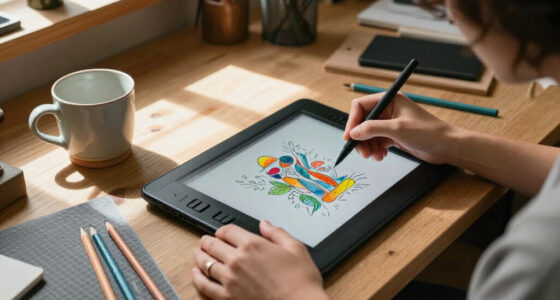
For creators choosing a screen-based drawing tablet, the key decision is whether the drawing setup should travel as one device or anchor a computer-based studio. Apple iPad Pro and Wacom Cintiq both put artwork beneath the pen, but they serve different working habits: the iPad Pro is a standalone tablet, while a Cintiq connects to a computer and depends on its software and workspace.

Get art and craft supplies delivered free with Prime
- Fast, free delivery on millions of items
- Prime Video, Amazon Music and more included
- Member-only deals all year

PicassoTab A10 10-Inch Standalone Drawing Tablet
- ✔ Display: 10-inch LCD, 2000 × 1200
- ✔ Operating system: Android 14
- ✔ Processor and memory: Octa-core processor, 6GB RAM

XP-Pen Artist 13.3 Pro Drawing Tablet with Screen
- ✔ Display: 13.3-inch fully laminated FHD
- ✔ Color gamut: 88% NTSC; 91% Adobe RGB; 123% sRGB
- ✔ Stylus: Battery-free; 16,384 pressure levels; 60° tilt; 220 RPS

HUION Kamvas Pro 16 Drawing Tablet with Screen
- ✔ Display: 15.6-inch fully laminated anti-glare screen
- ✔ Color gamut: 120% sRGB; 92% AdobeRGB
- ✔ Contrast ratio: 1000:1
That difference affects more than portability. It shapes which apps are available, how files move between devices, how much desk space the setup takes, and what the total investment includes. The iPad Pro is the stronger fit for artists who sketch in varied locations and value a self-contained workflow. A Cintiq makes more sense for creators who already work at a computer and want a large pen display integrated into that setup. The right choice depends chiefly on where you work and whether you need your drawing surface to be a computer in its own right.
At a Glance
| Criteria | Apple iPad Pro | Wacom Cintiq | Winner |
|---|---|---|---|
| Portability and independence | Standalone device; can be used without a separate computer | Pen display that needs a connected computer | A |
| Desk-based drawing experience | Compact drawing area; suited to direct work on the device | Available in larger display sizes for a fixed workstation | B |
| Software and computer integration | iPad apps and mobile operating system | Runs desktop creative software through the connected computer | Depends |
| File workflow | Works on-device, with cloud, app, or computer handoff depending on setup | Uses the computer’s established storage, apps, and peripherals | B |
| Setup and accessories | Requires a compatible Apple Pencil; keyboard and stand are optional | Requires a computer and cabling; stand and other accessories vary by model | A |
| Value for different working habits | Good value if mobility and all-in-one use replace other devices | Good value for creators who need a dedicated display in an existing studio | Depends |
PicassoTab A10 10-Inch Standalone Drawing Tablet
The PicassoTab A10 earns our top spot because it is the only option here that can serve as a drawing tablet without a connected computer. Its Android 14 system, five creative apps, and included beginner tutorials make it a more self-contained starting point than either the XP-Pen Artist 13.3 Pro or the HUION Kamvas Pro 16. If our art practice moves between rooms or we want to sketch without setting up a laptop, that independence is a meaningful advantage.The 10-inch laminated 2000 × 1200 display is more portable in concept than the larger pen displays, but it gives us less room for a canvas and tool panels. Its 4096-level pressure-sensitive pen supports expressive strokes, though the XP-Pen lists a substantially higher pressure-level count and tilt support. That does not by itself establish which pen will feel better for a particular artist; it does make the XP-Pen the more feature-detailed computer-based option. The A10’s included case, glove, and power adapter help complete its kit, and expandable storage offers room to grow beyond the included 64GB.We would choose it for independent sketching and approachable entry, not as a replacement for a larger desktop drawing surface. The product information does not specify a software update support date, so creators who depend on long-term OS updates should weigh that uncertainty. Compared with both pen displays, its advantage is that the computer is optional; its compromises are the smaller screen and a less fully specified upgrade horizon.
Pros:
- Works as a standalone tablet without a computer.
- Laminated 10-inch display with 2000 × 1200 resolution.
- Includes five creative apps, beginner tutorials, and useful accessories.
- Expandable storage supports adding capacity beyond the included 64GB.
Cons:
- Smaller drawing area than the XP-Pen and HUION displays.
- Software update support date is not specified.
- Includes 64GB of storage before expansion.
Best for: Creators and beginners who want a self-contained Android drawing tablet with included apps and tutorials.
Not ideal for: Artists who need a large drawing surface, a computer-based desktop workflow, or clearly stated long-term software update support.
Bottom line: We recommend the A10 for creators who value drawing without a computer more than having a large canvas.
“We recommend the A10 for creators who value drawing without a computer more than having a large canvas.”
XP-Pen Artist 13.3 Pro Drawing Tablet with Screen
The XP-Pen Artist 13.3 Pro suits creators who already draw on a computer and want a pen display with controls close at hand. Its red dial and eight customizable shortcut keys give it a more explicit workflow-control focus than the HUION Kamvas Pro 16, which lists six express keys and a touch bar. Those controls can help us keep common actions within reach as we work, though how useful they are depends on how we configure and use them.The 13.3-inch fully laminated FHD screen is a middle ground in this lineup: larger than the standalone A10’s 10-inch display, but smaller than HUION’s 15.6-inch panel. The battery-free stylus supports 60° tilt and lists 16,384 pressure levels, the highest specified count among these three products. XP-Pen also provides color gamut figures and compatibility across Windows, Mac, Chrome OS, and Linux. These details make it a flexible computer-based choice on paper, but it still needs a compatible computer or laptop to operate.Compared with the A10, this model offers a more computer-centered drawing surface and more specified pen features, while giving up standalone use. Compared with the HUION, it is the more compact option with a dial and two additional listed shortcut keys, but it has less screen area. We would pick it when controls and a smaller desk footprint matter more than a broad canvas. Artists who prefer working directly on a standalone device, or who want the biggest display in this group, should look elsewhere.
Pros:
- Fully laminated 13.3-inch FHD display.
- Battery-free stylus with 60° tilt and 16,384 pressure levels.
- Red dial and eight customizable shortcut keys.
- Broad listed compatibility across Windows, Mac, Chrome OS, and Linux.
Cons:
- Requires a connected computer or laptop.
- Smaller drawing area than the HUION Kamvas Pro 16.
- More setup dependent than the standalone PicassoTab A10.
Best for: Computer-based creators who want a compact pen display with a dial, customizable shortcut keys, and listed tilt support.
Not ideal for: Creators seeking standalone drawing, a larger screen, or a tablet that works without a laptop or computer.
Bottom line: We would choose the Artist 13.3 Pro when hands-on shortcut controls and computer integration matter more than screen size or independence.
“We would choose the Artist 13.3 Pro when hands-on shortcut controls and computer integration matter more than screen size or independence.”
HUION Kamvas Pro 16 Drawing Tablet with Screen
For creators who want more canvas space in a computer-connected setup, the HUION Kamvas Pro 16 is the clear screen-size choice here. At 15.6 inches, it offers more room than the XP-Pen Artist 13.3 Pro for artwork alongside menus and tool panels. It also outscales the standalone PicassoTab A10, although the comparison comes with a different workflow: HUION must connect to a computer or laptop, while the A10 can work independently.The fully laminated anti-glare screen and supplied adjustable stand are practical features for longer sessions. The stand adjusts from 20° to 60°, letting us choose a viewing angle that suits our desk. HUION lists a 120% sRGB and 92% AdobeRGB gamut, a battery-free pen with 60° tilt recognition, six express keys, and a touch bar. Against XP-Pen’s red dial and eight shortcut keys, HUION trades two listed keys for the touch bar and a larger panel. Which control arrangement is preferable depends on our preferred shortcuts and workspace.The tradeoff is less about drawing capability than setup. The Kamvas Pro 16 connects through a 3-in-1 cable with HDMI signal, so we need to plan for the computer and cable arrangement at our desk. That makes it less flexible than the PicassoTab A10 for casual sketching away from a computer, and potentially less compact than the XP-Pen. Choose HUION when screen space and stand adjustment are priorities; skip it if portability or standalone use leads our decision.
Pros:
- Largest display in this comparison at 15.6 inches.
- Fully laminated anti-glare screen with listed color gamut figures.
- Adjustable stand supports angles from 20° to 60°.
- Battery-free tilt pen, six express keys, and a touch bar.
Cons:
- Requires a connected computer or laptop.
- Uses a 3-in-1 cable with HDMI signal.
- Less compact than the 13.3-inch XP-Pen and 10-inch standalone A10.
Best for: Artists who want a larger pen display, adjustable viewing angle, and computer-based drawing setup.
Not ideal for: Creators who need a standalone tablet, a compact setup, or want to avoid a 3-in-1 cable connection.
Bottom line: We recommend the Kamvas Pro 16 when a roomy display and adjustable stand outweigh the need for a standalone or compact tablet.
“We recommend the Kamvas Pro 16 when a roomy display and adjustable stand outweigh the need for a standalone or compact tablet.”
As an Amazon Associate we earn from qualifying purchases.
Key Differences
The biggest practical gap is independence. An iPad Pro can handle drawing away from the desk, while a Cintiq is a display in a computer setup. For an artist who moves between home, class, travel, and shared workspaces, that freedom can outweigh a smaller drawing surface. For someone who already spends the day at a workstation, the Cintiq’s connection to desktop apps and the computer’s existing files can make the larger screen more useful.
Neither option automatically produces a better drawing. The choice changes the working environment around the drawing: the iPad Pro favors a contained, portable workflow, and the Cintiq favors an established desktop workflow. The iPad can represent a more complete purchase when it also serves as a general tablet, though the Pencil is an additional purchase. A Cintiq can be a focused upgrade if the computer is already part of the budget, but buyers should account for the display, computer, and any needed stand or accessories.
For most creators who value mobility or want one device for sketching and other tablet tasks, the iPad Pro is the more flexible recommendation. Choose a Cintiq when desktop software, a larger fixed drawing area, or integration with a computer-based production process matters more than portability.
Detailed Comparison
Portability and independence (Apple iPad Pro wins — major)
The iPad Pro wins by a major margin: it is a complete device that can be carried and used without a computer. A Cintiq needs a connected computer and a suitable setup, so it is best treated as a studio display. In practice, choose the iPad for drawing in multiple locations; choose the Cintiq if your work rarely leaves your desk.
Desk-based drawing experience (Wacom Cintiq wins — moderate)
The Cintiq has the advantage when a larger display and a fixed workstation suit the work. Its drawing area depends on the model, but the range includes larger formats than a portable tablet. The iPad Pro offers a direct, self-contained surface that is easier to reposition, though its screen size may constrain creators who prefer a broad desktop canvas. The gap is moderate and depends on the model and the artist’s preferred posture and workspace.
Software and computer integration (major difference)
This is a workflow-dependent choice. A Cintiq uses the software available on its connected computer, which suits creators whose projects depend on desktop applications or established studio tools. The iPad Pro runs iPad apps, which can support a focused drawing workflow but may differ from desktop editions in features or project handling. The practical gap is major if a required application is available only on the computer; check the exact software before buying.
File workflow (Wacom Cintiq wins — moderate)
The Cintiq wins moderately for creators whose files already live on a computer: artwork is made within the same environment used for other studio work, subject to the app and storage setup. The iPad can sync or transfer work, but the details depend on the apps and services in use, which can add a handoff step. For a cloud-based or iPad-native workflow, that difference may be small; for a computer-centered pipeline, the Cintiq is more direct.
Setup and accessories (Apple iPad Pro wins — moderate)
The iPad Pro is simpler to place and use, though a compatible Apple Pencil is needed for drawing and a stand or keyboard may be useful. A Cintiq requires a computer and connections, and the right stand or desk arrangement can add to the setup. The iPad wins by a moderate margin for low-friction setup, especially outside a studio. Buyers should compare the complete kits, since accessory requirements vary.
Value for different working habits (major difference)
There is no universal price winner because the products replace different things. The iPad Pro can justify its cost for creators who will also use it as a portable general-purpose tablet. A Cintiq can be the better value when the buyer already owns a suitable computer and specifically needs a dedicated drawing display. The difference is major if one device can replace several purchases, but neither is a bargain if its core workflow goes unused.
Apple iPad Pro: Pros and Cons
Pros:
- Works as a standalone drawing device without a computer
- Easy to carry between home, studio, and travel
- Can also serve as a general-purpose tablet
- Compact setup with few connections
Cons:
- Drawing area is limited by the chosen model’s screen size
- Uses iPad apps, which may not match desktop software features
- Apple Pencil is a separate purchase
- Computer-based file workflows may require syncing or handoff
Wacom Cintiq: Pros and Cons
Pros:
- Connects to a computer-based creative workflow
- Larger display options suit fixed studio work
- Uses the connected computer’s desktop applications and storage
- Can be a focused upgrade when the computer is already owned
Cons:
- Cannot work independently of a computer
- Less practical to move between work locations
- Requires desk space, connections, and a compatible computer
- Total setup cost can rise with stands and other accessories
Who Should Choose What
Choose Apple iPad Pro if:
- You sketch in several places or want to draw while traveling.
- You want one device for art and everyday tablet use.
- Your preferred drawing apps are available on iPad and support your project needs.
- You value quick setup more than a large permanent display.
Choose Wacom Cintiq if:
- You already own a suitable computer and work mainly at a desk.
- Your projects rely on desktop creative software or computer-based tools.
- You prefer a larger drawing display and a fixed studio setup.
- You want your artwork to stay within the computer’s established file workflow.
Skip both if: You mainly draw on paper and need a lower-cost digital entry point, or you prefer a screenless pen tablet connected to a computer. Compare those options before paying for a built-in display.
Value for Money
Pay more for the iPad Pro when its portability and general tablet functions will see regular use alongside drawing. In that case, the purchase can cover more than an art device, though the Apple Pencil adds to the cost. Pay more for a Cintiq when a dedicated display improves a computer-based workflow you already use; its value is weaker if you still need to buy a computer and rarely work at a desk.
The better value is the device that fits the work you actually do. Include the computer, pen, stand, and any necessary accessories in the comparison. For mobile creators, the iPad Pro often offers more utility per purchase. For desktop artists with a capable computer, a Cintiq can be the more targeted investment.
Final Verdict
Choose the Apple iPad Pro for a flexible drawing device that travels and works on its own. Choose the Wacom Cintiq for a computer-centered studio where desktop software, larger display options, and direct use of the existing file workflow matter most. The deciding factor is whether the drawing surface must also be a portable computer. For creators without a fixed studio routine, the iPad Pro is the stronger all-around choice; for dedicated desktop production, the Cintiq is the more fitting tool.
Frequently Asked Questions
Is an iPad Pro or Wacom Cintiq better for beginner digital artists?
Either can work, but the iPad Pro is easier to use independently and carries fewer setup requirements. A Cintiq is a better fit if you already have a computer and want to learn within desktop creative software. Beginners should compare the full cost and choose based on where they plan to draw.
Can a Wacom Cintiq work without a computer?
No. A Cintiq is a pen display that connects to a computer, which runs the creative software and handles the files.
Does an iPad Pro replace a Cintiq?
It can replace a Cintiq for artists whose apps and screen size meet their needs. It does not provide the same computer-connected desktop setup, so creators who rely on desktop software or a large fixed display may prefer the Cintiq.
Is paying more for a Cintiq worth it?
It can be worth the cost if you already own a computer and need a dedicated drawing display for desk-based work. If you need mobility or would use a tablet beyond art, an iPad Pro may provide more value for the overall spend.