
TL;DR
A digital art tablet can be a screenless pen tablet, a pen display connected to a computer, or a standalone device that runs art apps; general-purpose tablets can work too. Choose by matching your workflow, stylus feel, screen needs, software compatibility, and complete setup cost, since a high pressure-sensitivity number alone does not guarantee better drawing.
Choose between a pen tablet, pen display, and standalone device by checking where you’ll draw and whether you need a computer.
Judge a stylus by comfortable grip, reliable tracking, pressure response, and useful tilt support—not pressure levels alone.
For display tablets, weigh active area, parallax, resolution, brightness, color accuracy, and desk ergonomics together.
Confirm your preferred apps, operating system, drivers, file exports, and offline needs before buying.
Compare the full setup cost, including any computer, stand, nibs, case, screen protector, and software.

Get art and craft supplies delivered free with Prime
- Fast, free delivery on millions of items
- Prime Video, Amazon Music and more included
- Member-only deals all year
Know which tablet type fits the way you draw
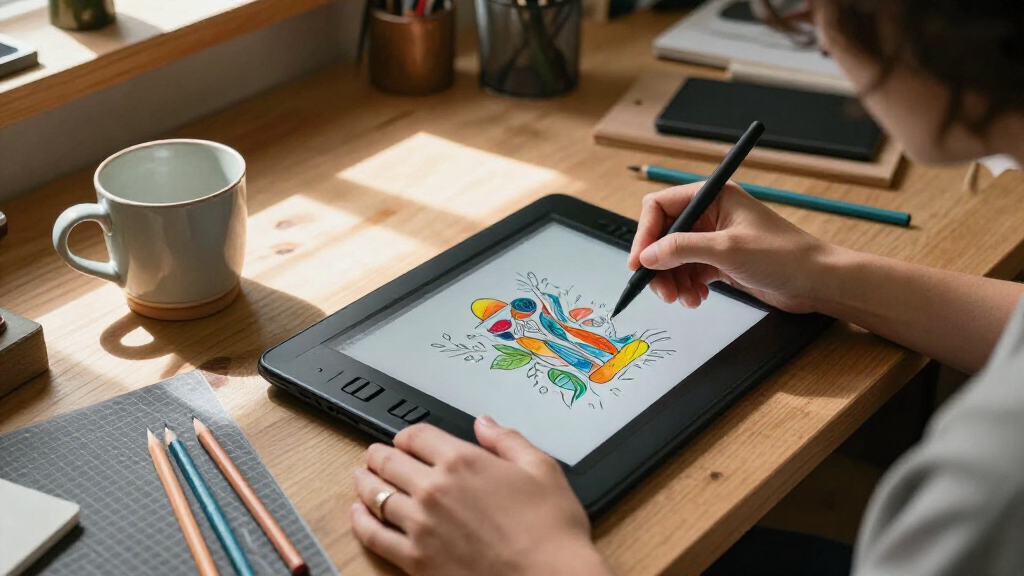
A digital art tablet can mean several kinds of device. The useful distinction is where the image appears and what else must be on hand to make the device work. Pen tablets have a pressure-sensitive surface but no built-in screen; your hand moves on the tablet while you watch the cursor on a separate monitor. Pen displays put the image under the pen tip, but usually still depend on a computer for the art app and processing. Standalone tablets run compatible art apps themselves. A general-purpose iPad or Android tablet can serve a similar role when its stylus and apps meet your needs. Those differences shape more than convenience. With a pen tablet, the separate hand and screen positions can feel unnatural at first, but the device is often easier to store and can be a less expensive way to use a capable computer. That split attention is a small learning cost: once coordination becomes automatic, the larger monitor can make it easier to see the whole composition and surrounding interface. A pen display makes mark placement more intuitive for many people, especially for detailed drawing, though looking down at a desk-mounted screen can affect posture and the computer connection limits portability. A standalone tablet removes that tether, which helps when traveling or sketching away from a desk, but its app selection, file handling, and performance become part of the decision. Convenience can come with a smaller screen or fewer desktop features, so check that the self-contained workflow can handle your actual projects.| Type | Where you look | Typical setup |
|---|---|---|
| Pen tablet | Separate monitor | Tablet plus computer |
| Pen display | Tablet screen | Display plus computer |
| Standalone tablet | Tablet screen | Tablet and compatible app |
| General-purpose tablet | Tablet screen | Tablet, stylus, and art app |
Popular right now

Hisense 55-Inch E6SR Series Hi-QLED 4K UHD Smart Roku TV (55E6SR, 2026 Model)

Ninja Foodi DZ201 8-Quart DualZone 6-in-1 Air Fryer

KitchenAid 3-Piece Pasta Roller and Cutter Set for Stand Mixers
As an affiliate, we earn on qualifying purchases.
Choose pen feel over a headline pressure number
A good stylus should track your hand reliably and feel comfortable during long drawing sessions; its advertised pressure-sensitivity figure is only one part of that experience. Pressure response controls how a brush changes as you press harder or softer, while tilt support can add shading or brush effects when you angle the pen. Low latency and consistent tracking help strokes follow your hand without a distracting delay. These qualities matter because they determine whether the pen feels like an extension of your hand or a tool you have to keep correcting. Suppose you sketch a character with a soft pencil brush. You press lightly for pale construction lines, then add pressure for darker contours. A responsive pen makes those changes feel natural. But a large pressure-level number won’t rescue a stylus that feels slippery, uncomfortable, or inconsistent in the app you use. Pressure sensitivity describes how many input levels the device can report; it does not guarantee that those levels are easy to control or that your brush will use them well. If you can, try the pen with your usual brush settings; otherwise, look for clear details about tracking, tilt, grip, and charging. Your ideal feel depends on what you make. A comic artist may care about clean, controlled inking, where jitter or delayed tracking can make a curve harder to place. A painter may value pressure changes that produce a broad range of brush marks, while tilt can make shading feel more like using a physical pencil. A photographer retouching a portrait might mainly want steady, fine cursor control; elaborate brush response may matter less than a comfortable grip and precise small movements. Check whether the stylus needs charging, whether replacement nibs are easy to find, and whether the features you care about work with your chosen software. For your first test, draw a slow curve, a fast line, and a row of marks from light to firm pressure. Notice whether lines start and stop where you expect and whether your fingers tense up to control the pen. If they feel predictable and your hand stays relaxed, that tells you more about daily use than a spec-sheet race.Check screen details before you pay for a display
When you draw directly on a screen, size, resolution, color, brightness, and parallax affect how comfortable and accurate the work feels. A larger active area gives your hand more room for sweeping strokes, but it also takes up more desk space and may require larger arm movements. The extra area is useful when your gestures are broad or when you want the canvas and tool panels visible together; it has less value if you mostly make small edits and the display forces you to reach across a crowded desk. Higher resolution can make interface details and fine lines look sharper, though it does not make a brush more responsive or improve the underlying file. Color accuracy matters most when art will be printed or viewed on calibrated screens; brightness matters if you work in a brightly lit room, but a bright screen alone does not ensure accurate color. Parallax is the apparent gap between the pen tip and the cursor or mark on screen. If that gap feels noticeable, placing small details can take more correction, which becomes tiring during lettering or precise inking. A laminated display can reduce the distance between the glass surface and the image, though the result varies by model and viewing angle. For example, a lettering artist making tight curves may benefit more from low parallax than someone painting broad, textured backgrounds. This is a practical tradeoff: paying for a display feature matters most when it reduces a repeated annoyance in your work, not simply because it sounds advanced. Screen quality also has a physical tradeoff. A larger display may make it easier to work at full scale, but on a small desk it can push the keyboard away or bring the screen too close. The angle matters too: a stand that lets you raise the screen can reduce neck strain, but may add cost and take up room. If you create print work, compare color specifications and consider how you’ll check the final file on a calibrated monitor; the tablet screen can help you judge the image, but cannot guarantee that a print will match. A screen that looks vivid in a shop may also be tiring at full brightness during a long session, so consider whether you can adjust it comfortably for your room. Make room for your elbow, keyboard, and coffee before choosing the biggest display. The useful screen is the one that provides enough drawing space while letting you maintain a comfortable posture throughout a session.Match the tablet to your apps and existing devices
A tablet fits your workflow only if it works with your computer, operating system, drivers, and art apps. Some models depend on desktop drivers or a cable connection, while standalone and general-purpose tablets rely on apps that run directly on the device. Certain pen features, shortcut controls, or touch gestures may only work in selected software, so check the combination you plan to use rather than assuming every advertised feature works everywhere. Compatibility affects more than whether a device turns on: it determines whether pressure, tilt, shortcuts, and file handoffs behave consistently enough to rely on during paid or time-sensitive work. Say you edit photos on a Windows desktop and paint on a tablet during trips. You’ll want to check that your preferred app supports both devices, that your project files can move between them, and that the tablet can export the formats you need. Cloud syncing may make that handoff easy, but it can depend on a subscription, an internet connection, or account settings. If you work offline or handle sensitive client files, learn how your apps store and export work before relying on cloud features. A test project can reveal differences in brushes, fonts, layers, or color handling before you discover them on an important job. Before buying, follow this quick check:- List your devices: note your computer or phone, its operating system, and available ports.
- Name your apps: confirm that your main drawing, photo, animation, or 3D tools support the tablet and stylus features.
- Check the handoff: find out how you’ll export, back up, and reopen projects on another device.
- Confirm offline use: see whether the app needs internet access or a subscription for the work you do.
Budget for a complete drawing setup, not just the tablet
The device’s sticker price does not always show what it will cost to draw comfortably. A pen display may need a computer you don’t own, and a standalone tablet may need a case or keyboard for your work style. Other possible expenses include an adjustable stand, replacement nibs, a screen protector, a carrying case, and software subscriptions. Prices and included accessories change by model and retailer, so check current listings before you buy. Thinking in terms of a complete setup makes comparisons fair: an inexpensive screen can become costly once you add a computer and stand, while a pricier all-in-one device may replace equipment you would otherwise buy. For a beginner, a screenless pen tablet paired with an existing laptop may keep the initial setup simple and affordable. The tradeoff is that drawing while looking at a separate monitor takes practice. A student who wants a more direct feel might pay more for a pen display, then discover the package excludes the stand they need for long sessions. A traveling illustrator may spend more upfront on a standalone tablet but value the freedom to work away from the desk. The best value therefore depends on what you already own and how often a feature saves time or makes work possible; the cheapest device is not necessarily the least expensive route to a usable workflow. Make a small list before comparing devices: tablet, compatible computer if required, stand, stylus or charging needs, spare nibs, app costs, and protective gear. Then ask which items you already own and which you need right away. Accessories can wait if they aren’t necessary for your first project, but a stable working angle and compatible software can shape daily comfort from the start. Separate essentials from upgrades so a bundle full of extras doesn’t distract from the cost of what you actually need. Shortcut keys, dials, and touch gestures can speed up repeated actions, but only if they fit your habits. If you already use keyboard shortcuts, built-in buttons may add little. If you often zoom, rotate, and change brush size with one hand, a dial might feel like a handy steering wheel for your canvas. Choose based on the tasks you repeat, not the longest feature list.Pick a setup around your kind of creative work
The best tablet for a creator depends on the work, workspace, and routine the device needs to support. Beginners can start with an affordable pen tablet if they own a computer and are comfortable learning the screen-to-hand coordination. This keeps the initial cost low while letting them invest in a capable computer they may already use for other work; the adjustment is worthwhile if they can practice before a deadline. Illustrators who want direct drawing may prefer a pen display or a standalone device. A pen display keeps desktop software and processing available but ties the drawing surface to a computer, while a standalone tablet favors mobility and a simpler setup at the cost of checking its apps and performance against larger projects. Mobile artists often care more about portability, battery life, and app support than desk shortcuts. A photographer retouching product shots may want precise cursor control and a comfortable surface more than a large color-rich screen. An animator working at a desktop may care about software compatibility, shortcut access, and a generous active area because those features support long, repetitive sessions. A student sharing a small room may need a compact device that can slide beside a notebook after class. One tablet can serve several kinds of creative work, but the strongest fit depends on which compromises you can live with and which inconvenience would recur every day. Think about the last project you finished. Did you draw in long sessions at a desk, switch between locations, or mainly edit existing images? A pen display can put your sketch right under your hand, while a portable general-purpose tablet can keep you productive on a commute. General-purpose tablets have become more capable for art, but check the stylus support and app availability for the particular model you’re considering. The trend toward cross-device apps and cloud syncing makes switching easier, yet each app may handle exports, subscriptions, and offline access differently. For a project that moves between devices, test that path with a sample file: the convenience only helps if layers, colors, and editable details survive the handoff.Choose for the hours you’ll spend working, not the five minutes you spend reading the spec sheet.As models and software change, verify current prices, compatibility, availability, and feature claims with the manufacturer or retailer. That extra check can matter when a favorite app or accessory is central to your workflow.
Frequently Asked Questions
Do I need a computer to use a drawing tablet?
Pen tablets and most pen displays generally rely on a computer, while standalone drawing tablets run compatible apps themselves. General-purpose tablets can also create art with supported styluses and apps. Check the exact model’s connection and software requirements before buying.
Can you use an iPad or Android tablet for professional illustration?
Yes, if the tablet supports a stylus and the apps and file formats your work requires. Professional suitability depends on your workflow: check app features, export options, screen quality, and whether you can move projects to the devices your clients or team use.
Does more pressure sensitivity mean better drawing?
Not by itself. Comfortable grip, accurate tracking, predictable pressure response, and low latency shape how a pen feels in use. Try the stylus with your usual brush settings if possible, and check tilt support if you rely on angled shading.
What screen size should you choose for drawing?
Choose a size that gives your hand enough room without crowding your desk or forcing an awkward posture. A lettering artist may appreciate more space for controlled strokes, while someone with a small workspace may find a compact display easier to position.
What extra costs should you budget for?
Consider a stand, replacement nibs, screen protector, carrying case, and software subscription, plus a compatible computer if your tablet needs one. Accessories and included items differ by model, so compare the complete setup and check current product listings.