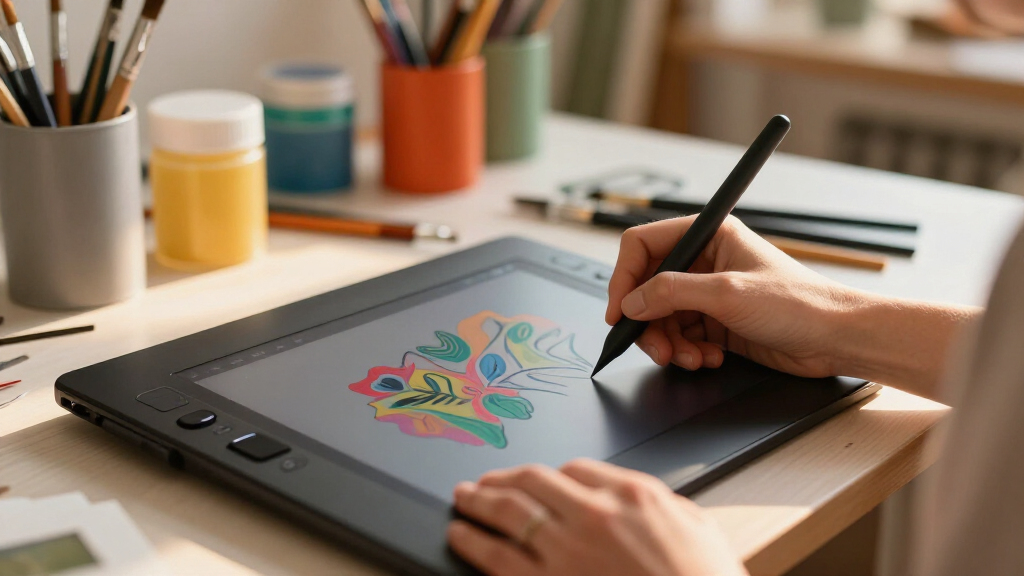
Digital art drawing tablets split into three camps: screenless graphics tablets that demand hand-eye coordination, display tablets where you draw directly on the image, and standalone devices that work without a computer. The Wacom Intuos Small earns my best overall pick among screenless slates for its unmatched pen feel and bundled creative software, while the HUION Kamvas 13 (Gen 3) stands out as the strongest on-screen option thanks to its dual dial controls and full-lamination display. Budget shoppers get real value from the XPPen StarG640, and artists who want to ditch the laptop entirely should look at the PicassoTab X11. The main tradeoff you’ll face is price versus drawing surface: screenless tablets cost far less but require weeks of adjustment, while display and standalone tablets feel natural immediately but add weight, cables, or battery limits. Read on for the full breakdown of all 15 models.
Key Takeaways
- Screenless slates under $60 (XPPen StarG640, HUION H640P) deliver nearly the same pressure sensitivity as premium models — you’re mostly paying for pen feel and build, not raw specs.
- Full lamination separates good display tablets from great ones: the XP-Pen Artist 13.3 Pro and HUION Kamvas 13 Gen 3 minimize parallax, while cheaper screened options like the GAOMON PD1161 keep a visible gap between pen tip and cursor.
- Standalone tablets (PicassoTab X11, Frunsi RubensTab T11 Pro) trade screen size and processing power for total portability — best as a second device, not a primary studio tool.
- Wacom‘s pen technology still feels smoother than budget rivals, but the price gap buys only marginal improvement; Huion and XPPen close most of the difference at half the cost.
- Customizable shortcut keys and dials matter more than beginners expect — models like the HUION Inspiroy 2 Large and Kamvas 13 Gen 3 can cut reliance on keyboard shortcuts dramatically.
| XPPen StarG640 6 × 4 Inch Drawing Tablet with Battery-Free Stylus |  | Best Budget Entry Point | Active area: 6 × 4 inches | Thickness: 2 mm | Stylus: Battery-free PN01 | VIEW LATEST PRICE | See Our Full Breakdown |
| GAOMON PD1161 11.6-Inch FHD Drawing Tablet with Screen |  | Best Value Pen Display | Display: 11.6-inch FHD IPS, matte finish | Color gamut: 72% NTSC / 100% sRGB | Stylus: Battery-free AP50 | VIEW LATEST PRICE | See Our Full Breakdown |
| HUION Inspiroy H1060P Graphics Drawing Tablet, 10 x 6.25 in |  | Best for Shortcut-Heavy Workflows | Working area: 10 x 6.25 inches | Stylus: PW100 battery-free | Tilt support: ±60° | VIEW LATEST PRICE | See Our Full Breakdown |
| PicassoTab A10 10-Inch Standalone Drawing Tablet |  | Best Portable Standalone Option | Screen size: 10 inches, laminated | Processor: Octa-core | RAM: 6GB | VIEW LATEST PRICE | See Our Full Breakdown |
| XP-PEN Artist12 11.6-Inch FHD Drawing Monitor with Battery-Free Stylus |  | Best for Color-Conscious Creators | Display: 11.6-inch IPS, 1920 × 1080 | Color gamut: 72% NTSC (100% sRGB) | Stylus: Battery-free passive pen with eraser | VIEW LATEST PRICE | See Our Full Breakdown |
| UGEE M708 V3 Drawing Tablet, 10 x 6 Inch |  | Best Budget Large-Surface Option | Active drawing area: 10 x 6 inches | Stylus: Passive, 16,384 pressure levels | Shortcut keys: 8 customizable keys | VIEW LATEST PRICE | See Our Full Breakdown |
| HUION Inspiroy H640P 6 x 4-Inch Drawing Tablet with 8192-Level Pressure Sensitivity |  | Best Portable Pick | Active area: 6 x 4 inches | Stylus: Battery-free PW100, 8192 pressure levels | Resolution: 5080 LPI | VIEW LATEST PRICE | See Our Full Breakdown |
| XP-Pen Artist 13.3 Pro Drawing Tablet with Screen |  | Best Pen Display for the Step Up | Display: 13.3-inch fully laminated FHD | Color gamut: 88% NTSC, ≥91% Adobe RGB, ≥123% sRGB | Viewing angle: 178° | VIEW LATEST PRICE | See Our Full Breakdown |
| Wacom Intuos Small Wired Drawing Tablet with Pen and Software |  | Best for Software Ecosystem and Support | Brand: Wacom | Type: Graphics drawing tablet (screenless) | Size: Small | VIEW LATEST PRICE | See Our Full Breakdown |
| XPPen Deco 01 V3 10 x 6.25-Inch Drawing Tablet with Battery-Free Stylus |  | Best Feature-Complete Screenless Tablet | Active area: 10 x 6.25 inches | Stylus pressure levels: 16,384 | Stylus tilt: Up to 60 degrees | VIEW LATEST PRICE | See Our Full Breakdown |
| PicassoTab X11 11-Inch Standalone Drawing Tablet |  | Best Standalone Pick for New Artists | Display: 11-inch laminated 2K screen | Processor: Octa-core | RAM: 6GB | VIEW LATEST PRICE | See Our Full Breakdown |
| HUION Inspiroy 2 Large Drawing Tablet with Customizable Shortcut Keys |  | Best Screenless Tablet for Workflow Control | Active area: 10.5 x 6.56 inches | Stylus: Battery-free PW110 digital pen | Shortcut controls: Scroll wheel and 3 groups of 8 customizable keys | VIEW LATEST PRICE | See Our Full Breakdown |
| Frunsi RubensTab T11 Pro Standalone Drawing Tablet |  | Best Portable Standalone Value | Display: 10.1-inch Full HD IPS, 1920 x 1200 | Processor: Octa-core | Battery: 5800 mAh, up to 5 hours | VIEW LATEST PRICE | See Our Full Breakdown |
| HUION Kamvas 13 (Gen 3) 13.3-Inch Drawing Tablet with Screen, Dual Dial, Black |  | Best Premium Pen Display | Display: 13.3-inch fully laminated Canvas Glass 2.0, anti-sparkle | Pressure sensitivity: 16,384 levels | Initial activation force: 2 g | VIEW LATEST PRICE | See Our Full Breakdown |
| Huion Inspiroy H950P Drawing Tablet, 8 x 5 Inches, 8192-Level Pressure Sensitivity |  | Best Budget Entry Tablet | Active area: 8 x 5 inches | Stylus: PW100 battery-free stylus | Pressure sensitivity: 8192 levels | VIEW LATEST PRICE | See Our Full Breakdown |
| digital art drawing tablet | Compatibility | Stylus |
|---|---|---|
| XPPen StarG640 6 × 4 Inch Draw | Mac, Windows, Chromebook | Battery-free PN01 |
| GAOMON PD1161 11.6-Inch FHD Dr | Windows 7+, macOS 10.12+ | Battery-free AP50 |
| HUION Inspiroy H1060P Graphics | Windows 7+, macOS 10.12+, Android 6.0+, Ubuntu with Xorg | PW100 battery-free |
| PicassoTab A10 10-Inch Standal | — | — |
| XP-PEN Artist12 11.6-Inch FHD | Windows 7/8/10/11, macOS 10.10+, Linux | Battery-free passive pen with eraser |
| UGEE M708 V3 Drawing Tablet | Windows 11/10/8/7, macOS 10.10+, Android 10.0+, Chrome OS 88+, Linux | Passive, 16,384 pressure levels |
| HUION Inspiroy H640P 6 x 4-Inc | Mac, Windows, Linux, Android 6.0+ | Battery-free PW100, 8192 pressure levels |
| XP-Pen Artist 13.3 Pro Drawing | Windows 7+, macOS 10.10+, ChromeOS 88+, Linux | Battery-free, 16,384 pressure levels, 60° tilt, 220 RPS |
| Wacom Intuos Small Wired Drawi | — | — |
| XPPen Deco 01 V3 10 x 6.25-Inc | Windows 7+, macOS 10.13+, Android 10+, ChromeOS 88+, Linux | — |
| PicassoTab X11 11-Inch Standal | — | 4096-level pressure sensitivity |
| HUION Inspiroy 2 Large Drawing | macOS 10.12+, Windows 7+, Linux (Ubuntu), select Android 6.0+ | Battery-free PW110 digital pen |
| Frunsi RubensTab T11 Pro Stand | — | — |
| HUION Kamvas 13 | Windows 10+, macOS 10.12+, select Android (USB 3.1 Gen 1, DP 1.2), Ubuntu 20.04 LTS | — |
| Huion Inspiroy H950P Drawing T | Mac, Windows, Linux, Android 6.0+ | PW100 battery-free stylus |
More Details on Our Top Picks
XPPen StarG640 6 × 4 Inch Drawing Tablet with Battery-Free Stylus
Not everyone needs a large canvas, and the XPPen StarG640 proves that a small, no-frills tablet can still handle serious sketching. Its 6 × 4 inch active area is roughly the size of a smartphone, which makes it easy to slip into a backpack alongside a laptop — something bulkier options like the HUION Inspiroy H1060P can’t match. The battery-free stylus means zero charging downtime, and Chromebook support opens the door for students and online learners who are often locked out of other tablets’ driver ecosystems. The tradeoff is obvious: precision work and long strokes feel cramped compared to a 10-inch class tablet, and there are no shortcut keys to speed up a workflow. This pick makes the most sense for first-time buyers testing whether digital art sticks.
Pros:- Battery-free stylus with no charging required
- Extremely slim 2 mm profile travels easily
- Works with Mac, Windows, and Chromebook
- Versatile for signatures, remote work, and teaching
Cons:- 6 × 4 inch active area feels restrictive for detailed artwork
- No programmable shortcut keys for faster workflows
Best for: Students and first-time digital artists who want a low-risk, ultra-portable tablet for note-taking, sketching, and online learning
Not ideal for: Illustrators working on detailed or large compositions — the 6 × 4 inch surface constrains arm movement and long strokes
- Active area:6 × 4 inches
- Thickness:2 mm
- Stylus:Battery-free PN01
- Compatibility:Mac, Windows, Chromebook
- Shortcut keys:None
- Primary uses:Drawing, sketching, photo editing, digital signatures, online teaching
Our verdict“A dependable starter tablet for casual artists and students, as long as you accept its cramped drawing surface.”
GAOMON PD1161 11.6-Inch FHD Drawing Tablet with Screen
Drawing on a screen instead of a blank tablet is the single biggest jump in usability for beginners, and the GAOMON PD1161 delivers that experience at a friendlier entry point than most pen displays. The matte IPS screen is the standout differentiator — it cuts glare and gives the surface a paper-like drag that the smoother XP-PEN Artist12 doesn’t emphasize. With 8192 pressure levels and tilt support, shading and angled strokes behave the way you’d expect from pricier hardware. Compared with the standalone PicassoTab A10, this model demands a computer with HDMI and USB ports, and possibly an adapter — that tether is the real cost of its better color accuracy and responsiveness. Eight programmable keys plus two pen buttons keep undo, zoom, and brush swaps within reach, which matters once projects grow beyond doodles.
Pros:- Matte screen reduces glare and mimics paper texture
- Battery-free stylus with 8192 pressure levels and tilt
- 8 tablet keys and 2 pen buttons for custom shortcuts
- 100% sRGB coverage for color-accurate work
Cons:- Requires a tethered computer with HDMI and USB ports
- Adapters or the included AC adapter may be needed depending on setup
Best for: Developing artists who want an on-screen drawing experience with accurate color and tactile paper feel without paying flagship prices
Not ideal for: Anyone wanting to draw away from a desk — it cannot function without a connected computer
- Display:11.6-inch FHD IPS, matte finish
- Color gamut:72% NTSC / 100% sRGB
- Stylus:Battery-free AP50
- Pressure sensitivity:8192 levels
- Tilt function:Yes
- Shortcut controls:8 tablet keys, 2 pen buttons
- Compatibility:Windows 7+, macOS 10.12+
- Warranty:1 year
Our verdict“The smartest way to graduate from a blind tablet to a pen display, provided you always work near a computer.”
HUION Inspiroy H1060P Graphics Drawing Tablet, 10 x 6.25 in
Where the XPPen StarG640 strips everything down, the HUION Inspiroy H1060P goes the opposite direction: 28 programmable controls across 12 press keys and 16 soft keys, more than any other screenless tablet in this lineup. For artists who live inside Photoshop or Krita, mapping brushes, layers, and undo to physical buttons removes the constant hand-to-keyboard shuffle that slows down smaller tablets like the UGEE M708 V3. The full-size 10 × 6.25 inch surface gives shoulders and elbows room to move, and ±60° tilt support on the battery-free stylus handles natural shading gestures. This option stands out for OS flexibility too — Android support means you can pair it with a phone for sofa-side sketching. The catches: Linux users must run Xorg (Wayland won’t work), and Mac owners need a USB adapter out of the box.
Pros:- 28 total programmable keys for workflow customization
- Roomy 10 x 6.25 inch working area
- Tilt support up to ±60° for expressive strokes
- Broad compatibility including Android devices
Cons:- Wayland-based Linux systems are unsupported
- No iOS/iPadOS support, and Mac users need a USB adapter
Best for: Intermediate digital artists and photo editors who want a large canvas and heavy shortcut customization at their fingertips
Not ideal for: Beginners who want to see their work under the pen — there’s no screen, and hand-eye coordination takes practice
- Working area:10 x 6.25 inches
- Stylus:PW100 battery-free
- Tilt support:±60°
- Programmable press keys:12
- Programmable soft keys:16
- Compatibility:Windows 7+, macOS 10.12+, Android 6.0+, Ubuntu with Xorg
- Design:Symmetrical for left- and right-handed use
Our verdict“The most productive screenless tablet here for artists who’ve outgrown compact models and want every shortcut within reach.”
PicassoTab A10 10-Inch Standalone Drawing Tablet
Every other tablet here needs a computer — the PicassoTab A10 doesn’t, and that changes who it’s for entirely. Unlike the GAOMON PD1161 or XP-PEN Artist12, this is a self-contained Android device with an octa-core processor, 6GB of RAM, and storage expandable to 1TB, so you can sketch on a train or at a café with nothing tethered. The laminated 10-inch display reduces the parallax gap between pen tip and cursor, a real frustration on cheaper non-laminated screens, and it arrives with apps, tutorials, a case, and a glove so beginners can start immediately. The honest tradeoffs: 4096 pressure levels is half what Huion and Gaomon screen tablets offer, and a 10-inch canvas feels tight for ambitious illustration. Compared with the larger PicassoTab X11, this model trades screen size for portability.
Pros:- Fully standalone — no computer required
- Laminated screen minimizes glare and parallax
- Ships with drawing apps and beginner tutorials
- Expandable storage up to 1TB for large project files
Cons:- 4096 pressure levels trail the 8192 standard of pen displays
- 10-inch screen limits scale for elaborate compositions
Best for: Kids, hobbyists, and travelers who want to draw anywhere without carrying or owning a computer
Not ideal for: Professional illustrators who need high pressure sensitivity, color accuracy, and a large canvas for detailed client work
- Screen size:10 inches, laminated
- Processor:Octa-core
- RAM:6GB
- Storage:64GB, expandable to 1TB
- Stylus pressure levels:4096
- Pre-installed apps:5 creative apps
- Computer required:No
Our verdict“The easiest all-in-one entry into digital art for casual creators who value portability over professional-grade precision.”
XP-PEN Artist12 11.6-Inch FHD Drawing Monitor with Battery-Free Stylus
The XP-PEN Artist12 sits in the same 11.6-inch pen display category as the GAOMON PD1161, but it earns its spot through polish: a programmable touch bar for zooming and canvas navigation that Gaomon doesn’t offer, a stylus with a built-in digital eraser, and Linux support alongside Windows and macOS. The 100% sRGB IPS panel makes it a better fit than the standalone PicassoTab A10 for work where color fidelity matters — illustration portfolios, photo retouching, design mockups. Six customizable keys are fewer than the GAOMON’s eight, but the touch bar compensates by handling the most common navigation moves one-handed. As with any pen display, the tether is the tradeoff: you need a computer with HDMI and USB-A, and lifetime technical support softens but doesn’t eliminate setup friction on machines lacking those ports.
Pros:- Full HD IPS panel covering 100% sRGB
- Programmable touch bar for one-handed zoom and scroll
- Battery-free stylus with digital eraser and 8 spare nibs
- Works across Windows, macOS, and Linux
Cons:- Requires HDMI and USB-A ports or adapters on your computer
- Only 6 shortcut keys versus 8 on the GAOMON PD1161
Best for: Aspiring illustrators and photo editors who need accurate color and fast on-screen navigation while working from a desktop or laptop
Not ideal for: Artists who want to work untethered — this display is nonfunctional without a connected computer
- Display:11.6-inch IPS, 1920 × 1080
- Color gamut:72% NTSC (100% sRGB)
- Stylus:Battery-free passive pen with eraser
- Shortcut keys:6 customizable
- Touch bar:Programmable
- Compatibility:Windows 7/8/10/11, macOS 10.10+, Linux
- Connectivity:HDMI and USB-A required
- Warranty:1 year; lifetime technical support
Our verdict“A refined mid-size pen display for creators whose priority is color accuracy and workflow speed at a fixed desk.”
UGEE M708 V3 Drawing Tablet, 10 x 6 Inch
Most inexpensive tablets force you into a cramped 6 x 4-inch workspace, but the UGEE M708 V3 delivers a full 10 x 6-inch drawing area at a beginner-friendly price. The textured surface is the standout here — it gives the pen a paper-like drag that makes long drawing sessions feel more natural than the slicker plastic on the HUION H640P. With 16,384 pressure levels and eight shortcut keys, it matches the XPPen Deco 01 V3 on paper for a lower cost of entry.
The tradeoff is refinement. The passive stylus lacks the tilt support the Deco 01 V3 offers, which matters if you shade with angled brush strokes. And like all screenless tablets here, it needs a computer or Android device to function — anyone wanting standalone freedom should look at the PicassoTab line instead.
Pros:- Large 10 x 6 inch active area at an accessible price
- Textured surface provides a paper-like drawing feel
- 16,384 pressure levels for fine line control
- Eight customizable shortcut keys speed up common actions
Cons:- No stylus tilt support, limiting expressive brush angles
- Requires a tethered computer or compatible device to work
Best for: Beginners and students who want a large drawing surface and a paper-like feel without spending much
Not ideal for: Artists who rely on tilt-sensitive shading techniques or want to draw away from a computer
- Active drawing area:10 x 6 inches
- Stylus:Passive, 16,384 pressure levels
- Shortcut keys:8 customizable keys
- Connectivity:USB to USB-C; adapters included
- Compatibility:Windows 11/10/8/7, macOS 10.10+, Android 10.0+, Chrome OS 88+, Linux
- Design:Ambidextrous
- Included items:Pen holder, USB cable, extra pen tips
Our verdict“A smart pick for new digital artists who want room to draw big strokes cheaply, as long as tilt shading and standalone use aren’t priorities.”
HUION Inspiroy H640P 6 x 4-Inch Drawing Tablet with 8192-Level Pressure Sensitivity
The HUION H640P earns its spot by being genuinely pocketable — at 0.3 inches thick and 0.61 lbs, it slides into a laptop sleeve more easily than anything else in this lineup. That makes it a different beast from the UGEE M708 V3: smaller, yes, but built for artists who draw in cafés, classrooms, or on commutes rather than at a dedicated desk. Its battery-free stylus and six shortcut keys keep the essentials covered, and it doubles well for photo editing and handwritten notes.
The compromise is real, though. Compared with the 10 x 6-inch surfaces on the M708 V3 or XPPen Deco 01 V3, the 6 x 4-inch area forces short, choppy arm movements — fine for detail work and sketching, frustrating for broad gestural drawing. Note also that it won’t pair with iPhones or iPads at all.
Pros:- Extremely thin and light for genuine portability
- Battery-free stylus needs no charging
- Six customizable shortcut keys on a compact body
- Works across Mac, Windows, Linux, and Android
Cons:- 6 x 4-inch active area feels cramped for large or gestural artwork
- No iOS support at all
Best for: Students, note-takers, and traveling artists who need a lightweight tablet that fits in a bag
Not ideal for: Artists with expressive full-arm strokes, or anyone in the Apple mobile ecosystem, since iPad and iPhone aren’t supported
- Active area:6 x 4 inches
- Stylus:Battery-free PW100, 8192 pressure levels
- Resolution:5080 LPI
- Report rate:233 PPS
- Shortcut keys:6 customizable keys
- Thickness:0.3 inches
- Weight:0.61 lbs
- Compatibility:Mac, Windows, Linux, Android 6.0+
- Warranty:1 year
Our verdict“The one to grab when portability matters more than drawing real estate — just don’t expect it to replace a full-size tablet.”
XP-Pen Artist 13.3 Pro Drawing Tablet with Screen
Every screenless tablet in this roundup shares one hurdle: drawing while looking at a separate monitor. The XP-Pen Artist 13.3 Pro removes that friction entirely with a fully laminated 13.3-inch FHD display, so your pen tip and your line sit on the same surface. That lamination is the key differentiator — it reduces parallax noticeably compared with the GAOMON PD1161 and XP-Pen Artist 12, making the jump from paper to digital feel far less disorienting.
The red dial plus eight shortcut keys put frequently used zoom and brush controls right at your fingertips, and the bundled stand, glove, and nibs mean you won’t be shopping for extras. Still, this is a monitor, not a computer — unlike the standalone PicassoTab models, it must stay tethered to a PC or laptop. And while 13.3 inches suits most work, illustrators used to larger canvases may find it snug.
Pros:- Fully laminated screen greatly reduces parallax versus non-laminated pen displays
- Stylus supports 60° tilt and 16,384 pressure levels
- Red dial and eight shortcut keys keep controls close at hand
- Generous accessory bundle including stand, glove, and replacement nibs
Cons:- Must be connected to a computer or laptop at all times
- 13.3-inch screen feels compact for large-format illustration work
Best for: Artists upgrading from a screenless tablet who want to draw directly on their image with minimal parallax
Not ideal for: Anyone wanting untethered drawing — unlike standalone tablets here, this display requires a connected computer
- Display:13.3-inch fully laminated FHD
- Color gamut:88% NTSC, ≥91% Adobe RGB, ≥123% sRGB
- Viewing angle:178°
- Stylus:Battery-free, 16,384 pressure levels, 60° tilt, 220 RPS
- Controls:Red dial and 8 customizable shortcut keys
- Compatibility:Windows 7+, macOS 10.10+, ChromeOS 88+, Linux
- Included accessories:3-in-1 cable, USB-C cable, stand, stylus, pen holder with nibs, glove, cleaning cloth, power adapter
Our verdict“The most sensible first pen display for artists ready to graduate from blind drawing, provided a tethered setup fits your workspace.”
Wacom Intuos Small Wired Drawing Tablet with Pen and Software
What the Wacom Intuos Small lacks in headline specs it makes up for in polish. Its battery-free EMR pen technology is the most mature in the industry — the same underlying tech Wacom licenses to premium tablet makers — and it delivers line quality that feels dependable from the first stroke. Where HUION and XPPen compete on pressure-level counts, Wacom competes on driver stability and software ecosystem: registration unlocks bundled creative applications and structured online training that genuinely helps newcomers find their footing.
The compromises are straightforward. It’s wired only, with no Android phone support, and the small active area means drawing involves wrist motion rather than arm motion — the UGEE M708 V3 offers more than double the workspace for less complexity. This pick makes the most sense for beginners who value a guided on-ramp and rock-solid drivers over raw surface area.
Pros:- Industry-leading battery-free EMR pen with dependable stroke quality
- Registration includes creative software and online training courses
- Works with a wide range of creative and productivity apps
- Wacom’s driver support is famously stable across OS updates
Cons:- Wired-only connectivity with no mobile device support
- Small active area limits arm movement and large strokes
Best for: First-time digital artists who want bundled software, online training, and the most reliable drivers in the category
Not ideal for: Artists who want a large drawing surface or wireless/Android flexibility — this is a small, wired-only tablet
- Brand:Wacom
- Type:Graphics drawing tablet (screenless)
- Size:Small
- Connectivity:Wired (USB)
- Pen technology:Battery-free EMR
- Included:Pen, software access, and online training
Our verdict“Choose this for the gentlest possible introduction to digital art — not for the biggest canvas.”
XPPen Deco 01 V3 10 x 6.25-Inch Drawing Tablet with Battery-Free Stylus
The XPPen Deco 01 V3 is what happens when a budget brand stops cutting corners. It pairs a 10 x 6.25-inch active area with a stylus offering 16,384 pressure levels and 60° tilt — features the similarly sized UGEE M708 V3 matches only halfway, since that tablet skips tilt entirely. At just 8 mm thick, it’s also remarkably slim for its footprint, closing most of the portability gap with the tiny HUION H640P while offering vastly more drawing room.
Android support is a genuine plus for phone-based artists, though it’s gated behind Android 10 or later, so older devices are out of luck. The bundled extras — ten nibs, a glove, protective film, and a stylus stand — mean fewer add-on purchases than most rivals. The main limitation is inherent to the category: without a screen, you’re still drawing blind compared with the XP-Pen Artist 13.3 Pro.
Pros:- 16,384 pressure levels plus 60° tilt for expressive shading
- Large 10 x 6.25-inch area in a slim 8 mm body
- Shortcut keys support both left- and right-handed workflows
- Generous bundle: 10 nibs, glove, protective film, and stylus stand
Cons:- Android support requires Android 10 or newer, excluding older phones
- Screenless design means drawing while looking at a separate display
Best for: Hobbyists and intermediate artists who want tilt support and a large surface at a screenless-tablet price
Not ideal for: Artists who want to see their work under the pen — a screenless design still requires watching a separate monitor
- Active area:10 x 6.25 inches
- Stylus pressure levels:16,384
- Stylus tilt:Up to 60 degrees
- Shortcut keys:8 customizable keys
- Connectivity:USB-C to USB-C; USB-C to USB-A cable and adapter included
- Thickness:8 mm
- Compatibility:Windows 7+, macOS 10.13+, Android 10+, ChromeOS 88+, Linux
- Included accessories:10 nibs, stylus stand, glove, protective film, USB-C to USB-A cable, USB to USB-C adapter
Our verdict“The best-equipped screenless tablet in this batch for artists who want tilt and workspace without paying for a display.”
PicassoTab X11 11-Inch Standalone Drawing Tablet
This option stands out for removing the biggest barrier for beginners: no computer required. Everything an aspiring artist needs arrives in the box, including five creative apps, tutorials, drawing guides, and accessories like a case and drawing glove. The laminated 2K display reduces the gap between pen tip and cursor, which makes a real difference for newcomers learning hand-eye coordination compared to the screenless Huion Inspiroy H950P. Compared with the Frunsi RubensTab T11 Pro, the larger 11-inch screen and expandable storage up to 1TB give it more room to grow. The tradeoff is precision — the 4096 pressure levels lag far behind a dedicated pen display like the HUION Kamvas 13 Gen 3, and serious artists will eventually outgrow its octa-core performance.
Pros:- Works completely standalone with apps and tutorials preinstalled
- Laminated 2K screen reduces parallax and glare
- Storage expandable up to 1TB for artwork libraries
- Generous accessory bundle including case and glove
Cons:- 4096 pressure levels are basic compared to dedicated pen displays
- Mobile-class processor may feel slow with demanding art apps
Best for: Beginners and casual artists who want to start drawing immediately without buying or tethering a computer
Not ideal for: Experienced illustrators who need 8192+ pressure levels and professional-grade color accuracy
- Display:11-inch laminated 2K screen
- Processor:Octa-core
- RAM:6GB
- Storage:128GB, expandable up to 1TB
- Stylus:4096-level pressure sensitivity
- Included apps:5 creative apps
- Warranty:1 year
Our verdict“If you want a one-box entry into digital art with zero computer dependency, this is the easiest starting point in the roundup.”
HUION Inspiroy 2 Large Drawing Tablet with Customizable Shortcut Keys
This model is better suited to artists who already draw on a computer and want to work faster. The standout feature is 24 customizable shortcut keys across three groups plus a scroll wheel, which means less reaching for the keyboard mid-stroke — a genuine workflow advantage over the simpler eight-key layout of the Huion Inspiroy H950P. The battery-free PW110 pen with PenTech 3.0 keeps the hardware fuss-free, and the broad compatibility spans Windows, macOS, Linux, and select Android devices. Compared with the standalone PicassoTab X11, you give up portability-without-a-PC entirely; this tablet is a peripheral, not a device. The smaller active area also means it demands more hand-eye coordination than a screened option like the GAOMON PD1161.
Pros:- 24 customizable shortcut keys plus a scroll wheel for fast workflows
- Battery-free PW110 stylus with PenTech 3.0
- Wide OS compatibility including Linux and select Android devices
- Left-handed friendly layout with OTG adapter included
Cons:- Requires a tethered computer or mobile device at all times
- Android support only works with certain devices
Best for: Computer-based digital artists and photo editors who want heavy shortcut customization and a battery-free pen
Not ideal for: Anyone without a reliable computer, since the tablet is inoperable standalone
- Active area:10.5 x 6.56 inches
- Stylus:Battery-free PW110 digital pen
- Shortcut controls:Scroll wheel and 3 groups of 8 customizable keys
- Compatibility:macOS 10.12+, Windows 7+, Linux (Ubuntu), select Android 6.0+
- Connection:USB-C
- Included accessories:Pen holder, 10 pen nibs, nib clip, USB-C cable, OTG adapter
- Warranty:1 year
Our verdict“This pick makes the most sense for tethered artists who value shortcut-driven speed over screen feedback.”
Frunsi RubensTab T11 Pro Standalone Drawing Tablet
For sketching on the go, this option stands out for combining full computer independence with a travel-friendly build. The 10.1-inch Full HD IPS screen with multi-touch, preinstalled drawing apps, and an adjustable stand case make it a complete portable studio — more travel-ready than the slightly larger PicassoTab X11 thanks to its integrated stand. The battery-free pressure-sensitive pen means no charging mid-sketch, unlike powered styluses on some Android tablets. Compared with screenless options like the HUION Inspiroy 2, you get direct on-screen drawing, which is far friendlier for beginners. The compromises are real, though: up to 5 hours of battery life constrains long sessions, and the 1920 x 1200 resolution and pressure precision fall short of a professional pen display like the HUION Kamvas 13 Gen 3.
Pros:- Works independently with no computer needed
- Full HD IPS display with multi-touch support
- Battery-free pen plus preinstalled drawing apps
- Adjustable stand case included for travel use
Cons:- Battery limited to about 5 hours per charge
- Pressure sensitivity and resolution trail dedicated pen displays
Best for: Students and hobby artists who want a self-contained tablet for sketching, note-taking, and travel
Not ideal for: Long studio sessions or professional work, due to the 5-hour battery ceiling and modest pressure precision
- Display:10.1-inch Full HD IPS, 1920 x 1200
- Processor:Octa-core
- Battery:5800 mAh, up to 5 hours
- Pen:Battery-free pressure-sensitive pen
- Connectivity:Wi-Fi, USB-C charging
- Included accessories:Digital pen, stylus, gloves, cleaning cloth, adjustable stand case
- Warranty:12 months
Our verdict“A sensible pick for artists who prioritize portability and standalone convenience over professional-grade specs.”
HUION Kamvas 13 (Gen 3) 13.3-Inch Drawing Tablet with Screen, Dual Dial, Black
This is the most serious tool in this batch, and the specs show it. With 16,384 pressure levels and a 2-gram initial activation force, the pen registers the faintest ghost of a stroke — a precision gap you can feel compared to the 8192-level Huion Inspiroy H950P or the 4096-level PicassoTab X11. The fully laminated Canvas Glass 2.0 screen with 99% sRGB coverage and a factory calibration report means colors on screen match your final output, which standalone tablets in this roundup simply can’t promise. Dual dials and five programmable keys, plus the included ST300 adjustable stand, round out a studio-ready package. The obvious tradeoff: it requires a connected computer, and you’ll need a capable one to justify its color accuracy.
Pros:- 16,384 pressure levels with featherlight 2 g activation force
- 99% sRGB coverage with factory calibration report
- Dual dials, five shortcut keys, and adjustable ST300 stand included
- Single USB-C cable connection to compatible devices
Cons:- Not standalone — requires a connected computer or compatible device
- Overkill in price and capability for casual or beginner artists
Best for: Serious hobbyists and professional illustrators with a decent computer who need precise pressure response and color accuracy
Not ideal for: Beginners or computer-free users, since it’s useless without a tethered machine and costs more than entry-level options
- Display:13.3-inch fully laminated Canvas Glass 2.0, anti-sparkle
- Pressure sensitivity:16,384 levels
- Initial activation force:2 g
- Color gamut:99% sRGB; Rec.709, avg. ΔE < 1.5
- Controls:5 programmable keys, dual dial buttons, 3 pen side buttons
- Connectivity:USB-C single-cable
- Stand:Adjustable ST300 included
- Compatibility:Windows 10+, macOS 10.12+, select Android (USB 3.1 Gen 1, DP 1.2), Ubuntu 20.04 LTS
Our verdict“If precise line control and color-accurate output matter to your finished work, this is the tool worth paying for.”
Huion Inspiroy H950P Drawing Tablet, 8 x 5 Inches, 8192-Level Pressure Sensitivity
This option stands out as the low-commitment entry point for screenless drawing. At just 0.3 inches thick and 1.76 lbs, it slips into a laptop bag effortlessly, and the 8192-level battery-free pen delivers sensitivity well beyond its price class — double the PicassoTab X11’s stylus precision, though you give up the standalone screen entirely. Compared with the HUION Inspiroy 2, the eight customizable shortcut keys are fewer and there’s no scroll wheel, so heavy shortcut users should step up to that model. Against the compact HUION Inspiroy H640P, the larger 8 x 5 inch active area gives strokes more room, which suits developing artists better. It remains a peripheral, though: a computer or compatible Android device is mandatory, and Android support requires version 6.0 or later.
Pros:- 8192 pressure levels with a battery-free PW100 stylus
- Slim 0.3-inch profile that travels easily
- Eight customizable shortcut keys
- Broad compatibility including Linux and Android, with left-handed support
Cons:- Requires a connected computer or Android 6.0+ device
- No screen means a learning curve for hand-eye coordination
Best for: Budget-conscious beginners and students who already own a computer and want capable pressure sensitivity without a big spend
Not ideal for: Artists who need on-screen feedback or extensive shortcut controls, since this is a basic screenless peripheral
- Active area:8 x 5 inches
- Stylus:PW100 battery-free stylus
- Pressure sensitivity:8192 levels
- Shortcut keys:8 customizable press keys
- Thickness:0.3 inches
- Weight:1.76 lbs
- Compatibility:Mac, Windows, Linux, Android 6.0+
Our verdict“The most sensible low-risk first tablet for computer-tethered beginners who may upgrade later.”

How We Picked
I evaluated each tablet against the factors that actually shape day-to-day drawing: pen pressure range and tilt support, surface texture and stroke smoothness, display quality for screened models (resolution, color accuracy, lamination), shortcut customization, connectivity, and driver stability. Driver reliability weighed heavily — a brilliant tablet with buggy software is a worse buy than a modest one that never fights you. For standalone tablets, I also considered operating system polish, pre-installed art apps, and battery life.
The ranking rewards value density: a $50 slate that nails the fundamentals outranks a $200 slate with marginal upgrades. Display tablets are judged against a higher bar because their price class demands better color and parallax control. Standalone devices earn their place only when their software experience justifies the hardware compromises, which is why only the strongest two made the middle of the list.
Factors to Consider When Choosing Digital Art Drawing Tablets
Before picking a specific model, it helps to understand the category’s landscape — the most common regret I hear about comes from buying the wrong type of tablet, not a bad model.Screenless, Display, or Standalone?
This is the single biggest decision, and it’s driven by your workflow rather than budget alone. Screenless tablets (the XPPen StarG640, Huion Inspiroy line, Wacom Intuos) force you to draw on the slate while watching a separate monitor — awkward for a week or two, then second nature, and the payoff is durability, portability, and rock-bottom prices. Display tablets like the Kamvas 13 Gen 3 mirror the natural pen-on-paper experience but tether you to a computer and a tangle of cables, often including an external power source. Standalone tablets are essentially Android devices with a good pen — freeing, but limited by mobile app versions of Photoshop and Clip Studio. A common mistake is assuming beginners need a screen; most working digital artists spent years on screenless slates and still prefer them for long sessions.
Active Area Size
Active area matters more than tablet dimensions because that’s the space your strokes map onto. A 6 x 4 inch surface works fine for sketching and photo retouching, but detailed illustration on a 27-inch monitor feels cramped — small arm movements translate to big cursor jumps. A 10 x 6 inch area is the sweet spot for most hobbyists and matches widescreen displays naturally. Going larger than that only pays off if you work with broad, gestural strokes or dual monitors. Also check the aspect ratio: a 16:10 tablet mapping to a 16:9 screen introduces slight distortion unless you adjust the driver settings, which many buyers never realize they can do.
Pressure Sensitivity and Pen Technology
Nearly every tablet in this lineup advertises 8192 pressure levels, which sounds like a meaningful differentiator but rarely is — most artists can’t perceive the difference beyond a few thousand levels. What actually separates pens is initial activation force (how lightly you can press before a stroke registers), tilt recognition, and whether the nib has a spring-loaded or hard feel. Battery-free pens have become standard across all price tiers, so treat any pen that needs charging as a red flag in 2026. Wacom’s pens still lead on subtlety, but Huion and XPPen have closed the gap enough that only discerning line-art artists will notice. Replacement nibs are a hidden cost — check what a pack costs before committing, because felt-tip and flex nibs change the drawing experience dramatically.
Display Quality (If You’re Going Screened)
For display tablets, full lamination — where the glass sits flush against the LCD — is the spec that separates the good from the frustrating, because it eliminates the parallax gap between pen tip and cursor. Color coverage comes second: a 100% sRGB panel lets you trust what you see, while narrower gamuts mean your exported art looks different on other screens. Resolution on an 11.6- or 13.3-inch panel is less of an issue than you’d expect; at 1920 x 1080, pixels are invisible at drawing distance. Anti-glare etched glass is underrated — a glossy screened tablet in a bright room becomes a mirror. Finally, count the cables: many budget display tablets need a three-in-one connection plus USB power, which can overwhelm older laptops.
Shortcut Keys, Dials, and Workflow
Express keys and touch dials are the features buyers skip evaluating and then can’t live without. Being able to undo, zoom, and brush-size without reaching for a keyboard keeps you in flow, and on larger models like the HUION Inspiroy 2 Large with its dial plus eight keys, you may not need a keyboard at all. Placement matters too — left-handed artists should confirm keys sit on the non-dominant side or that the tablet supports rotation. Software customization depth varies: Wacom’s driver panel is the most polished, while budget brands occasionally lose custom profiles after driver updates. If you work in one app, program the keys for that app specifically; per-application profiles exist on most mid-range and up models and are worth setting up on day one.
Software Ecosystem and Compatibility
A tablet is only as good as its drivers, and this is where cheap brands historically stumbled. Before buying, check that the manufacturer supports your operating system version, not just the platform — macOS updates have repeatedly broken third-party tablet drivers, and fixes can lag months. Standalone tablets add another layer: their value depends almost entirely on which Android art apps they run well, since full desktop Photoshop isn’t available. Clip Studio Paint, Infinite Painter, and Krita (via desktop) cover most needs across ecosystems. Also verify the bundled software: Wacom includes genuinely useful creative apps with the Intuos line, which quietly adds real value that budget rivals match only with trial subscriptions.
Frequently Asked Questions
Should a beginner buy a tablet with a screen or a screenless one?
Most beginners adapt to a screenless tablet within one to two weeks, and the money saved can go toward software or art courses. Screenless models like the HUION Inspiroy H640P or XPPen StarG640 are cheap enough that upgrading later costs little, whereas buying a display tablet first locks you into a bigger spend before you know your preferences. The exception is younger artists or casual doodlers who may abandon the hobby if the hand-eye disconnect frustrates them early — for them, a small screened option like the GAOMON PD1161 or a standalone PicassoTab keeps motivation high. If you’re serious about improving, though, the screenless route builds the muscle memory most professional artists rely on.
Is 8192 pressure levels noticeably better than lower counts?
In practice, almost nobody can feel the difference — pressure curves, driver smoothing, and the pen’s initial activation force matter far more than the raw level count. A tablet advertising 8192 levels with a stiff pen will still produce harsh, binary-looking strokes, while a well-tuned pen at half the levels can feel buttery. This is why the Wacom Intuos Small competes despite unremarkable spec sheets: Wacom’s pen tuning is the best in the industry. Treat pressure-level marketing as noise and instead read about how lightly the pen registers a stroke. If ultra-faint hairlines matter to your style, that’s where the premium pens justify themselves.
Can a standalone drawing tablet replace a computer setup?
For sketching, casual illustration, and social media art — yes, and models like the PicassoTab X11 and Frunsi RubensTab T11 Pro do it well. The ceiling appears with professional workflows: mobile versions of Photoshop and Clip Studio Paint lack features, layer limits hit sooner, and heavy brushes lag on tablet processors. File management and client-style exports are also clunkier without a desktop OS. Think of standalone tablets as a portable studio complement rather than a replacement, unless your work is sketch-centric. If you never print large formats or juggle dozens of layers, you may genuinely never miss a computer.
Do these tablets work with Chromebooks or phones?
Many modern screenless tablets support Android and Chrome OS, but compatibility is model-specific and driver-dependent, so verify before buying rather than assuming. Screenless slates like the UGEE M708 V3 and several Huion models work with Samsung phones that support DeX or OTG, turning a phone into a portable drawing station. Display tablets are a different story — most require HDMI output plus USB power, which rules out phones and many Chromebooks entirely. Standalone tablets sidestep the question since they run their own Android OS. If Chromebook is your only computer, stick to screenless models from manufacturers with documented Chrome OS support.
How much should I spend on my first drawing tablet?
For a first tablet, spending between $40 and $80 hits the sweet spot — enough to get a battery-free pen, 8192 pressure levels, and decent build, without paying for features a beginner can’t exploit yet. The XPPen StarG640 and HUION Inspiroy H640P sit exactly in that band and outperform their price class. Jumping straight to a $300+ display tablet makes sense only if you already draw regularly on paper and know screen disconnect will frustrate you. The bigger risk is the opposite: buying the cheapest no-name tablet with unstable drivers and blaming yourself for the glitches. Stay with established brands — Huion, XPPen, UGEE, Wacom — even at the low end.
Conclusion
Matching the right digital art drawing tablet to your situation is simpler than the spec sheets suggest. For best overall, the Wacom Intuos Small delivers the most refined pen experience plus bundled software, while the HUION Kamvas 13 (Gen 3) is the pick if you want a screen. For best value, the XPPen StarG640 and HUION Inspiroy H640P prove that excellent entry-level art costs very little. Beginners should start screenless with the H640P or the roomier UGEE M708 V3, then upgrade once their style demands it. For a premium setup, the Kamvas 13 Gen 3’s dual dials and laminated display justify the jump over the XP-Pen Artist 13.3 Pro. Specific needs: go standalone with the PicassoTab X11 for computer-free portability, choose the HUION Inspiroy 2 Large for keyboard-free workflow with its dial and shortcut keys, and pick the GAOMON PD1161 for the cheapest on-screen drawing. Whatever your budget, the honest truth from this comparison is that mid-range hardware has never been closer to premium — your practice will matter far more than your price point.