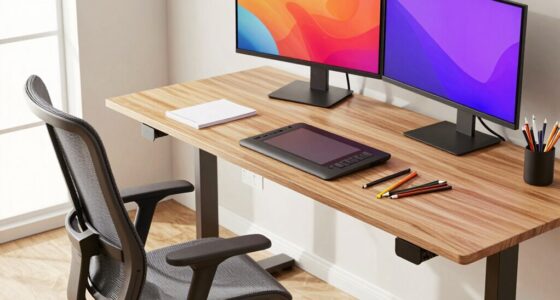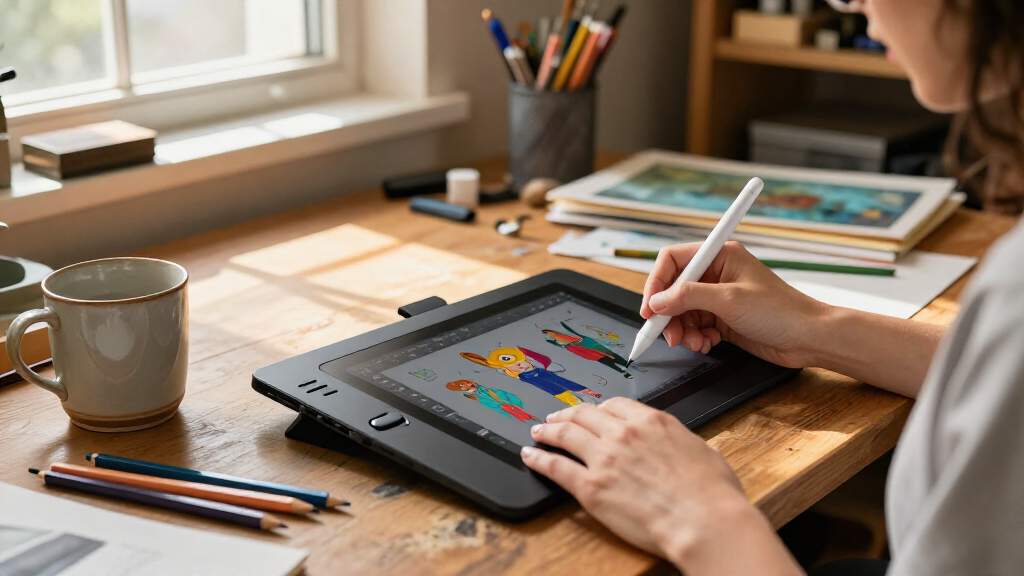

For most digital artists who want a pen display, the HUION Kamvas 13 (Gen 3) is my best overall pick for balancing a useful screen size with artist-focused controls. The XPPen Artist Pro 16 Gen2 stands out for a sharper 2.5K canvas, while the Frunsi RubensTab T11 Pro suits artists who want a standalone tablet rather than a computer-connected display. The main tradeoffs are screen size and image detail versus portability, setup needs, and the cost of adding a capable computer. Screen-free tablets can be a simpler, compact choice, but they require drawing on the tablet while looking at a separate monitor. Continue reading for the full breakdown and guidance on matching a tablet to your workflow.

Get art and craft supplies delivered free with Prime
- Fast, free delivery on millions of items
- Prime Video, Amazon Music and more included
- Member-only deals all year
Key Takeaways
- The lineup splits into three workflows: computer-connected pen displays, screen-free tablets, and standalone tablets; choosing the right type matters more than comparing screen size alone.
- The HUION Kamvas 13 (Gen 3) is the strongest all-rounder in this group for artists who want a display and direct pen-to-canvas drawing without stepping up to a larger premium model.
- The XPPen Artist Pro 16 Gen2 and Artist Ultra 16 4K OLED target image-focused buyers: higher-resolution or OLED screens can make detailed work more appealing, but they do not replace a suitable host computer.
- Several models cluster around compact 11- to 13-inch pen displays, so ergonomics, shortcut controls, connections, and the available drawing area are useful tie-breakers.
- The Frunsi RubensTab T11 Pro and PicassoTab X11 differ from the display-focused picks because standalone use can reduce dependence on a computer, while screen-free options such as Wacom Intuos Small favor a separate-monitor workflow.
| HUION Kamvas Pro 16 Drawing Tablet with Screen |  | Best for a Roomier Drawing Surface | Screen size: 15.6 inches | Screen: Fully laminated, anti-glare glass | Color gamut: 120% sRGB; 92% AdobeRGB | VIEW LATEST PRICE | See Our Full Breakdown |
| XP-PEN Artist12 11.6-Inch FHD Pen Display |  | Best for Beginners | Display: 11.6-inch IPS, 1920 × 1080 | Color gamut: 72% NTSC (100% sRGB) | Stylus: Battery-free, 8192 pressure levels, digital eraser | VIEW LATEST PRICE | See Our Full Breakdown |
| HUION Kamvas 13 (Gen 3) 13.3-Inch Drawing Tablet with Screen and Dual Dial |  | Best for Precision and Workflow Controls | Screen size: 13.3 inches | Pressure sensitivity: 16,384 levels | Color coverage: 99% sRGB | VIEW LATEST PRICE | See Our Full Breakdown |
| XP-Pen Artist 12 3rd 11.9-Inch Drawing Tablet with Screen |  | Best Compact Workflow Upgrade | Display size: 11.9 inches | Resolution: 1920 × 1080 | Weight: 1.58 lb | VIEW LATEST PRICE | See Our Full Breakdown |
| GAOMON PD1161 Drawing Tablet with Screen, 11.6-inch FHD, Tilt Support, 8 Shortcut Keys |  | Best for Simple, Shortcut-Driven Drawing | Screen size: 11.6 inches | Resolution: Full HD (1920 × 1080) | Display type: IPS | VIEW LATEST PRICE | See Our Full Breakdown |
| HUION Kamvas 13 (Gen 3) Drawing Tablet with Screen |  | Best Overall Pen Display | Screen size: 13.3 inches | Pressure sensitivity: 16,384 levels | Color gamut: 99% sRGB; 90% Adobe RGB | VIEW LATEST PRICE | See Our Full Breakdown |
| XP-Pen Artist 13.3 Pro V2 Drawing Tablet with Screen |  | Best for Shortcut-Key Workflows | Display: 13.3-inch full-laminated FHD | Color gamut: 88% NTSC; 91% Adobe RGB; 123% sRGB | Stylus: Battery-free; 16,384 pressure levels; 60-degree tilt | VIEW LATEST PRICE | See Our Full Breakdown |
| XPPen Artist Ultra 16 4K OLED Touchscreen Drawing Tablet |  | Best Premium Display | Screen size: 15.6 inches | Display resolution: 4K OLED, 3840 × 2160 | Color gamut: 99% Adobe RGB; 99% sRGB; 98% Display P3 | VIEW LATEST PRICE | See Our Full Breakdown |
| Frunsi RubensTab T11 Pro Standalone Drawing Tablet |  | Best Standalone Pick | Screen size: 10.1 inches | Resolution: 1920 × 1200 | Processor: Octa-core CPU | VIEW LATEST PRICE | See Our Full Breakdown |
| HUION Inspiroy H1060P Graphics Drawing Tablet |  | Best Value for a Screenless Setup | Working area: 10 × 6.25 inches | Stylus: PW100, battery-free | Tilt support: ±60 degrees | VIEW LATEST PRICE | See Our Full Breakdown |
| UGEE M708 V3 Drawing Tablet, 10 × 6 Inch |  | Best Large-Surface Graphics Tablet | Active area: 10 × 6 inches | Stylus: Passive; 16,384 pressure levels | Shortcut keys: 8 customizable keys | VIEW LATEST PRICE | See Our Full Breakdown |
| PicassoTab X11 11-Inch Standalone Drawing Tablet |  | Best Standalone Tablet for Beginners | Display: 11-inch laminated LCD | Resolution: 2560 × 1440 | Processor: Octa-core | VIEW LATEST PRICE | See Our Full Breakdown |
| XP-Pen Artist 13.3 Pro V2 Drawing Tablet with Screen |  | Best Mid-Size Pen Display for Shortcuts | Display: 13.3-inch fully laminated screen | Resolution: 1920 × 1080 | Pressure sensitivity: 16,384 levels | VIEW LATEST PRICE | See Our Full Breakdown |
| Wacom Intuos Small Wired Drawing Tablet with Pen |  | Best Compact Starter Tablet | Model number: CTL4100 | Connectivity: Wired USB-A | Pen: Battery-free Wacom Pen 4K | VIEW LATEST PRICE | See Our Full Breakdown |
| XPPen Artist Pro 16 Gen2 2.5K Drawing Tablet with Screen |  | Best Premium High-Resolution Pen Display | Display size: 16 inches | Resolution: 2560 × 1600 | Aspect ratio: 16:10 | VIEW LATEST PRICE | See Our Full Breakdown |
| drawing tablets for digital artist | Connectivity | Compatibility |
|---|---|---|
| HUION Kamvas Pro 16 Drawing Ta | 3-in-1 USB-C cable with HDMI signal | Windows 7 or later, macOS 10.12 or later, and Linux (Ubuntu) |
| XP-PEN Artist12 11.6-Inch FHD | HDMI and USB-A; computer required | Windows 7/8/10/11, macOS 10.10 or later, Linux |
| HUION Kamvas 13 | USB-C single-cable connection; 3-in-1 cable | Windows 10 or later, macOS 10.12 or later, compatible Android devices, and Ubuntu 20.04 LTS |
| XP-Pen Artist 12 3rd 11.9-Inch | — | Windows 7 or later, macOS 10.13 or later, Android 10.0 or later, ChromeOS 88 or later, Linux, and Windows ARM |
| GAOMON PD1161 Drawing Tablet w | HDMI and USB | Windows 7 or later and macOS 10.12 or later |
| HUION Kamvas 13 | — | Windows 10 or later, macOS 10.12 or later, Android via USB 3.1 Gen 1/DP 1.2, and Ubuntu 20.04 LTS |
| XP-Pen Artist 13.3 Pro V2 Draw | USB-C and 3-in-1 cable; requires a computer or laptop | Windows 7 or later, macOS 10.10 or later, Chrome OS 88 or later, and Linux |
| XPPen Artist Ultra 16 4K OLED | Reversible USB-C connections; HDMI input supported | Windows 7 or later, macOS 12 or later, Android 10 or later, ChromeOS 88 or later, Windows ARM, and Linux |
| Frunsi RubensTab T11 Pro Stand | Wi-Fi | — |
| HUION Inspiroy H1060P Graphics | — | Windows 7 or later, macOS 10.12 or later, Android 6.0 or later, and Ubuntu Linux with Xorg |
| UGEE M708 V3 Drawing Tablet | USB to USB-C; adapters included | — |
| PicassoTab X11 11-Inch Standal | Wi-Fi | — |
| XP-Pen Artist 13.3 Pro V2 Draw | Full-featured USB-C; legacy HDMI setup supported with separately sold 3-in-1 cable | — |
| Wacom Intuos Small Wired Drawi | Wired USB-A | Mac, Windows, Chromebook, and select Android devices |
| XPPen Artist Pro 16 Gen2 2.5K | Requires connection to a computer; 3-in-1 cable included | Windows 7 or later, macOS 10.10 or later, Android with USB 3.1 DP 1.2, Chrome OS 88 or later, Linux |
More Details on Our Top Picks
HUION Kamvas Pro 16 Drawing Tablet with Screen
The 15.6-inch fully laminated display gives digital artists more working room than the compact XP-PEN Artist12 or GAOMON PD1161, which can mean less zooming and panning across a canvas. Its anti-glare surface adds a slight drawing texture, while the stated 120% sRGB gamut and 92% AdobeRGB coverage offer broad color reproduction for illustration and design. Six shortcut keys and a touch bar put common actions within reach, and the included adjustable stand supports a range of drawing angles. The battery-free pen adds 60° tilt recognition. The tradeoff is desk space and portability: this is larger than the 11.6-inch options, and, like those displays, it must connect to a computer rather than run independently.
Pros:- 15.6-inch laminated, anti-glare screen provides more canvas area than the 11.6-inch options.
- 120% sRGB and 92% AdobeRGB coverage support a broad color range.
- Six customizable keys and a touch bar provide direct workflow controls.
- Adjustable stand and battery-free, tilt-sensitive pen are included.
Cons:- Requires a connected computer and cannot run drawing apps on its own.
- Larger screen takes more desk space and is less portable than the smaller pen displays.
Best for: Digital illustrators who want a larger on-screen canvas and have a dedicated desk setup with a compatible computer.
Not ideal for: Artists who need a standalone tablet, a highly portable setup, or a small display that fits easily into a compact workspace.
- Screen size:15.6 inches
- Screen:Fully laminated, anti-glare glass
- Color gamut:120% sRGB; 92% AdobeRGB
- Contrast ratio:1000:1
- Shortcut controls:6 express keys and touch bar
- Pen:Battery-free PW507 with 60° tilt recognition and 2 programmable side buttons
- Connectivity:3-in-1 USB-C cable with HDMI signal
- Compatibility:Windows 7 or later, macOS 10.12 or later, and Linux (Ubuntu)
Our verdict“Choose the Kamvas Pro 16 if a more spacious drawing surface matters more than portability or standalone use.”
XP-PEN Artist12 11.6-Inch FHD Pen Display
The Artist12 offers a straightforward entry point for artists who want to draw directly on a screen without stepping up to a larger display. Its 11.6-inch, 1920 × 1080 IPS panel keeps the setup compact, while six customizable keys and a programmable touch bar provide useful shortcuts without a crowded control layout. The battery-free stylus includes 8192 pressure levels and a digital eraser, so basic brush variation and quick erasing are built into the pen. Compared with the GAOMON PD1161, it has a similar screen size and stated 100% sRGB coverage, but the GAOMON supplies eight shortcut keys rather than six. The main compromises are the limited drawing area and the need for both HDMI and USB-A connections to a computer, or suitable adapters.
Pros:- Full HD IPS screen provides a clear drawing area in a compact format.
- Battery-free pen includes 8192 pressure levels and a digital eraser.
- Six customizable keys and a programmable touch bar support common actions.
- Works with Windows, Mac, and Linux systems.
Cons:- The 11.6-inch screen can feel cramped for detailed work or large canvases.
- Requires a computer and HDMI plus USB-A connections or suitable adapters.
Best for: New digital artists who want a compact screen-based drawing setup for a compatible desktop or laptop.
Not ideal for: Artists who need a large canvas, standalone operation, or a host computer without accessible HDMI and USB-A ports.
- Display:11.6-inch IPS, 1920 × 1080
- Color gamut:72% NTSC (100% sRGB)
- Stylus:Battery-free, 8192 pressure levels, digital eraser
- Controls:6 customizable shortcut keys and programmable touch bar
- Connectivity:HDMI and USB-A; computer required
- Compatibility:Windows 7/8/10/11, macOS 10.10 or later, Linux
- Warranty:One year, with lifetime technical support
- Included accessories:PN06 multi-function pen holder and glove
Our verdict“The Artist12 suits beginners who want an affordable-feeling, compact on-screen workflow and do not need a larger canvas.”
HUION Kamvas 13 (Gen 3) 13.3-Inch Drawing Tablet with Screen and Dual Dial
The Kamvas 13 (Gen 3) is the most control-focused compact option in this group. Its 13.3-inch fully laminated anti-glare screen is larger than the XP-PEN Artist12 and GAOMON PD1161 displays, while PenTech 4.0 with 16,384 pressure levels and average ΔE below 1.5 target artists who care about nuanced pen response and color accuracy. Five programmable keys and dual dials give more hands-on workflow control than the Artist12’s six keys and touch bar, especially for repeated adjustments. It also supports compatible Android devices, unlike the older compact displays listed here, and includes an adjustable stand. That flexibility has limits: it is still not standalone, and Android use depends on USB 3.1 Gen 1 and DP 1.2 support on the device.
Pros:- 16,384 pressure levels and three customizable pen buttons offer detailed input control.
- Fully laminated anti-glare screen with 99% sRGB coverage and average ΔE below 1.5.
- Dual dials and five programmable keys support hands-on workflow adjustments.
- Works with compatible Android devices as well as supported computers and Linux systems.
Cons:- Requires a connected computer or compatible device and is not standalone.
- Android connectivity depends on USB 3.1 Gen 1 and DP 1.2 support.
Best for: Illustrators who want precise pen input, dial-based controls, and the option to connect to a supported computer or Android device.
Not ideal for: Artists seeking a standalone tablet or Android users who cannot confirm their device supports the required USB-C video connection.
- Screen size:13.3 inches
- Pressure sensitivity:16,384 levels
- Color coverage:99% sRGB
- Color accuracy:Average ΔE < 1.5
- Shortcut controls:5 programmable keys and dual dial buttons
- Connectivity:USB-C single-cable connection; 3-in-1 cable
- Compatibility:Windows 10 or later, macOS 10.12 or later, compatible Android devices, and Ubuntu 20.04 LTS
- Included stand:ST300 adjustable stand
Our verdict“Pick the Kamvas 13 (Gen 3) if precise pen response and dual-dial controls matter more than standalone use.”
XP-Pen Artist 12 3rd 11.9-Inch Drawing Tablet with Screen
The Artist 12 3rd packs unusually extensive controls into a portable 11.9-inch display: eight shortcut keys, two dial wheels, and an X4 pen with 16,384 pressure levels and 60-degree tilt. Its 1920 × 1080 screen uses AG etched glass, and the stated 99% sRGB gamut with ΔE below 1.5 gives it a color-focused spec sheet that compares favorably with the smaller Artist12’s 100% sRGB claim but lower pressure-level count. The foldable stand and broad device compatibility also make it easier to adapt to different workspaces. The cost of that compact setup is canvas area: the 15.6-inch HUION Kamvas Pro 16 is a better fit for artists who want room to work without frequent zooming. This model still needs a compatible connected device.
Pros:- Portable 11.9-inch display weighs 1.58 lb and includes a foldable stand.
- X4 pen supports 16,384 pressure levels and 60-degree tilt.
- Dual dial wheels and eight shortcut keys provide extensive controls for its size.
- AG etched glass and stated 99% sRGB coverage with ΔE below 1.5.
Cons:- Small screen provides less canvas space than the 13.3-inch Kamvas 13 or 15.6-inch Kamvas Pro 16.
- Requires a compatible connected device rather than operating independently.
Best for: Traveling illustrators and control-heavy artists who prefer a small screen but want dials, multiple shortcuts, and a high-sensitivity pen.
Not ideal for: Artists who need a roomy canvas, standalone operation, or a large display for long sessions of detailed work.
- Display size:11.9 inches
- Resolution:1920 × 1080
- Weight:1.58 lb
- Pen:X4 pen with 16,384 pressure levels and 60-degree tilt
- Color:99% sRGB; ΔE < 1.5
- Controls:8 shortcut keys and 2 dial wheels
- Compatibility:Windows 7 or later, macOS 10.13 or later, Android 10.0 or later, ChromeOS 88 or later, Linux, and Windows ARM
- Warranty:1 year
Our verdict“Choose the Artist 12 3rd if portability and hands-on controls outweigh the need for a spacious canvas.”
GAOMON PD1161 Drawing Tablet with Screen, 11.6-inch FHD, Tilt Support, 8 Shortcut Keys
The GAOMON PD1161 keeps its approach simple: an 11.6-inch Full HD IPS screen, a matte anti-glare film, and eight programmable keys. Those extra keys give it a control advantage over the XP-PEN Artist12’s six, while both use a compact screen and a battery-free pen with 8192 pressure levels and stated 100% sRGB coverage. The AP50 stylus also supports tilt, which can help artists use brush effects that respond to pen angle. Its matte surface may suit people who prefer a paper-like feel, though it is a film rather than the etched glass used on the XP-Pen Artist 12 3rd. This is a computer-dependent display, and setup requires HDMI and USB; some laptops may also need an external power adapter.
Pros:- Eight programmable shortcut keys provide more direct controls than the XP-PEN Artist12.
- Battery-free AP50 stylus supports 8192 pressure levels and tilt.
- Matte anti-glare film offers a paper-like drawing feel.
- Full HD IPS screen has a stated 100% sRGB gamut.
Cons:- Must connect to a Windows or Mac computer and cannot run drawing apps independently.
- Requires both HDMI and USB, and some laptops may need an external power adapter.
- 11.6-inch screen offers less working room than the Kamvas Pro 16.
Best for: Artists who want a compact pen display with more physical shortcut keys and a matte drawing surface for a computer-based setup.
Not ideal for: Artists who need standalone use, a larger drawing area, or a connection setup that avoids separate HDMI and USB ports.
- Screen size:11.6 inches
- Resolution:Full HD (1920 × 1080)
- Display type:IPS
- Color gamut:72% NTSC (100% sRGB)
- Stylus:Battery-free AP50 with 8192 pressure levels and tilt support
- Shortcut keys:8 programmable keys
- Connectivity:HDMI and USB
- Compatibility:Windows 7 or later and macOS 10.12 or later
Our verdict“The PD1161 is a sensible fit for computer-based artists who value shortcut keys and a matte surface over screen size or portability flexibility.”
HUION Kamvas 13 (Gen 3) Drawing Tablet with Screen
The Kamvas 13 (Gen 3) is my strongest all-round pick for digital artists who want a connected pen display without moving up to a larger, less portable setup. Its factory-calibrated color and 99% sRGB coverage make it a more confident choice for color-led illustration than a basic display, while the laminated anti-glare glass helps keep the pen tip visually close to the cursor. Dual dials and five keys give it more hands-on control than the XP-Pen Artist 13.3 Pro V2, which has a single dial and eight keys. The HUION is still a compact screen, so broad canvases can feel tight, and its computer-dependent design rules out drawing independently. Some devices also need a specific USB-C cable for best connectivity.
Pros:- Factory-calibrated display with 99% sRGB coverage and stated ΔE below 1.5
- Full-laminated Canvas Glass 2.0 reduces glare and the visual gap beneath the pen
- Dual dials and five silent press keys support frequent tool and canvas adjustments
- 865 g body supports a more portable setup than larger pen displays
Cons:- Requires a computer or compatible Android device to run drawing software
- Some devices need a specific USB-C cable for optimal connection
- The 13.3-inch screen offers less room for palettes and broad compositions than larger displays
Best for: Digital illustrators who want accurate color, a compact screen, and dial-based controls for a desk or portable computer setup.
Not ideal for: Artists who need a standalone tablet, a large drawing surface, or simple cable compatibility across every device.
- Screen size:13.3 inches
- Pressure sensitivity:16,384 levels
- Color gamut:99% sRGB; 90% Adobe RGB
- Weight:865 g
- Thickness:11.7 mm
- Compatibility:Windows 10 or later, macOS 10.12 or later, Android via USB 3.1 Gen 1/DP 1.2, and Ubuntu 20.04 LTS
- Warranty:1 year
Our verdict“Choose the Kamvas 13 (Gen 3) if you want a portable, color-conscious pen display with more dial control than the XP-Pen Artist 13.3 Pro V2.”
XP-Pen Artist 13.3 Pro V2 Drawing Tablet with Screen
The Artist 13.3 Pro V2 suits artists who want a screen tablet with physical controls ready for frequent brush, undo, and canvas adjustments. Its red dial and eight customizable keys offer a practical control layout, while the included foldable stand makes it easier to find a comfortable drawing angle without sourcing an extra support. The full-laminated FHD display reduces the gap between pen and cursor, and the battery-free stylus supports tilt and 16,384 pressure levels. Compared with the HUION Kamvas 13 (Gen 3), this XP-Pen trades dual dials and higher stated sRGB coverage for more shortcut keys and a broader stated sRGB gamut. It still needs a computer, and its 13.3-inch FHD canvas is less spacious and detailed than the XPPen Artist Ultra 16 4K OLED.
Pros:- Full-laminated 13.3-inch FHD screen helps reduce pen-to-cursor parallax
- Red dial and eight customizable keys provide direct workflow controls
- Battery-free stylus offers 16,384 pressure levels and 60-degree tilt
- Includes a foldable stand, replacement nibs, and drawing glove
Cons:- Requires connection to a computer or laptop
- FHD resolution provides less canvas detail than the XPPen Artist Ultra 16 4K OLED
- Its single dial gives less dial-based control than the HUION Kamvas 13 (Gen 3)
Best for: Illustrators who rely on mapped shortcuts and want a compact pen display with a stand and a battery-free, tilt-sensitive stylus.
Not ideal for: Artists seeking a standalone tablet, a 4K work surface, or the strongest stated color accuracy in this group.
- Display:13.3-inch full-laminated FHD
- Color gamut:88% NTSC; 91% Adobe RGB; 123% sRGB
- Stylus:Battery-free; 16,384 pressure levels; 60-degree tilt
- Controls:Red dial and 8 customizable shortcut keys
- Viewing angle:178 degrees
- Connectivity:USB-C and 3-in-1 cable; requires a computer or laptop
- Compatibility:Windows 7 or later, macOS 10.10 or later, Chrome OS 88 or later, and Linux
- Included accessories:Foldable stand, drawing glove, cables, power adapter, pen holder, and replacement nibs
Our verdict“Pick the Artist 13.3 Pro V2 if shortcut keys and an included stand matter more to your drawing routine than 4K resolution or dual dials.”
XPPen Artist Ultra 16 4K OLED Touchscreen Drawing Tablet
For artists whose work benefits from fine detail and broad color coverage, the Artist Ultra 16 is the most display-focused option here. Its 15.6-inch 4K OLED screen gives detailed illustrations and photo edits more room and definition than the 13.3-inch FHD displays on the HUION Kamvas 13 (Gen 3) and XP-Pen Artist 13.3 Pro V2. Touch gestures add direct canvas navigation, while the included remote has 40 customizable keys for artists who want a wide range of mapped commands. Two styluses offer different shapes for drawing preferences. Those features come with a computer-connected workflow, and touch support depends on a supported operating system version. Its screen size and control options make it better suited to a settled desk than a grab-and-go setup.
Pros:- 15.6-inch 4K OLED display provides fine detail and a large drawing canvas
- Broad stated coverage across Adobe RGB, sRGB, and Display P3
- Includes two 16,384-level styluses with 60-degree tilt
- 40-key shortcut remote and touch gestures support flexible navigation
Cons:- Requires a computer connection rather than running drawing apps independently
- Touch support is limited to specified operating systems and versions
- Larger screen is less suited to compact travel setups than the 13.3-inch HUION Kamvas 13 (Gen 3)
Best for: Digital painters, photo editors, and illustrators who need a detailed 4K canvas, wide color coverage, and extensive shortcut control at a desk.
Not ideal for: Artists who need a standalone device, prefer a compact travel tablet, or use an operating system without supported touch features.
- Screen size:15.6 inches
- Display resolution:4K OLED, 3840 × 2160
- Color gamut:99% Adobe RGB; 99% sRGB; 98% Display P3
- Color depth:10-bit, 1.07 billion colors
- Color accuracy:Delta E below 1.1
- Styluses:X3 Smart Chip Pro Stylus and X3 Pro Slim Stylus; 16,384 pressure levels; 60-degree tilt
- Shortcut remote:ACK05 with 40 customizable keys
- Compatibility:Windows 7 or later, macOS 12 or later, Android 10 or later, ChromeOS 88 or later, Windows ARM, and Linux
- Connectivity:Reversible USB-C connections; HDMI input supported
Our verdict“Choose the Artist Ultra 16 if screen detail, color coverage, and extensive controls matter more than portability or standalone use.”
Frunsi RubensTab T11 Pro Standalone Drawing Tablet
The RubensTab T11 Pro fills a different need from the connected pen displays in this roundup: it runs without a computer. That makes it a practical choice for artists who want to sketch away from a desk, and the pre-installed drawing apps give beginners a starting point without first setting up desktop software. Its 10.1-inch Full HD IPS screen is smaller than the HUION Kamvas 13 (Gen 3) and XP-Pen Artist 13.3 Pro V2, so it gives up workspace for independence and portability. The battery-free pressure-sensitive pen and included stand case help with drawing and note-taking, but up to five hours of battery life may not cover a long session away from an outlet. The supplied data does not specify pressure levels or color gamut, which limits spec-based comparisons with the pen displays.
Pros:- Standalone operation does not require a computer connection
- 10.1-inch Full HD IPS screen supports drawing and everyday tablet use
- Includes a battery-free pressure-sensitive pen and drawing accessories
- Pre-installed drawing apps and tutorials provide a starting point for beginners
Cons:- Battery life is listed as up to five hours
- Smaller screen gives less drawing room than the HUION Kamvas 13 (Gen 3)
- Provided specifications do not state pressure-level count, color gamut, or expandable storage
Best for: Students, beginners, and mobile sketchers who want drawing apps on a self-contained tablet without carrying a laptop.
Not ideal for: Artists who need a larger canvas, specified color-gamut performance, or a battery that can support extended sessions away from charging.
- Screen size:10.1 inches
- Resolution:1920 × 1200
- Processor:Octa-core CPU
- Battery capacity:5800 mAh
- Battery life:Up to 5 hours
- Connectivity:Wi-Fi
- Charging port:USB-C
- Included accessories:Digital pen, stylus, gloves, cleaning cloth, and adjustable stand case
- Warranty:12 months
Our verdict“Choose the RubensTab T11 Pro if working without a computer matters more than a larger canvas or clearly specified display color performance.”
HUION Inspiroy H1060P Graphics Drawing Tablet
The Inspiroy H1060P is the straightforward choice for artists who are comfortable drawing on a surface while watching a separate monitor. Its 10 × 6.25-inch working area gives a stylus more room than a small entry-level pad, and the battery-free pen with tilt support covers the core needs of line work and shading. A total of 28 programmable controls offers more shortcut options than the XP-Pen Artist 13.3 Pro V2, though this HUION has no built-in screen; buyers who want to see the artwork directly beneath the pen should choose a pen display such as the Kamvas 13 (Gen 3). Compatibility includes Windows, macOS, Android, and Ubuntu Linux, but Ubuntu requires Xorg, not Wayland. This is a screenless input device, so it depends on a separate compatible display and setup.
Pros:- 10 × 6.25-inch active area gives room for broad strokes
- Battery-free pen supports ±60-degree tilt and 8,192 pressure levels
- 12 press keys and 16 soft keys provide extensive shortcut customization
- Supports left- and right-handed use across several desktop and Android systems
Cons:- No built-in screen, unlike the HUION Kamvas 13 (Gen 3) and XP-Pen Artist 13.3 Pro V2
- Ubuntu compatibility requires the Xorg display server; Wayland is unsupported
- Not compatible with iPhone or iPad
Best for: Budget-conscious illustrators and students who already have a computer display and want a roomy, customizable pen tablet for drawing software.
Not ideal for: Artists who need a built-in screen, use an iPad or iPhone, or run Ubuntu through Wayland.
- Working area:10 × 6.25 inches
- Stylus:PW100, battery-free
- Tilt support:±60 degrees
- Pressure sensitivity:8,192 levels
- Programmable keys:12 press keys and 16 soft keys
- Compatibility:Windows 7 or later, macOS 10.12 or later, Android 6.0 or later, and Ubuntu Linux with Xorg
- Warranty:1 year
Our verdict“Pick the Inspiroy H1060P if you want a spacious, shortcut-rich screenless tablet and are comfortable drawing while looking at a separate display.”
UGEE M708 V3 Drawing Tablet, 10 × 6 Inch
The UGEE M708 V3 is a strong fit for artists who want room for broad strokes without paying for a built-in display. Its 10 × 6-inch active area is substantially less cramped than the Wacom Intuos Small, which can make sketching and painting feel more natural for users accustomed to larger hand movements. The textured drawing surface, 16,384 pressure levels, and eight customizable keys give it useful control for brush work and shortcuts. It also supports a wider range of operating systems than many basic pen tablets.
The tradeoff is that this is a screenless tablet: you draw on the surface while looking at a connected device, and it cannot work independently. Choose the PicassoTab X11 instead if you want a standalone screen, or the XP-Pen Artist 13.3 Pro V2 if drawing directly on a display matters more than getting a larger, screen-free work area.
Pros:- Roomy 10 × 6-inch active area with a textured surface
- Passive stylus supports 16,384 pressure levels
- Eight customizable shortcut keys
- Works with Windows, macOS, Android, Chrome OS, and Linux
Cons:- Requires a computer or compatible device to operate
- No built-in display, so drawing and viewing happen on separate surfaces
- USB connection and adapters may be less convenient than a wireless setup
Best for: Digital artists who want a roomy, customizable pen tablet for a computer or compatible Android device and are comfortable drawing without a screen.
Not ideal for: Artists who need a standalone tablet or want to see the pen tip directly on a display while drawing.
- Active area:10 × 6 inches
- Stylus:Passive; 16,384 pressure levels
- Shortcut keys:8 customizable keys
- Connectivity:USB to USB-C; adapters included
- Operating systems:Windows, macOS, Android, Chrome OS, Linux
- Included accessories:Pen holder, extra pen tips, USB cable
- Design:Ambidextrous
Our verdict“Choose the UGEE M708 V3 for a spacious, feature-rich drawing surface if you do not need a screen or standalone operation.”
PicassoTab X11 11-Inch Standalone Drawing Tablet
The PicassoTab X11 suits artists who want to start drawing without connecting a separate computer. Its 11-inch laminated 2K display puts the artwork beneath the stylus, while included apps, tutorials, and accessories give beginners a ready-to-use setup. The 6GB of RAM and expandable storage also leave room for schoolwork, streaming, and other tablet tasks, making it more versatile than the computer-dependent UGEE M708 V3 or XP-Pen Artist 13.3 Pro V2.
That independence comes with a tradeoff: the X11 runs a custom operating system, rather than the familiar desktop environment used with pen displays. Its 4,096 pressure levels are also lower than the 16,384 levels listed for the XP-Pen Artist 13.3 Pro V2 and UGEE M708 V3. This makes the X11 a compelling guided entry point, but artists who rely on a particular desktop workflow or want more stylus input levels should look elsewhere.
Pros:- Works without a separate computer
- Laminated 11-inch display with 2560 × 1440 resolution
- Includes drawing apps, beginner tutorials, and useful accessories
- 128GB storage can expand up to 1TB
Cons:- Custom operating system may not fit desktop-based art workflows
- Stylus has 4,096 pressure levels, fewer than several computer-connected options here
- Included tutorials and app features are oriented toward beginners
Best for: New digital artists, students, and casual creators who want an all-in-one drawing tablet with a display, starter guidance, and room for general tablet use.
Not ideal for: Artists who need a desktop operating system, depend on specific professional software, or prioritize the higher listed pressure levels of the XP-Pen Artist 13.3 Pro V2.
- Display:11-inch laminated LCD
- Resolution:2560 × 1440
- Processor:Octa-core
- Memory:6GB RAM
- Storage:128GB; expandable up to 1TB
- Stylus pressure sensitivity:4,096 levels
- Operating system:Custom Graphics Tablet OS
- Connectivity:Wi-Fi
- Warranty:1 year
Our verdict“Pick the PicassoTab X11 if you want a guided, standalone drawing setup and are comfortable with its custom operating system.”
XP-Pen Artist 13.3 Pro V2 Drawing Tablet with Screen
The XP-Pen Artist 13.3 Pro V2 hits a useful middle ground for artists who want to draw directly on a screen without moving up to a larger display. Its 13.3-inch laminated Full HD panel reduces the gap between the pen tip and the image, while the battery-free stylus offers 16,384 pressure levels. Eight customizable keys and a red dial provide hands-on controls that the screenless UGEE M708 V3 cannot match in the same way. Color coverage across sRGB, Adobe RGB, and P3 also gives creators useful range when working with color-sensitive art.
Unlike the PicassoTab X11, this is not a standalone tablet: it needs a compatible computer or device. Its Full HD resolution is less detailed than the 2.5K screen on the XPPen Artist Pro 16 Gen2, but the smaller format may suit a compact desk or portable setup better. Buyers using HDMI should note that the required 3-in-1 cable is sold separately.
Pros:- Fully laminated 13.3-inch Full HD display reduces parallax
- Battery-free stylus with 16,384 pressure levels
- Eight customizable keys and a red dial for shortcut control
- Includes a foldable stand and drawing accessories
Cons:- Requires a compatible computer or device
- HDMI setup requires a separately sold 3-in-1 cable
- Full HD resolution is lower than the XPPen Artist Pro 16 Gen2’s 2.5K panel
Best for: Illustrators who want a compact, computer-connected pen display with tactile shortcut controls and broad color coverage.
Not ideal for: Artists who need a standalone device, a larger 2.5K canvas, or an HDMI setup without purchasing a separate cable.
- Display:13.3-inch fully laminated screen
- Resolution:1920 × 1080
- Pressure sensitivity:16,384 levels
- Color gamut:99% sRGB, 89% Adobe RGB, 95% P3
- Shortcut controls:8 customizable keys and red dial
- Connectivity:Full-featured USB-C; legacy HDMI setup supported with separately sold 3-in-1 cable
- Compatible operating systems:Windows, macOS, Chrome OS, Android, Linux
- Included accessories:Foldable stand, stylus, pen holder with replacement nibs, drawing glove, cables, power adapter
Our verdict“Choose the Artist 13.3 Pro V2 for a compact pen display with strong shortcut controls, provided you already have a compatible connected device.”
Wacom Intuos Small Wired Drawing Tablet with Pen
The Wacom Intuos Small is the simplest fit here for beginners who value a compact, uncomplicated pen tablet over a broad drawing area. Its battery-free Wacom Pen 4K avoids charging the stylus, and four ExpressKeys make common shortcuts easier to reach. Creative software access and online training add useful starting points for people learning digital drawing, photo editing, or note-taking. Compared with the UGEE M708 V3, though, the Intuos Small gives up active area and shortcut count in exchange for a smaller footprint.
That compact size is also its main limit: long strokes and large compositions can feel constrained beside the UGEE’s 10 × 6-inch surface or a display tablet such as the XP-Pen Artist 13.3 Pro V2. The wired USB-A connection keeps the setup straightforward but tethers the tablet to a compatible device. I’d choose it for learning and occasional work, not for artists who want a spacious daily canvas.
Pros:- Compact size suits small desks and easy storage
- Battery-free Wacom Pen 4K
- Four ExpressKeys provide quick access to shortcuts
- Includes creative software access and online training
Cons:- Small drawing surface can restrict broad strokes and detailed compositions
- Wired USB-A connection limits placement and requires a compatible port
- Offers fewer ExpressKeys and less active area than the UGEE M708 V3
Best for: Beginners, students, and mobile-minded artists who want a compact wired tablet for learning, notes, or occasional digital drawing.
Not ideal for: Artists who work on large compositions, want to draw directly on a screen, or need more shortcut controls and active area.
- Model number:CTL4100
- Connectivity:Wired USB-A
- Pen:Battery-free Wacom Pen 4K
- Shortcut controls:4 ExpressKeys
- Compatibility:Mac, Windows, Chromebook, and select Android devices
- Included accessories:USB-A cable, 3 extra nibs, nib removal tool, quick start guide
- Warranty:1 year
Our verdict“Choose the Intuos Small as a compact first tablet for learning and lighter tasks, but step up to the UGEE M708 V3 for more drawing room.”
XPPen Artist Pro 16 Gen2 2.5K Drawing Tablet with Screen
For artists who want a larger, sharper on-screen workspace, the XPPen Artist Pro 16 Gen2 is the most display-focused choice in this group. Its 16-inch laminated 2.5K screen gives more room for palettes and detailed artwork than the 13.3-inch XP-Pen Artist 13.3 Pro V2, while the 16:10 shape adds vertical working space. The anti-glare finish, stated color accuracy of △E < 2.2, and 99% sRGB coverage suit artists who care about seeing fine detail and color on the display. A battery-free X3 Pro stylus and wireless shortcut remote round out the drawing setup.
This size and resolution come with a firm dependency: the Artist Pro 16 Gen2 must connect to a computer or compatible device, unlike the standalone PicassoTab X11. It also needs more desk space than smaller pen displays. Choose it for a dedicated workstation; skip it if portability or all-in-one use matters more than a large, high-resolution canvas.
Pros:- 16-inch laminated anti-glare display with 2560 × 1600 resolution
- Battery-free X3 Pro stylus supports 16,384 pressure levels
- Includes a foldable stand and wireless shortcut remote
- Lists 99% sRGB coverage and △E < 2.2 color accuracy
Cons:- Requires a computer or compatible device to function
- Larger display takes more desk space than the 13.3-inch XP-Pen Artist 13.3 Pro V2
- A pen display setup is less self-contained than the PicassoTab X11
Best for: Experienced illustrators and digital painters who want a roomy, high-resolution pen display for a computer-based studio workflow.
Not ideal for: Artists who need a standalone tablet, a compact travel setup, or a screen-free graphics tablet like the UGEE M708 V3.
- Display size:16 inches
- Resolution:2560 × 1600
- Aspect ratio:16:10
- Stylus:X3 Pro, battery-free
- Pressure levels:16,384
- Color performance:99% sRGB coverage; 159% sRGB color gamut area ratio; △E < 2.2
- Connectivity:Requires connection to a computer; 3-in-1 cable included
- Compatibility:Windows 7 or later, macOS 10.10 or later, Android with USB 3.1 DP 1.2, Chrome OS 88 or later, Linux
- Included accessories:ACK05 Mini Keydial, digital pen, glove, HDMI cable, replacement nib
Our verdict“Choose the Artist Pro 16 Gen2 for a spacious 2.5K drawing display at a computer-based workstation, not for standalone or highly portable use.”

How We Picked
I ranked these drawing tablets for digital artists by how well each fits a distinct working style, rather than treating every screen size or feature as directly comparable. The main criteria were drawing-area usability, display clarity where applicable, pen and control features, portability, setup requirements, and the likely usefulness of the hardware for illustration and other pen-led creative work. I also separated computer-connected pen displays from standalone tablets and screen-free tablets, since each depends on a different workflow and set of equipment.
The order favors versatility and practical fit first, with premium display capabilities rewarded when they serve artists who can make use of them. Value here means useful capability without unnecessary complexity, not simply the lowest-cost device. I account for drawbacks such as a compact canvas, dependence on a computer, or a standalone device’s different performance and app constraints. Two listed entries repeat the HUION Kamvas 13 (Gen 3) and two repeat the XP-Pen Artist 13.3 Pro V2; I treat those repeated names as the same model family, not as separate reasons to rank a product higher.
Factors to Consider When Choosing Drawing Tablets For Digital Artists
Before choosing a model, I’d match the tablet to the way you actually draw: where the image appears, what device runs your art software, and how much workspace you need. These broader decisions can matter more over time than a single display specification.
Choose the workflow before comparing models
A pen display shows the artwork beneath the pen, but most models in this roundup connect to a computer, so the display is not the same as a complete computer. A screen-free tablet sends pen input to a separate monitor, which can feel unfamiliar until hand and eye coordination settles in. Standalone tablets reduce cable and computer dependence, but the included operating environment may not match the apps or file workflow you already use. A common mistake is choosing by the word “screen” without checking whether the device runs software on its own. I’d write down the art apps, computer, and file-transfer habits you need before narrowing the list. That short check can rule out the wrong category before specifications distract you.
Match the drawing area to the kind of work you make
A compact display takes up less desk space and is easier to carry, but it can leave less room for a full canvas, panels, and hand movement. A larger screen may feel more comfortable for long sessions or detailed compositions, though it also asks for more desk space and can be less convenient to pack. Screen diagonal alone does not tell you how much usable drawing area remains once interface panels are open. Artists who work with zoomed-in line art may be happy on a smaller device, while those who keep a broad canvas visible may prefer more room. I’d compare the tablet’s active area with your usual software layout, not just its overall dimensions. If possible, check stand and monitor height too, since an awkward viewing angle can undercut the comfort of a larger display.
Treat resolution and display technology as workflow choices
Higher resolution can make fine interface details and image edges appear more defined, but it does not automatically improve drawing skill or file quality. The benefit depends on the screen size, your viewing distance, and whether your computer can drive the display as intended. OLED and other display technologies may appeal to artists who care about rich visual presentation, yet color handling still depends on calibration and the software pipeline. A frequent buying mistake is assuming a vivid screen guarantees accurate color for print work. If color matching matters, look into calibration options and the rest of your monitor setup before paying for a premium panel. For sketching and many illustration workflows, pen feel and a comfortable canvas can matter more than the highest resolution available.
Check computer, cable, and software compatibility
A pen display often needs a compatible computer and specific connection options, while a standalone tablet has different app and file-management limits. Confirm the device’s supported operating systems, available ports, and any required adapters before buying; a cable arrangement that does not fit your desk can become a daily annoyance. Also check that your preferred art software runs on the host computer or standalone operating system you plan to use. Artists who move between a desktop and laptop should account for how often they will reconnect everything. Do not assume every USB-C port supports video output simply because the connector fits. A compatibility check is less exciting than comparing pen features, but it prevents buying a tablet that cannot serve your intended setup.
Prioritize controls and ergonomics for long sessions
Shortcut keys and dials can reduce repeated trips to the keyboard, but their value depends on whether they map cleanly to the commands you use. A tablet with fewer controls may still suit an artist who keeps one hand on a keyboard or prefers a minimal interface. Pen tilt support can help with brush behavior in compatible software, while pressure sensitivity is most useful when your chosen app and brushes make use of it. Consider whether the tablet can sit at a comfortable angle and whether your drawing arm has room to move. A stand or adjustable workspace may be a better upgrade than paying for extra controls you rarely touch. I’d favor reliable, reachable controls over a long feature list when drawing sessions are frequent.
Pay for the capability you will use
Spending more makes sense when a larger or sharper display, standalone operation, or specific control layout solves a real limitation in your current workflow. It is harder to justify a premium screen if your computer struggles with the software or if you mainly make rough sketches. At the other end, a basic screen-free tablet can be a practical starting point if you already have a monitor and want to learn pen input. Keep the full setup in view: computer requirements, cables, workspace, and any stand can affect the experience as much as the tablet itself. Beginners often benefit from a dependable, manageable device more than an advanced panel they have not yet learned to use. I’d choose the least complex option that supports the work you expect to do next, not only the work you do today.
Frequently Asked Questions
Do I need a computer to use a drawing tablet with a screen?
Usually, yes: a pen display shows your computer’s artwork but does not run desktop drawing software by itself. The computer handles the art app and sends the image to the display, so check that your computer has compatible connections and can run your chosen software. The Frunsi RubensTab T11 Pro and PicassoTab X11 are listed as standalone options, which may suit drawing away from a computer, though their app and file workflows can differ from a desktop setup. A screen-free model such as the Wacom Intuos Small also depends on a separate computer and monitor. Decide whether you need a display, a complete portable device, or simply pen input before choosing.
Is a screen-free tablet harder to learn than a pen display?
Many new users find a pen display more intuitive because the pen touches the same area where the marks appear. With a screen-free tablet, your hand moves on one surface while the cursor appears on a separate monitor, which can take practice. That difference does not make screen-free tablets unsuitable for serious art; some artists prefer the posture and monitor-based workspace. The Wacom Intuos Small, HUION Inspiroy H1060P, and UGEE M708 V3 represent this separate-monitor approach in this roundup. If you are unsure, prioritize a comfortable active area and give yourself time to adapt rather than judging the workflow after a brief session.
Should I choose a 13-inch display or a 16-inch display?
A 13-inch model is easier to fit on a crowded desk or carry, while a 16-inch display offers more room for a canvas and interface panels. The larger option can reduce how often you zoom and pan, but it takes up more space and may be less convenient for travel. Screen size should be judged alongside resolution, stand placement, and the workspace your software uses. In this lineup, compact options such as the HUION Kamvas 13 (Gen 3) contrast with the 16-inch XPPen models, which serve artists who want more display area or detail. Choose based on your normal desk and canvas habits, not on diagonal measurement alone.
Can I use a standalone drawing tablet as my main art device?
Yes, if its operating system supports the art apps and file workflow you rely on. A standalone tablet can simplify travel and reduce dependence on a computer, but desktop software, storage, file transfer, and peripheral support may differ. Before making it your primary device, check app availability, export formats, backup options, and whether the screen size suits extended work. The Frunsi RubensTab T11 Pro and PicassoTab X11 are the standalone choices in this roundup, so they answer a different need than computer-connected pen displays. Artists who depend on a particular desktop app should verify compatibility before leaving their computer-centered setup.
When is a premium display worth choosing over a more basic tablet?
A premium display makes sense when its extra screen detail, panel characteristics, or drawing area directly supports the work you do often. The XPPen Artist Pro 16 Gen2 offers a 2.5K display, and the Artist Ultra 16 is positioned around a 4K OLED touchscreen, but those features are most useful when your computer, software, and visual workflow can take advantage of them. For learning, sketching, or occasional illustration, a less complex model may leave more room in your setup for other needs. Also account for ergonomics and calibration if color-sensitive work is part of your practice. Paying for a more advanced screen is a workflow decision, not a guarantee of better artwork.
Conclusion
For a balanced computer-connected drawing display, I’d start with the HUION Kamvas 13 (Gen 3) as best overall. The HUION Inspiroy H1060P or UGEE M708 V3 are sensible value-style choices for artists who already have a monitor and want a screen-free setup, while the XPPen Artist Pro 16 Gen2 is my best premium pick for buyers who want a larger, sharper canvas. Beginners who want to draw directly on a display can look to the XP-PEN Artist12 or GAOMON PD1161 compact options, provided their computer is compatible. For artists who want to work without a computer, I’d compare the Frunsi RubensTab T11 Pro and PicassoTab X11 around app support and file handling. Pick the workflow first, then choose the screen size and features that fit your actual art routine.
Halloween Picks

JOYIN 5-Foot Halloween Animatronic Drinking Skeleton

Haunted Hill Farm 4.6‑Ft Head‑Spinning Beatrix Halloween Animatronic Prop

10-Foot Halloween Inflatable Double-Headed Dragon Archway
As an affiliate, we earn on qualifying purchases.